 SmartSoloFlow
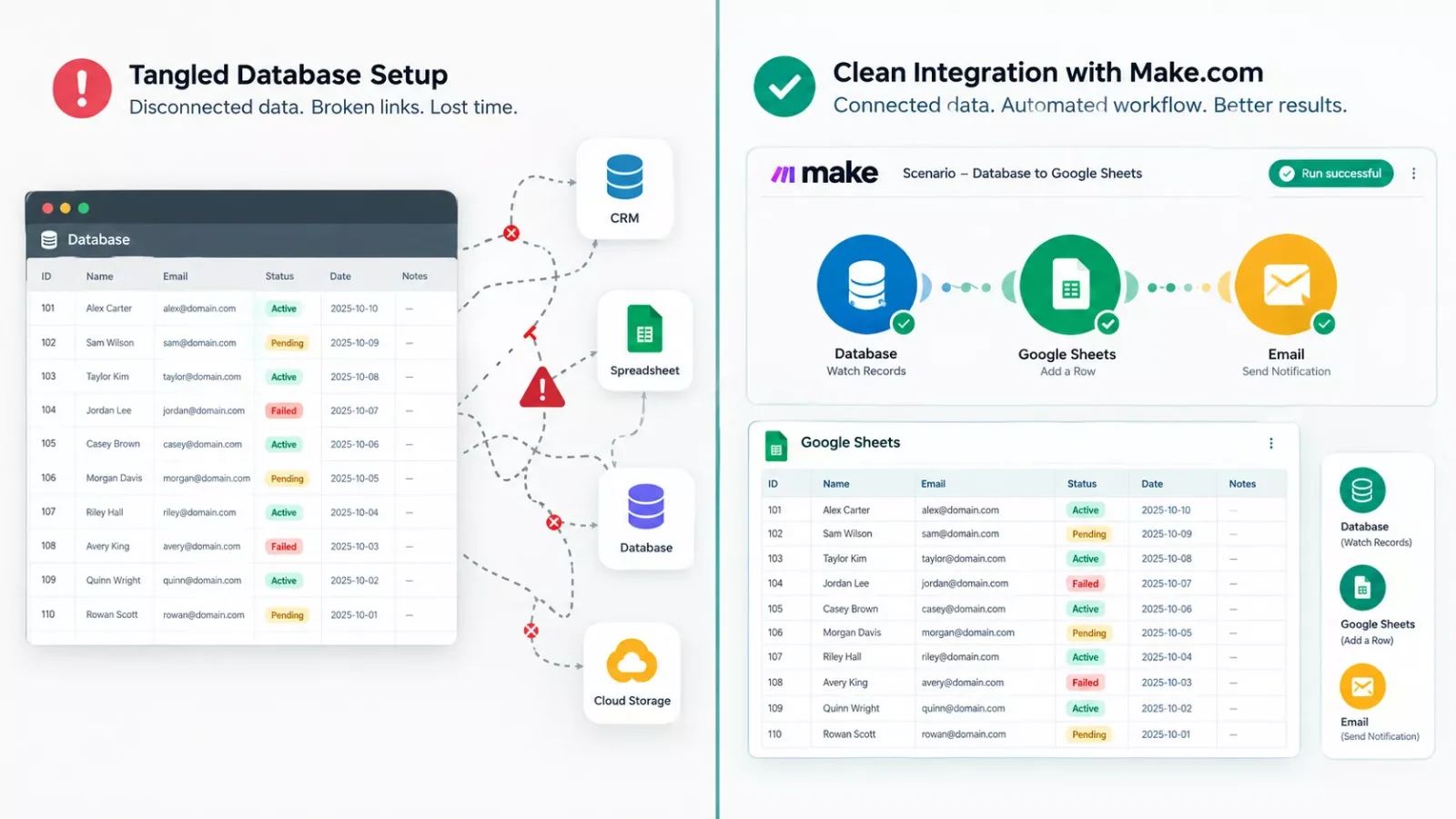
Key Takeaway: The right Airtable alternative matters less than how it connects to your Make.com scenarios, because those scenarios use Airtable's own modules and need re-pointing after a switch.
Primary Tool(s): Airtable, Make.com, Google Sheets, Baserow, Notion, Stackby, NocoDB
Which of the Airtable alternatives will keep your forms and automations running after you switch? For small business owners, the answer depends less on features and more on how the new tool connects to Make.com. Google Sheets, Baserow, Notion, Stackby and NocoDB all have a Make.com app, but each one connects differently.
Your current scenarios stay tied to Airtable's modules until you re-point them. This guide shows which tool fits which kind of team, how each one connects, and an order for moving your data that keeps your automations in view. Each pick below also gets one honest limit, so you can see the trade-off before you commit.
If you are still deciding what to build on that data, picking an app builder comes first. Then come back here to choose where the data should live.
- Airtable Alternatives at a Glance: Which One Fits Your Team
- Should You Leave Airtable at All?
- 1. Google Sheets: No New Tool to Learn
- 2. Baserow: An Airtable-Style Grid You Can Import Into
- 3. Notion: Records Next to Your Notes
- 4. Stackby: Catch New and Updated Rows
- 5. NocoDB: Update or Create in One Step
- How to Reconnect Make.com Scenarios After Leaving Airtable
- When an Update Module Still Expects an Airtable Record ID
- When the Airtable Trigger Has No Match
- When a Form Starts the Scenario Instantly
- Before You Export: A Switch Checklist
- Choosing in One Sentence: Decision Rules
- Frequently Asked Questions About Leaving Airtable
- Conclusion: Move the Workflows, Not Just the Data
Airtable Alternatives at a Glance: Which One Fits Your Team
The short version: choose Google Sheets if your data is simple and your team already works in spreadsheets. Choose Baserow if you want an open-source database with a spreadsheet-style grid, or NocoDB if you want to self-host one. Choose Notion if your records live next to notes and documents. Choose Stackby if you want an Airtable-style grid.
All five have an app inside Make.com, the visual automation platform where you chain modules together into scenarios. That matters because your current scenarios use Airtable's modules, and those modules only talk to Airtable. A new database means new modules, even when the job stays the same.
Apps and modules change, so confirm them in Make before you plan a move.
Read the last column before you commit, because each tool connects differently. Google Sheets, for example, has a Watch New Rows trigger that is not instant, and its instant modules need Make's add-on or a script. So check the trigger type before you promise real-time updates.
Should You Leave Airtable at All?
Stay on Airtable if your base fits inside your plan, your team relies on its interfaces or synced tables, and your Make.com scenarios already run cleanly. Leave if you keep hitting plan limits, pay per seat for people who rarely touch the data, or want your data somewhere you control.
I've used Airtable, and it is a capable tool, so leaving it needs a real reason. Its plans set limits, and outside tools that call its API have limits of their own.
On the Free plan, Airtable's support pages list a cap of 1,000 API calls per month on the Free plan, and every base has a limit of 5 requests per second. A scenario that checks your base on a tight schedule can spend some of that allowance, so check your own usage before you decide the limit is not your problem.
1. Google Sheets: No New Tool to Learn
Google Sheets is the lowest-friction move, because your team already knows how to use it. You give up Airtable's field types and views for a plain grid, but you keep a familiar place for form entries, customer lists and simple trackers.
For example, a solo bookkeeper can send each new onboarding form entry to a sheet and pick it up with a Make.com trigger that watches for new rows. The Google Sheets app covers rows, cells, sheets and whole spreadsheets, so adding and updating records both have a direct counterpart. Make's Google Sheets page shows a standard Google account sign-in.
The honest limit is how the triggers behave. The Watch New Rows trigger is not instant, and the Watch Changes trigger watches only changes made in the Google Sheets app and needs the Sheets add-on. If other automations write most of your data, test with a copy first, and read up on spreadsheet automations that break.
2. Baserow: An Airtable-Style Grid You Can Import Into
Baserow is a strong fit if you want a familiar grid with an open-source option behind it. It also offers form, kanban and calendar views, and its docs include a page on importing an Airtable base, which can save you from rebuilding tables by hand.
In Make.com, Baserow connects with a database token and your Baserow API URL. Cloud accounts use api.baserow.io, and self-hosted installs use their own address. The app can create, get, update, delete and list rows, and it includes a Make an API Call module for anything else.
For example, a small agency that logs new leads from a web form can create each lead as a Baserow row from the same scenario.
⚠ Watch Out For: The limit sits in the trigger. The Make app has one trigger, Watch Created Rows, and Baserow's own docs point to webhooks if you need instant runs. That page describes the trigger both as watching only new rows and as watching new or updated rows, so test it with Run once before relying on it for edits.
3. Notion: Records Next to Your Notes
Notion works well when your records need to sit beside meeting notes, briefs and other documents. Make.com can watch and update both the database items and the page content, so a client record and its notes can stay together.
For example, a consultant can log each new inquiry as a database item, then let a scenario append the intake answers to its page and update a status property. The Watch Data Source Items trigger fires when an item is created or updated, which suits teams that edit records often. Make offers a public connection or an internal connection, as Make's Notion page explains.
The honest limit is access. Your Notion account needs admin permissions to set up the connection, and with an internal connection your databases do not appear in Make's search until you add them by hand in Notion and reauthorize. Until you do, the module does not list your databases.
4. Stackby: Catch New and Updated Rows
Stackby is the pick if you want an Airtable-style grid and a Make.com app that can react to changes, not only new entries.
Watch Records returns newly created rows in a view, and Watch Updated Records returns changed ones. Search rows can look up one row or return all of them. A freelance designer could use the second trigger to catch status changes in a project grid and email a client. You connect with an API key you create in your Stackby account, as Make's Stackby page describes.
The limit is the module list. Make's Stackby listing has five modules: two triggers, create a row, update a row and search rows. There is no delete-a-row module and no general API call module, so you cannot fall back on a raw request. If your Airtable scenarios delete records, plan another way to do that step.
5. NocoDB: Update or Create in One Step
NocoDB describes itself as a self-hostable Airtable alternative, and it is released under the Sustainable Use License. For Make users, its standout detail is a module that updates a record or creates it if it does not exist (handy for repeat entries).
In Make.com, NocoDB can start a scenario when records are created or updated or when a form response comes in. Actions create, get, update, delete and search records, and a Make an API Call module covers the rest. For example, a small shop could log each order as a record and update it when the status changes.
The limit is setup. You need an API token for the connection and the IDs of your base and tables, which is more groundwork than a spreadsheet, as Make's NocoDB page lists in its requirements.
How to Reconnect Make.com Scenarios After Leaving Airtable
To reconnect a Make.com scenario after leaving Airtable, build the new version beside the old one, swap each Airtable module for the new tool's module, re-map every field and ID, and test with Run once before you switch anything off. Airtable's modules only work with Airtable, so none of them carry over.
Start by listing every scenario that touches your base. Open each one and write down its trigger, the fields it maps and any record IDs it passes along. That list is your migration plan.
When an Update Module Still Expects an Airtable Record ID
Airtable's update and delete modules each take an Airtable Record ID from a search or watch step. The new tool's update module asks for its own ID, such as Baserow's Row ID. If a scenario stores old IDs elsewhere, expect them to stop working. Search the new tool first, then pass the ID it returns.
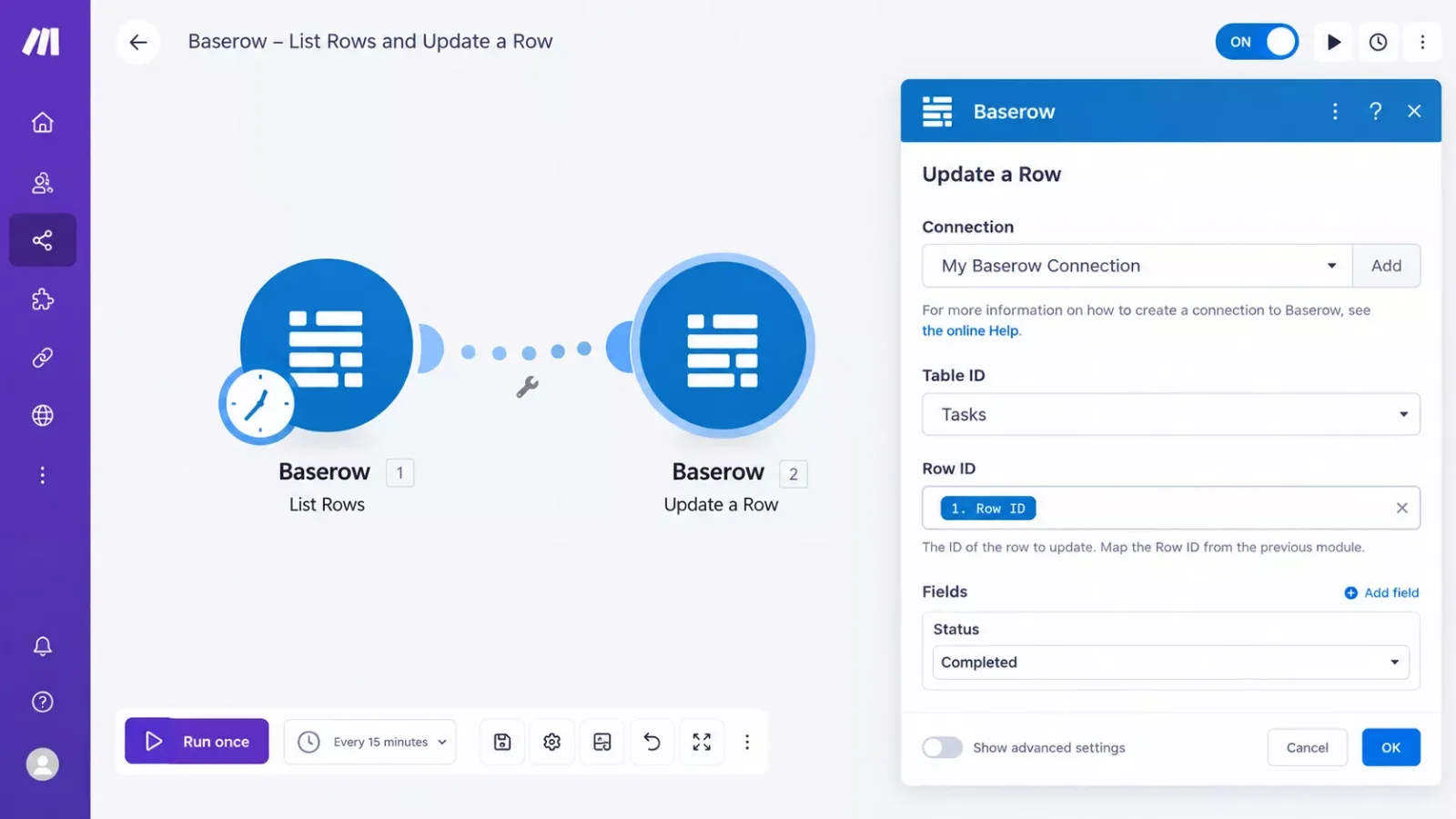
Example of a rebuilt scenario: a Baserow List Rows step passes its Row ID into Update a Row.
When the Airtable Trigger Has No Match
Airtable's Watch Records trigger needs a Created Time or Last Modified Time field, and Make warns it will not work correctly without one. Other tools differ: Baserow has Watch Created Rows, Stackby has separate triggers for new and updated rows, and Google Sheets has a Watch New Rows trigger that is not instant. Match the trigger to the event, then test it.
When a Form Starts the Scenario Instantly
If an Airtable form starts your scenario through Watch Responses, you are using an instant webhook. Make lists that module for Airtable's Team plan and higher.
The URL lives in the form's Airtable settings, so it stays behind when you leave. Create a new webhook for the new tool's form, or use its own webhook feature.
Before You Export: A Switch Checklist
Before you export anything, list every scenario, form, linked-record field and filter that depends on your Airtable base. Those are the parts that stop working quietly after a move, and each one needs a decision. Whether you pick one of the free airtable alternatives or a paid tool, the checklist is the same.
- Scenarios: for each one, note the trigger, the mapped fields and every record ID it passes along.
- Forms: note which forms start a scenario. Watch Responses is Airtable's instant form trigger, and its webhook URL lives in the form settings.
- Linked records: Airtable's create and update modules have a Smart links option that accepts names instead of record IDs, and Make creates the record in the linked table if there is no match. Check how the new tool links tables before you map those fields.
- Filters: Airtable's watch and search modules can filter by view or formula. Rebuild those filters with the new tool's own search options.
- Connections: create new connections for the new tool, and remove the old Airtable connection once your new scenarios pass a test run.
- Rollback: keep the Airtable base and its scenarios untouched until the new version passes Run once.
Choosing in One Sentence: Decision Rules
The best airtable alternatives are the ones whose Make modules match what your scenarios already do, not the ones with the longest feature list. Match the tool to your busiest scenario first, and let that decide. Here is how the five picks line up with common scenario jobs.
- Choose Google Sheets if your scenarios mostly add and update rows and your team already works in spreadsheets.
- Choose Stackby if you want an Airtable-style grid and a separate trigger for updated rows.
- Choose Baserow or NocoDB if your scenarios delete records and you want a Make an API Call module as a fallback.
- Choose Notion if your records belong next to notes and your scenarios append content to pages.
- Stay on Airtable if forms start your scenarios through Watch Responses and nobody has time to rebuild them.
If two tools tie, run the same test record through both in Make before you decide.
People Also Ask
Is there anything better than Airtable for a small business?
It depends on what hurts. Google Sheets suits familiar grids, Baserow suits open-source fans, NocoDB suits self-hosters, and Notion suits records beside notes. If nothing hurts, staying on Airtable is reasonable.
What are some free alternatives to Airtable that work with Make.com?
Google Sheets, Baserow, NocoDB, Notion and Stackby all work with Make.com. Plans and limits change, so check each vendor's current pricing page before you count on a free tier. Baserow is open-source, and NocoDB is self-hostable.
Why do teams move away from Airtable?
Reasons that come up include plan limits, API call caps on lower plans, and what you pay per seat. Which one applies to you decides whether a switch is worth the work.
Is Airtable just a spreadsheet?
Not quite. Make's documentation describes Airtable as a platform that combines features of a spreadsheet and a database. A plain spreadsheet may offer less of the database side, such as linked records.
Frequently Asked Questions About Leaving Airtable
Can I keep my existing Make.com scenarios when I move away from Airtable?
Not as they are. Airtable's modules only work with Airtable, so each scenario needs the new tool's modules, new field mappings and, where you used them, new record IDs. Build the new version beside the old one and test it first.
Which Airtable competitors have an app inside Make.com?
Google Sheets, Baserow, Notion, Stackby and NocoDB all have a Make.com app. The Verified badge is not confirmed for any of them. The apps differ in triggers and modules, so check the module list before you commit to one.
What do I need to connect Baserow or NocoDB to Make.com?
Baserow needs a database token and your Baserow API URL. NocoDB needs an API token, plus the IDs of your base and tables. Both ask for more than a Google sign-in, so allow time to set them up.
Will my instant triggers still work after I switch?
It depends on the tool. Airtable's Watch Responses is an instant webhook, and Baserow's docs suggest webhooks for instant runs. Google Sheets' Watch New Rows trigger is not instant, and its instant modules need Make's add-on or a script. Check each tool's trigger type first.
Conclusion: Move the Workflows, Not Just the Data
The hard part of leaving Airtable is not picking the new tool. It is moving the forms and scenarios that depend on it, one tested scenario at a time.
When the data has a new home, you can build a no code app on top of that database.
⚡ Pro Tip: Name each new Make connection after the tool and the base, such as Baserow Leads, so you can tell it apart from your old Airtable connection while both exist.
Moving off a database that already runs your forms and follow-ups is a real decision, and the fear of breaking something is fair. Here is a tip you can use today: copy one small scenario, rebuild only its trigger and one action in the new tool, and run it once on a test record before you touch anything else.
If rebuilding scenarios is not how you want to spend your week, that is exactly the kind of done-for-you work I do as a No-Code Architect for small teams like yours.
SmartSoloFlow builds custom Make.com automations for small teams. If you would rather hand the switch off, tell us what you run today on the contact page.
Found this guide useful? Share it with a fellow freelancer who's still doing things manually. 🚀
Got a question or a workflow roadblock? Drop it in the comments below, happy to help.
Details checked: October 2026
Last Updated: October 14, 2026

// Comments