 SmartSoloFlow

Key Takeaway: AI workflow automation pairs Make.com's own AI module with the triggers and actions you already use, turning repetitive solo-business tasks into background processes instead of daily to-do items.
Complexity Level: Basic to Intermediate
AI workflow automation means letting Make.com's own AI module handle the reasoning, not just the data-moving, in your day-to-day business tasks. For solopreneurs drowning in repetitive admin, that's the real shift: a workflow that reads a lead form, drafts a reply, and files the record, all before you've opened your inbox.
This guide skips the enterprise theory. You'll see six concrete places AI workflow automation actually saves hours, plus one you can start building today with a real Make.com scenario, not a locked toolkit behind an email form.
- 1. Lead Capture That Files Itself Into Your CRM
- 2. Client Emails Triaged and Drafted Before You Open Your Inbox
- 3. Invoicing and Late-Payment Follow-Up on Autopilot
- 4. Content and Social Posts Drafted From One Voice Prompt
- 5. Research and Market Alerts Delivered Without the Manual Digging
- 6. Knowing How Much Autonomy to Give Your AI Workflow
- AI Workflow Automation for Solopreneurs With Make.com
- How to Get Your First Workflow Running
😩 THE OLD WAY (Before)
Every lead gets typed into a spreadsheet by hand. Every invoice gets chased with a copy-pasted email you rewrite each time. By Friday, the "real work" got maybe two clear hours.
✨ THE DREAM (After)
A Make.com scenario reads the form, files the lead, drafts the reply in your voice, and pings you only when something actually needs a human call.
I've watched a lot of solopreneurs try to bolt AI onto their business one tool at a time. It rarely sticks. What actually works is building it into the workflow itself, so the AI step runs automatically instead of being something you have to remember to use.
That's the whole idea behind AI workflow automation: AI Workflow Automation isn't a separate piece of software you add on top of your existing tools. It's Make.com's own AI module, sitting inside a scenario you already have, making a decision instead of just moving data from one app to another.
1. Lead Capture That Files Itself Into Your CRM
A new lead fills out your form, and within seconds it's scored, tagged by service type, and sitting in your automated CRM built for solopreneurs with a draft follow-up email attached, no copy-paste required.
Here's the actual chain: the form submission hits a webhook trigger, Make.com's AI module reads the message and classifies intent (quote request, general question, spam), then routes accordingly. A quote request gets a CRM record and a drafted reply. A general question gets a shorter auto-response. Spam gets filtered out before it ever reaches your inbox. If you're starting from zero, a free CRM built for automating lead capture is enough to get this running.
The part that used to eat time wasn't the CRM entry itself, it was deciding what each lead actually needed. That's the piece the AI module now handles. For a deeper look at real AI lead qualification with Make.com, a genuine field test of this exact pattern is worth reading.
Think about what this replaces: an afternoon spent scrolling through a shared inbox, guessing which submissions were serious inquiries and which were spam, then manually copying each real lead into a spreadsheet before you could even think about replying. That guessing step is exactly what used to eat the most time, not the data entry itself.
2. Client Emails Triaged and Drafted Before You Open Your Inbox
Your inbox gets read, sorted by urgency, and has draft replies waiting in your own voice before you've had coffee, so you're editing instead of starting from a blank page.
A Gmail or Outlook watcher module picks up new mail, passes the content to the AI module along with a short style guide of how you actually write, and drops a draft reply back into your drafts folder. You still review and send everything yourself. Nothing goes out without your eyes on it first. If you want the full build, setting up email automation that triggers itself walks through the exact module chain.
This is where the "recommend, don't decide" version of agentic AI actually matters. The workflow drafts. You approve. That distinction is worth keeping in mind for every item on this list, and I'll come back to it directly in a later section.
For a freelance consultant, that might mean twenty or thirty client emails piling up overnight. Instead of triaging each one cold, you open your inbox to drafts already sorted by urgency, with the routine ones ready to send after a quick glance.
3. Invoicing and Late-Payment Follow-Up on Autopilot
Invoices go out the moment a project status flips to "complete," and a follow-up email fires automatically if payment hasn't landed after your chosen grace period, so chasing late clients stops being a monthly chore. If invoicing itself is still manual for you, automating invoicing for freelancers is the natural starting point.
Make.com has an official Stripe app and an official QuickBooks app, and the two connect directly, no third-party connector needed. A typical scenario: a project-tracking tool (Airtable or Notion) triggers when a task is marked done, Make.com generates the invoice through Stripe, logs it in QuickBooks, and schedules a polling check a few days later that fires a reminder email if the invoice is still unpaid. For the late-payment piece specifically, auto-reminders for late-paying clients covers that exact chase-email pattern in more detail.
⚠ Watch Out For: That reminder check runs on a schedule (polling), not the instant a payment posts. Polling checks still use up Make.com operations each time they run, even on the days nothing has changed, so build the check interval around how urgently you actually need to know, not just "as often as possible."
4. Content and Social Posts Drafted From One Voice Prompt
One voice note or short brief turns into a week's worth of on-brand social posts, queued and ready for your review instead of a blank content calendar every Monday.
You record a 60-second voice memo about what you did this week, a transcription module turns it into text, the AI module expands it into platform-specific drafts (a LinkedIn post reads differently than a caption), and everything lands in a shared drafts folder or scheduling tool for you to approve before it goes live. Nothing posts on its own without a human check, which matters both for tone and for the occasional AI mistake slipping through. Once the drafts exist, pairing this with social media scheduling tools that auto-post closes the loop from voice memo to published post.
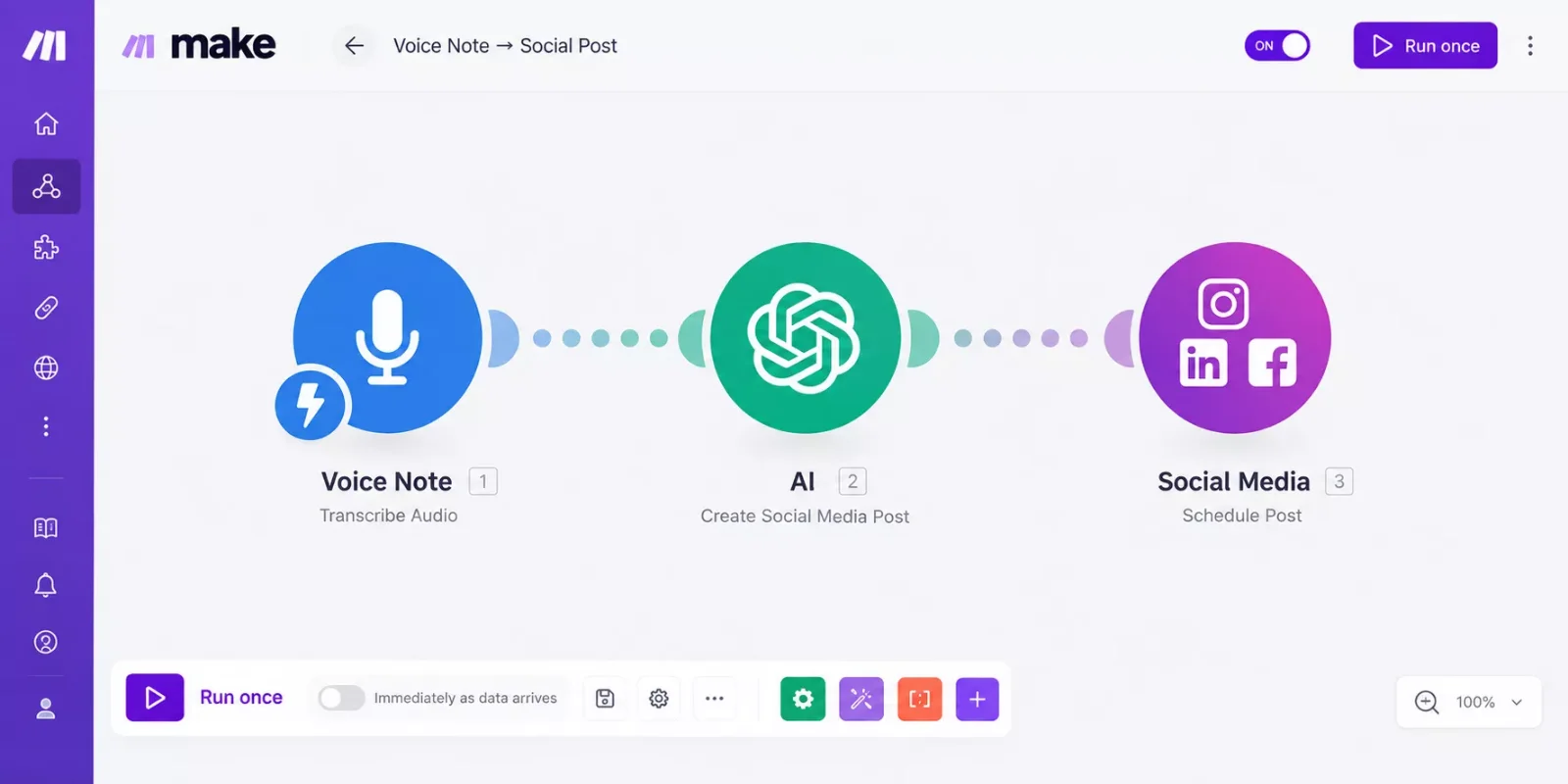
For a solo consultant, that's the difference between staring at a blank content calendar every Monday and opening a folder of five drafts already written in your own voice, ready for a quick edit. The transcription step matters too, since dictating a raw brief is faster than typing one out from scratch on a busy week.
5. Research and Market Alerts Delivered Without the Manual Digging
Competitor price changes, new reviews, or industry mentions get pulled together and summarized in a daily digest, instead of you manually checking five different sites every morning.
A scheduled trigger runs a search or scrape at a set interval, the AI module reads the results and pulls out what's actually new or relevant (skipping the noise), and drops a short summary into an email or Slack message. This is genuinely one of the lower-risk places to start, since a research digest that's slightly off just means you double-check a source, not a client-facing mistake. A real 45-day test of automating market research alerts this way is worth a look if you want to see it in practice.
One workable pattern here uses Make.com for multi-source lead or data aggregation with conditional logic, which is the same mechanism a research-alert workflow leans on: several sources feeding into one filtering step before anything reaches you.
A freelance web designer, for example, might use this to track a handful of competitor pricing pages and design-tool release notes, instead of manually revisiting each site every week.
6. Knowing How Much Autonomy to Give Your AI Workflow
The safest way to add AI to a workflow is to start it in "recommend" or "summarize" mode, not full autonomy, so a mistake shows up as a draft you catch, not an action you can't undo.
This is worth sitting with for a second, because it's the one place solopreneurs get burned. An AI module that drafts a reply for your review is low-risk. An AI module that sends the reply, refunds a payment, or cancels an order on its own is a different level of trust entirely, and most workflows don't need to go there right away. If you want to see where the line actually sits, how AI agents compare to Make.com's built-in tools is a genuinely honest look at that tradeoff.
Design your automated workflow by mapping out the "if this, then that" logic before you decide how much of it AI should handle on its own. Start every new AI workflow at the "recommend, don't decide" stage. Move a step to full autonomy only after you've watched it get the recommend-stage version right for a few weeks straight.
⚡ Pro Tip: Keep a simple running note of which AI steps are still "review before send" versus "fully automatic." It takes two minutes to update and saves you from forgetting which parts of your business are on autopilot.
AI Workflow Automation for Solopreneurs With Make.com
Here's the actual scenario you can build today, start to finish: a webhook trigger catches a new form submission, Make.com's AI module reads it and decides what kind of lead it is, a router splits the path based on that decision, and the final step either creates a CRM record or sends a short auto-reply, depending on which path it took.
- Trigger — a Webhooks module (or your form tool's native trigger) fires the moment someone submits.
- AI classification — Make.com's built-in AI module reads the submission and scores it (e.g., "hot lead," "general inquiry," "spam").
- Router — splits the scenario into filtered paths based on that score.
- Action — a hot lead gets a CRM record and a drafted follow-up; everything else gets logged or filtered out.
This is the same shape as most of the workflows above, a trigger, an AI decision, then an action, just made concrete instead of staying an idea. That's the actual difference between reading about AI workflow automation and having one running: you copy this exact four-module shape and swap in your own form and CRM.
Make.com's own plan figures were verified at the time of writing. Since these change periodically, please confirm current limits and pricing directly on Make.com's current plan limits before deciding.
How to Get Your First Workflow Running
This isn't a walkthrough for one specific template, it's the general shape every first workflow follows, so you can apply it to whichever item on this list matches your biggest time-sink right now.
Start on Make.com's Free plan if you're just testing: it includes 1,000 credits a month (Make renamed "Operations" to "Credits" in 2025) and a 15-minute minimum polling interval. Sources disagree on whether the Free plan allows unlimited active scenarios or caps you at 2, so treat 2 as the safer planning number until you check your own dashboard. Either way, 1,000 credits is genuinely enough to test one workflow end-to-end before deciding whether to upgrade.
Pick one item from the list above, the one costing you the most hours weekly, not the most impressive-sounding one. Build the four-module shape from the section above using your own tools and, when Stripe or QuickBooks are involved, Make.com's official Stripe and QuickBooks integration connects them directly. Run it once manually (Make's "Run once" test button) before turning on scheduling, so you catch mapping errors on a test record instead of a real client's data.
Want This Built for You Instead of DIY?
If you'd rather get your first workflow running this week than spend a weekend wiring it up yourself, this is exactly the kind of build I set up for solopreneurs, done, tested, and ready to run.
Let's TalkPeople Also Ask
What's the difference between traditional automation and AI workflow automation?
Traditional automation just moves data between apps on a fixed rule (if this happens, do that). AI workflow automation adds a reasoning step in the middle, where the AI reads the content and decides what should happen next, instead of following one rigid path every time.
How is an AI workflow different from a chatbot?
A chatbot waits for someone to type a message and responds in real time. An AI workflow runs in the background on its own trigger, a form submission, a schedule, a new record, and takes action without anyone needing to start a conversation first.
Can AI workflow automation integrate with the tools a business already uses?
Yes, that's the actual point of building it in Make.com. Since Make.com already connects to thousands of apps, an AI module drops into an existing scenario alongside your CRM, email, or accounting tool rather than replacing any of them.
Do I need to know how to code to build an AI workflow in Make.com?
No. Make.com is a visual, drag-and-drop builder, and the AI module works the same way, you connect it into a scenario like any other module, without writing code.
How do I know if a task is a good fit for AI workflow automation?
Good candidates are repetitive, rule-based, and don't need real human judgment every single time, sorting leads, drafting routine replies, or flagging overdue invoices. Tasks needing real relationship judgment (a sensitive client conversation) should stay manual, or AI-assisted at most.
Will an AI workflow ever send something without my approval?
Only if you build it that way. Most of the workflows in this guide are designed to draft and wait for your review first. Full autonomy is something you opt into later, one step at a time, not a default setting.
What happens if the AI module gets a classification wrong?
It depends on how the scenario is built. A well-designed workflow routes uncertain cases to a manual review step instead of forcing a decision, so an occasional miss gets caught by a human rather than causing a real problem downstream.
Every item on this list follows the same shape: a trigger, an AI module reading and deciding, then an action. Once you see that pattern once, it's a lot easier to spot which of your own repetitive tasks is actually a workflow waiting to be built, rather than just something you've always done by hand.
If you're comparing which specific AI automation tools to pair with your Make.com stack for any of these workflows, that's genuinely one of the more thorough breakdowns of Make.com automation workflows you'll find, and SmartSoloFlow already has a dedicated roundup covering exactly that.
⚡ Pro Tip: Build the "recommend, don't decide" version of your first workflow before anything more ambitious. It's the version most likely to actually stay switched on past week one.
SmartSoloFlow builds these exact kinds of automations for solopreneurs who'd rather have the workflow running than spend a weekend building it themselves. Reach out through the Contact page to talk through what your business needs.
Ready for This Running in Your Business?
Whether you want one of these six builds set up exactly as described, or something custom for a workflow that's specific to you, this is exactly what I build for solopreneurs.
Get StartedFound this guide useful? Share it with a fellow freelancer who's still doing things manually. 🚀
Got a question or a workflow roadblock? Drop it in the comments below, happy to help.
Last Updated: September 29, 2026

// Comments