 SmartSoloFlow

Key Takeaway: Spreadsheet automation doesn't fail because you built it wrong. It fails because it was never built to survive the growth it's now dealing with, and a central automation hub fixes that permanently.
Primary Tool(s): Google Sheets + Make.com
Build Time: ~1-2 Hours
If your spreadsheet automation worked great when you were small and now falls apart every time you add a new client, product, or team member, you're not alone. Small business owners build clever spreadsheet automation to skip hiring an expensive developer, then watch it collapse the moment real growth hits. This guide walks through exactly why that happens and the practical fix that keeps working whether you're managing 50 rows or 5,000.
That collapse isn't random. It follows a predictable pattern, and once you see it, you can fix it in an afternoon instead of rebuilding your whole system from scratch. In my experience working with solopreneurs and small teams, the breakdown almost always traces back to the same handful of habits, not bad luck.
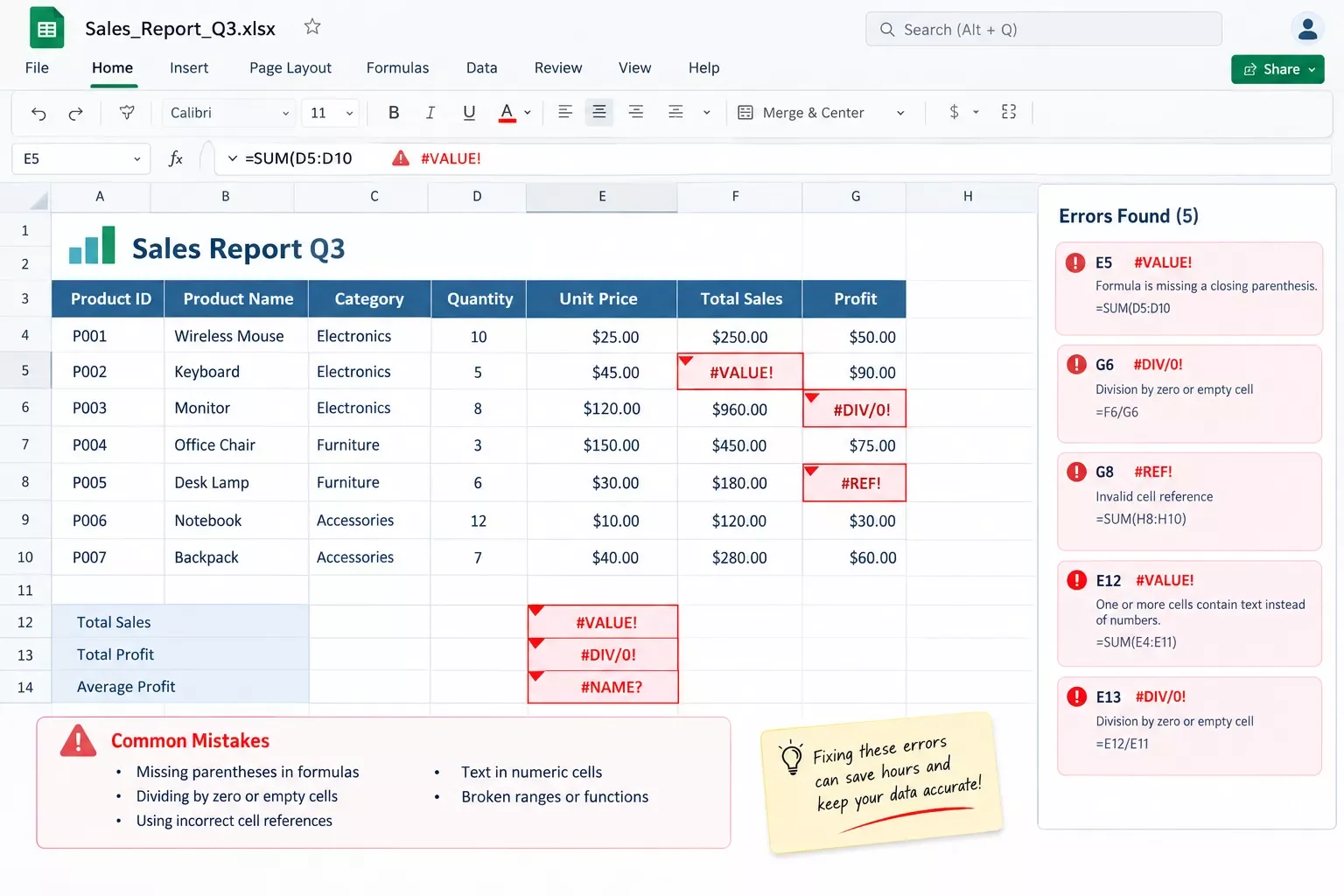
Common Mistakes
Most spreadsheet automation breaks for the same five reasons: hardcoded cell references, missing error handling, single-point-of-failure files, manual copy-pasting between sheets, and zero connection to your other business tools. Each one feels harmless at low volume. Growth is what exposes them.
- Hardcoded cell references. A formula written to reference row 47 breaks the moment someone inserts a new row above it. It doesn't throw an error. It just quietly starts pulling the wrong number.
- No error handling. One blank cell, one mistyped date, and a whole chain of dependent formulas returns #REF! or #VALUE! errors down the line, often in a tab nobody checks daily.
- Single point of failure. The "master" file lives on one laptop, with no backup and no version history. If that laptop dies or that person is out sick, the whole system stalls.
- Manual copy-paste between sheets. Someone is still moving data by hand from your order form to your tracking sheet to your invoicing sheet. Every hop is a chance for a typo or a skipped row.
- Zero connection to other tools. The spreadsheet doesn't talk to your CRM, your email platform, or your accounting software. Every update has to happen in three places by hand.
None of these are signs you did something wrong when you built it. They're signs the system has outgrown a plain spreadsheet's job description. And that's exactly where a proper automation layer like Make.com comes in. Instead of patching each mistake one at a time, it becomes the connective hub that removes the manual hand-offs entirely, which is what the rest of this guide walks through.
Why They Happen
A spreadsheet is built to hold data. It was never built to run a process. That one-sentence distinction explains almost every breakdown you'll ever see in a growing small business's spreadsheet setup.
When you're small, the gap between "holding data" and "running a process" doesn't matter much. You have five orders a week, so a hardcoded formula and a little manual copy-pasting cost you ten minutes. But growth changes the math fast. Google Sheets caps a single spreadsheet at 10 million cells total, and Excel workbooks max out around 1,048,576 rows per sheet. You'll hit painful slowdowns and formula lag long before you ever approach either ceiling, simply because every formula has to recalculate across a growing dataset every time you touch it.
The deeper issue is that a spreadsheet has no concept of "what happens next." It can't watch for a new order and automatically email a confirmation. It can't notice a low-inventory row and text your supplier. Every one of those actions still needs a human to notice, remember, and manually trigger it. That's not a spreadsheet flaw. It's just outside what a spreadsheet was ever designed to do, and it's exactly the gap an automation hub is built to close.
How to Fix Each One
The fix for all five mistakes is the same: stop treating your spreadsheet as the whole system, and put a central automation hub to stop spreadsheet breakdowns in front of it. That's what Make.com does. Instead of one fragile file trying to do everything, the spreadsheet becomes one connected piece in a system that watches for changes, moves data automatically, and never depends on a single person remembering to hit copy-paste.
Here's how each mistake gets solved once that hub is in place:
- Hardcoded references stop mattering because Make.com watches for new rows directly and triggers off the data itself, not a fixed cell address.
- Missing error handling gets replaced with built-in retry and error-routing logic, so a bad date format flags itself instead of quietly breaking three tabs downstream.
- Single point of failure disappears because the automation runs in the cloud, independent of any one laptop, and every run is logged.
- Manual copy-pasting is gone entirely. Make.com moves data between your order form, tracking sheet, and automate lead capture with a free CRM the instant something changes.
- Zero connection to other tools gets solved because Make.com natively connects Google Sheets to your CRM and lets you trigger email sequences automatically, so an update in one place shows up everywhere else.
This is exactly what makes SmartSoloFlow's approach to Make.com automation workflows different from patching formulas one at a time, and it's the same underlying pattern behind why automation stacks break down more broadly across a growing business. Instead of fixing each broken link in isolation, the spreadsheet gets folded into one system that keeps working as your row count, your client list, and your tool stack all grow.
Want the full picture before you automate?
This fix is one piece of a bigger system. Our complete no-code solutions overview for small business owners walks through the whole approach, start to finish.
See How No-Code Solutions Work2026 Advanced Tips & Scalability
One thing worth planning for early: Make.com's free plan runs on 1,000 credits a month, caps you at 2 active scenarios, and checks for new data every 15 minutes. For a low-volume fix, that's plenty. But once your spreadsheet automation is handling real order volume or client onboarding, you'll likely outgrow that tier fast, and it's worth knowing Make.com's Core plan starts around $9/month for 10,000 credits and unlimited active scenarios before you build something that immediately hits a wall. Once you're at that stage, it's also worth exploring AI tools that pair with your Make.com stack to extend what the hub can do beyond simple data-moving.
It's also worth building in a simple error-notification step from day one, even if nothing's broken yet. A one-line Slack or email alert that fires when a scenario fails costs almost nothing to set up and saves you from discovering a silent failure three days later, after fifty orders went unprocessed.
How to Get Started
The fastest way to get moving isn't rebuilding your entire spreadsheet system in one sitting. Pick the single most painful mistake from the list above, the one costing you the most hours or the most embarrassing errors, and fix that one connection first. Get your spreadsheet and one other tool talking to each other automatically, confirm it holds up for a week, then move to the next connection.
Rather have this built for you?
If figuring out the automation hub yourself isn't the best use of your week, this is exactly the kind of build I hand off, fully working, for small teams like yours. Want this set up for your business, or need something custom? Let's talk.
Let's TalkPeople Also Ask
Why does my spreadsheet automation break as my business grows, even though it worked fine at a small scale?
Small-scale spreadsheets rely on shortcuts like hardcoded cell references and manual copy-pasting that work fine at low volume. As row counts, users, and connected tools multiply, those shortcuts hit their limits, and formulas that once worked start returning errors or silently pulling wrong data.
Can a spreadsheet update itself automatically from other business tools like a CRM or inventory system?
Yes. A tool like Make.com connects Google Sheets directly to CRMs, inventory systems, and email platforms, so a change in one place updates the others automatically, without anyone manually re-entering or copying data between them.
Is spreadsheet automation enough, or does a small business eventually need a real database?
For most small businesses, a well-connected spreadsheet paired with an automation hub covers real needs well past the point most owners expect. A dedicated database usually only becomes necessary once you're managing complex relational data across many teams.
Do I need to know how to code to automate a spreadsheet?
No. Modern no-code tools like Make.com use a visual, drag-and-drop builder specifically so business owners without a coding background can set up real automations, connecting apps and moving data without writing a single line of code.
How much does spreadsheet automation cost for a small business?
Make.com's free plan gives you 1,000 credits a month, enough to test a basic setup. Most small businesses running real, ongoing workflows move to the Core plan, which starts around $9/month for 10,000 credits and unlimited active automations.
What's the difference between "spreadsheet automation" and a no-code automation tool like Make.com?
Spreadsheet automation usually means built-in features like formulas, macros, or Power Query that work inside one file. Make.com sits outside the spreadsheet entirely, connecting it to your other business tools so data moves automatically between them, not just within one sheet.
Is this easy enough for someone with zero technical background?
Yes. Make.com's builder is entirely visual — you drag modules onto a canvas and connect them, no code required. Most small business owners can build their first working scenario in under an hour once they know which apps they want connected.
Will this work with the tools I already use, like Google Sheets, my CRM, or QuickBooks?
Almost certainly. Make.com natively integrates with thousands of apps, including Google Sheets, most major CRMs, email platforms, and accounting software, so you're connecting tools you already have rather than replacing any of them.
What happens if my spreadsheet automation breaks again after I fix it?
A properly built Make.com scenario includes error handling and logging by default, so if something does fail, you get notified immediately instead of discovering the problem days later buried in a broken formula.
Spreadsheet breakdowns feel like a personal failure when you're in the middle of one, but they're really just a sign your business outgrew what a plain spreadsheet was ever meant to handle. That's a good problem to have. The fix isn't starting over. It's connecting what you've already built to the rest of your business, so growth stops being the thing that breaks your system.
⚡ Pro Tip: Before automating anything, spend 10 minutes listing every place data currently gets copied by hand between your spreadsheet and another tool. That list is your exact automation roadmap.
⚠ Watch Out For: Don't try to automate every connection in one weekend. Fix your single most painful hand-off first, confirm it's stable for a week, then move to the next one. Rushing all of it at once is how the next breakdown gets built in.
Getting this right the first time is exactly the kind of thing worth getting help with. SmartSoloFlow builds these central automation hubs for small business owners who'd rather have a working system than spend a weekend debugging their own Make.com scenario. If you want this set up correctly without the trial and error, reach out through our Contact page.
Found this guide useful? Share it with a fellow freelancer who's still doing things manually. 🚀
Got a question or a workflow roadblock? Drop it in the comments below — happy to help.
Last Updated: September 7, 2026

// Comments