 SmartSoloFlow
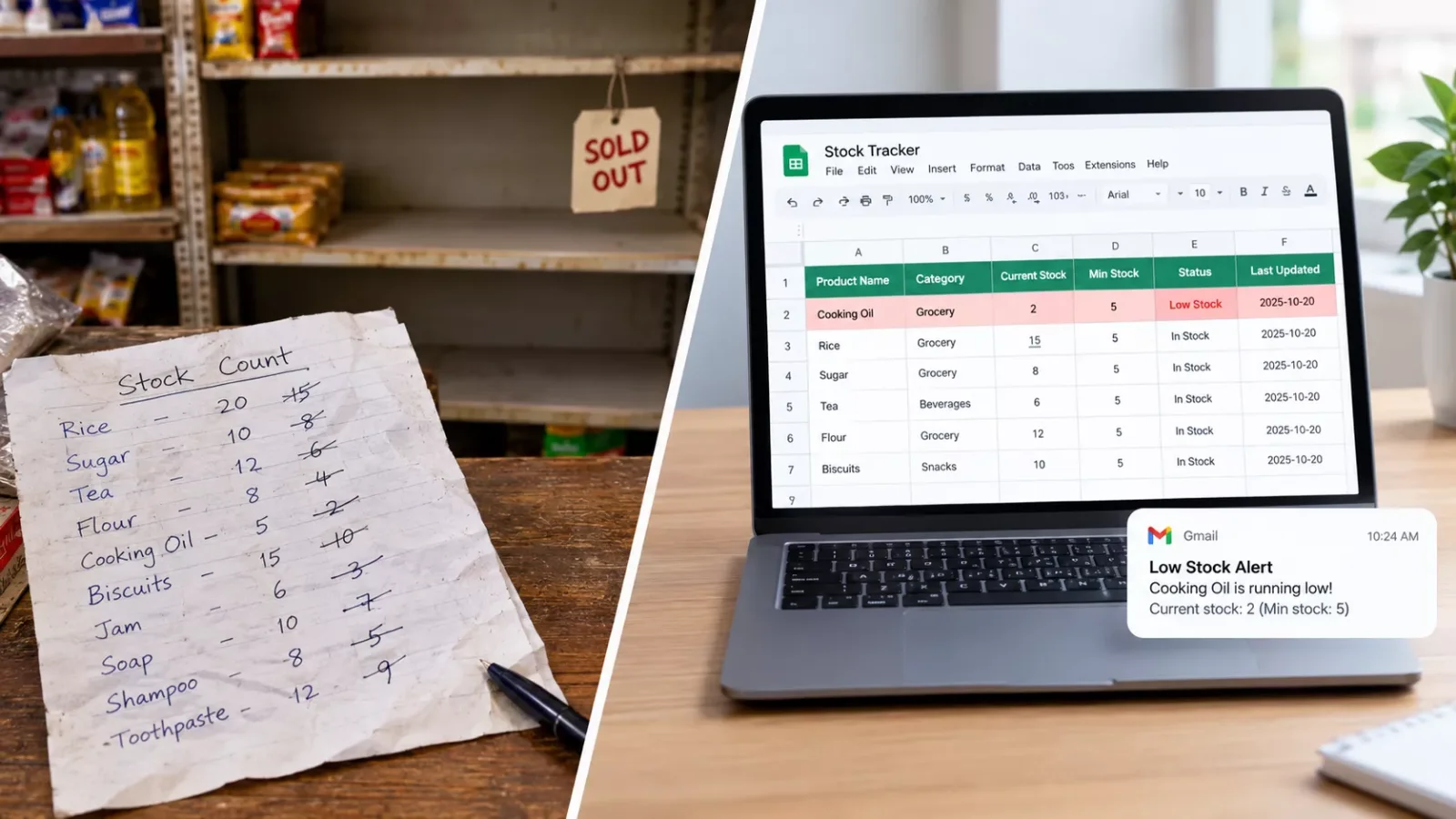
Key Takeaway: A free Google Sheet can track your stock and warn you before an item runs out. Check Google's built-in alert first, then add Make.com when you need more.
Primary Tool(s): Google Sheets + Make.com
The wrong first move in small business inventory management is buying software before you trust your own stock count. A free Google Sheet can do the first job: show what you have and flag what is running low. This guide builds that sheet, then adds a low-stock alert.
It works for a shop, an online store, or a home-based business. You do not need a developer to follow along. Google Sheets has a built-in way to email you on some accounts, and Make.com covers the cases where that option is not enough.
If a sheet ever stops being enough, you can build your own inventory app with a no code app builder. Rather skip the setup? SmartSoloFlow can build this stock alert for you in Make.com, or you can follow the steps below.
- What Is Small Business Inventory Management With a Free Stock Sheet?
- 3 Major Business Benefits of a Stock Sheet With Alerts
- Real-Life Use Case: The Shop That Sold Out Without Knowing
- Sheet or Paid Inventory Software: Which One Do You Need?
- How to Build a Free Stock Tracker in Google Sheets
- How to Get Started
- A Worked Reorder-Level Example
- Can Google Sheets Alert You by Itself?
- Low Stock Alert in Google Sheets for Small Business: Built-In or Make.com
- Set Up the Scenario
- What a Stock Sheet Can and Cannot Do
What Is Small Business Inventory Management With a Free Stock Sheet?
Small business inventory management means knowing what you have in stock, what is selling, and when to reorder before you run out. For a small shop, a free stock sheet can do the core job: one row per item, one column for how many you have, and one column that tells you when it is time to reorder.
A basic stock sheet needs only a few columns:
- Item name and a short code you make up for each product
- Quantity on hand
- Reorder level, the number where you want a warning
- Last updated, so you know how fresh the count is
I've used Google Sheets, and it's the tool this guide builds on. It runs in your browser, and you can share one sheet with a partner or a part-time helper.
A sheet only helps if you look at it, and that's where Make.com comes in. Make.com is a visual automation tool. You connect apps, such as Google Sheets and an email account, and build steps that run on their own. Make calls one of these setups a scenario.
Later in this guide, you'll use one to turn a low number in your sheet into an email, so the warning finds you.
3 Major Business Benefits of a Stock Sheet With Alerts
A stock sheet with alerts gives a small business three things: fewer surprise sellouts, less cash tied up in extra stock, and one count everyone trusts. Each benefit below comes with a small example. The examples are illustrative, not client results.
- Fewer surprise sellouts. You hear about low stock from your sheet, not from a customer asking for something you do not have. Picture a candle seller who sees "Lavender 8 oz: 3 left" on Thursday, before the weekend market.
- Less cash tied up in extra stock. When you can see what barely moves, you stop reordering it just in case. Picture a boutique owner who notices the same two sizes sitting untouched for months and skips the next order.
- One count your whole team trusts. A shared sheet means one number instead of three versions on three phones. Picture you and a part-time helper both updating the same row, so the count is the same for both of you.
Real-Life Use Case: The Shop That Sold Out Without Knowing
Here is a familiar small-shop problem, and how a stock sheet turns a surprise sellout into a Monday-morning to-do. The story below is an illustrative example, not a real client result.
Picture a home-based seller of handmade soap. She sells at weekend markets and through a small online store, and she keeps the stock count in her head. On a Friday evening, a customer orders 12 bars of one scent, and she has 5. She refunds the order and apologizes.
What changed after she built a stock sheet:
- Before: the stock count lived in her head, and she heard about a shortage from a customer.
- After: each scent has a reorder level, and a row turns red when its count reaches that level.
The sheet did not make her sell more soap. It made sure she heard about the problem before her customer did. That is the whole value of a stock sheet with alerts.
Sheet or Paid Inventory Software: Which One Do You Need?
A sheet is enough when you sell through one place and update stock by hand. Paid small business inventory management software starts to make sense when you need barcode scanning, several sales channels kept in sync, or purchase orders. Start with the sheet, and move up when it slows you down.
Features and plans above were checked at the time of writing. Since tools change them often, please confirm current details on each provider's official website before making a decision.
Vendors describe these extras themselves. Toast says its Toast Retail system includes barcode scanning and real-time stock tracking, and Katana says its software shows stock in real time and connects to sales channels such as Shopify.
Even Katana's own guide says a spreadsheet can be enough when stock barely moves, and that growing volume is the point to consider software. If you sell online, see our picks of automation tools for online stores for what to add next.
How to Build a Free Stock Tracker in Google Sheets
You can build a free small business inventory template in Google Sheets with six columns, one status formula, and one color rule. Once it is set up, the sheet tells you which items to reorder.
How to Get Started
The first step is a new, empty sheet with the right headers. Follow these steps in order:
- Open a new Google Sheet and name it "Stock Tracker."
- In row 1, type the six headers from the code block below.
- Add one row per product, with a short code you make up (for example, SOAP-LAV).
- Enter the quantity on hand and a reorder level for each product.
- Paste the status formula into the first Status cell, then drag it down the column.
- Select your table, open Format, then Conditional formatting, choose "Custom formula is," and paste the color-rule formula.
- Update the quantity after every sale or delivery, and type the date in the Last updated column.
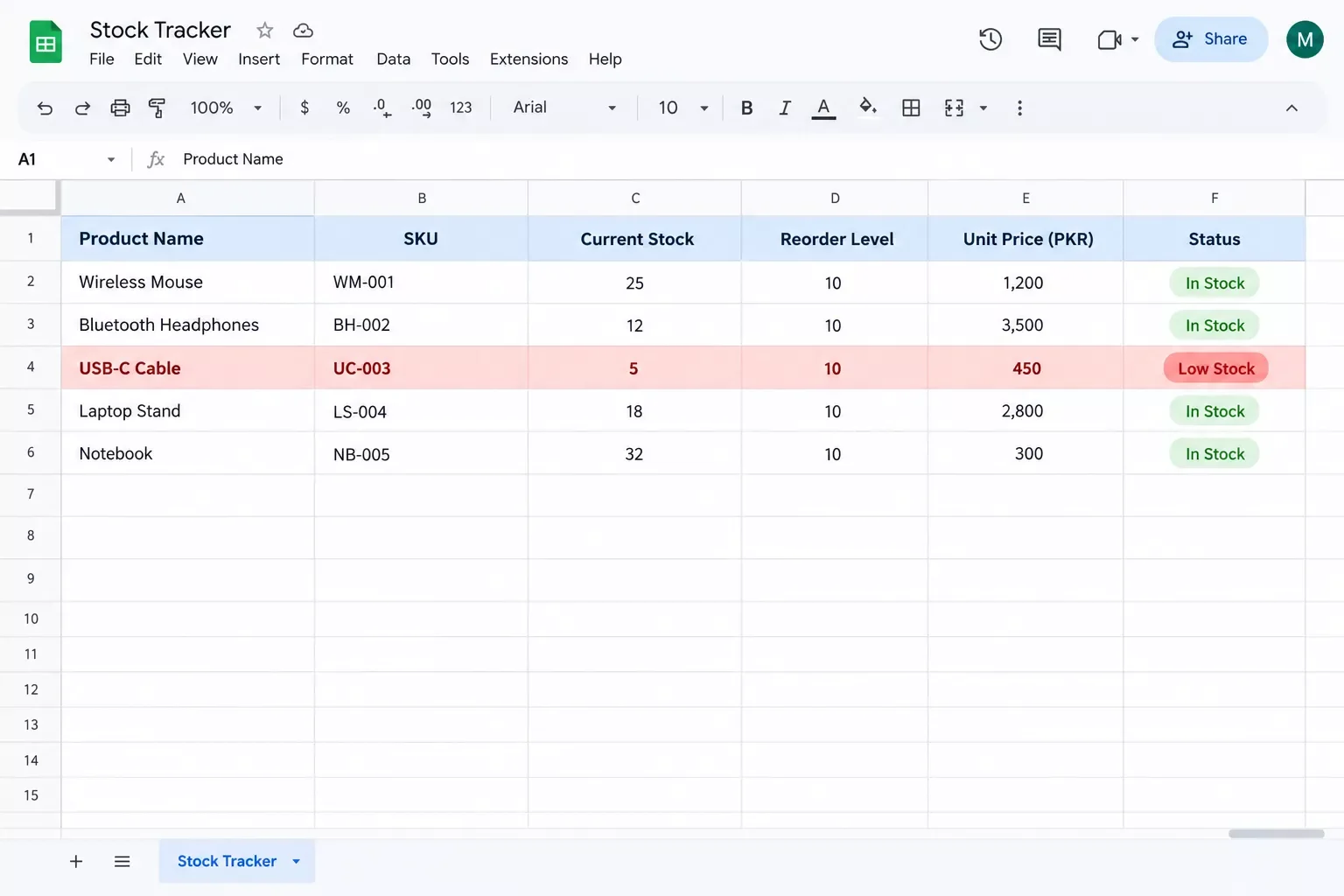
A stock tracker in Google Sheets: the row for an item at or below its reorder level turns red.
Here is what goes in each column:
A Worked Reorder-Level Example
Not sure what to put in Reorder level? A common rule is daily sales times the days your supplier takes to deliver, plus a safety cushion. Recalculate it when your sales or your supplier's delivery time change.
Here is the math with made-up numbers. Say you sell 3 bars of soap a day, your supplier takes 5 days to deliver, and you want a cushion of 6 bars.
That is 3 × 5 = 15, plus 6, so your reorder level is 21. When the count reaches 21, the row turns red. These numbers are illustrative, so use your own sales and delivery times.
Headers (type these into A1 to F1):
Item, Code, Quantity on hand, Reorder level, Status, Last updated

Status formula (paste into E2, then drag down):
=IF(A2="","",IF(C2<=D2,"Reorder now","OK"))

Color rule (Format, Conditional formatting, Custom formula is; apply to A2:F200):
=AND($A2<>"",$C2<=$D2)
Can Google Sheets Alert You by Itself?
Yes, but only on some accounts. Google Sheets has a feature called conditional notifications that emails people when a cell changes, but Google's help page says it is only available to certain work or school accounts. If you cannot find it in your Tools menu, you need a different route.
Where it exists, you open Tools, then Conditional notifications, add a rule, choose the column to watch, and choose who gets the email. Google also lists limits you should know before you rely on it:
- It reacts to a change in a cell value, so a count that is already low sends nothing until it changes again.
- It does not support group email addresses or recipients outside Google, such as Outlook or Yahoo.
- Emails may not arrive right away, and several changes can be combined into one email.
- It may not fire when a number's format changes, when data comes from another file through IMPORTRANGE, or when a cell uses a volatile function such as TODAY().
- The emails are sent on behalf of whoever created or last edited the rule.
Google's page does not say whether a rule fires when a formula changes a cell's value, and your Status column is a formula. If your account has the feature, test it on a copy of your sheet first.
If it works and the limits suit you, use it. If not, or if you need to email someone outside Google, use the Make.com route below.
Low Stock Alert in Google Sheets for Small Business: Built-In or Make.com
If the built-in notification isn't available to you, or you need to email someone outside Google, build a short Make.com scenario. It checks your sheet on a schedule, finds rows marked Reorder now, and emails you. It runs on a timer, so it is not instant.
Which Google Sheets module fits? Make's Watch New Rows is built for new rows, so it would not notice a quantity dropping in an existing row. Search Rows on a schedule is simpler: it checks your table each time it runs.
Set Up the Scenario
Follow these steps in Make:
- Create a new scenario and add the Google Sheets "Search Rows" module as the first module. Make asks you to connect your Google account.
- Pick your spreadsheet and the Stock Tracker sheet, set "Table contains headers" to Yes, and choose the A-Z column range.
- In the Filter, pick the Status column and set it to equal "Reorder now."
- Add the Email module "Send an Email to a Team Member" and pick yourself. It needs no email connection.
- Map Item and Quantity on hand from the Search Rows output into the email subject and content.
- Click Run once and check that the rows it returns match the red rows in your sheet.
- Set the schedule to once a day, then activate the scenario.
To email someone outside your Make team, use the Email module "Send an Email" instead. It needs an email connection (SMTP, Google, or Microsoft). If a scheduled run stops working later, this guide to fixing a spreadsheet automation that stopped working can help.
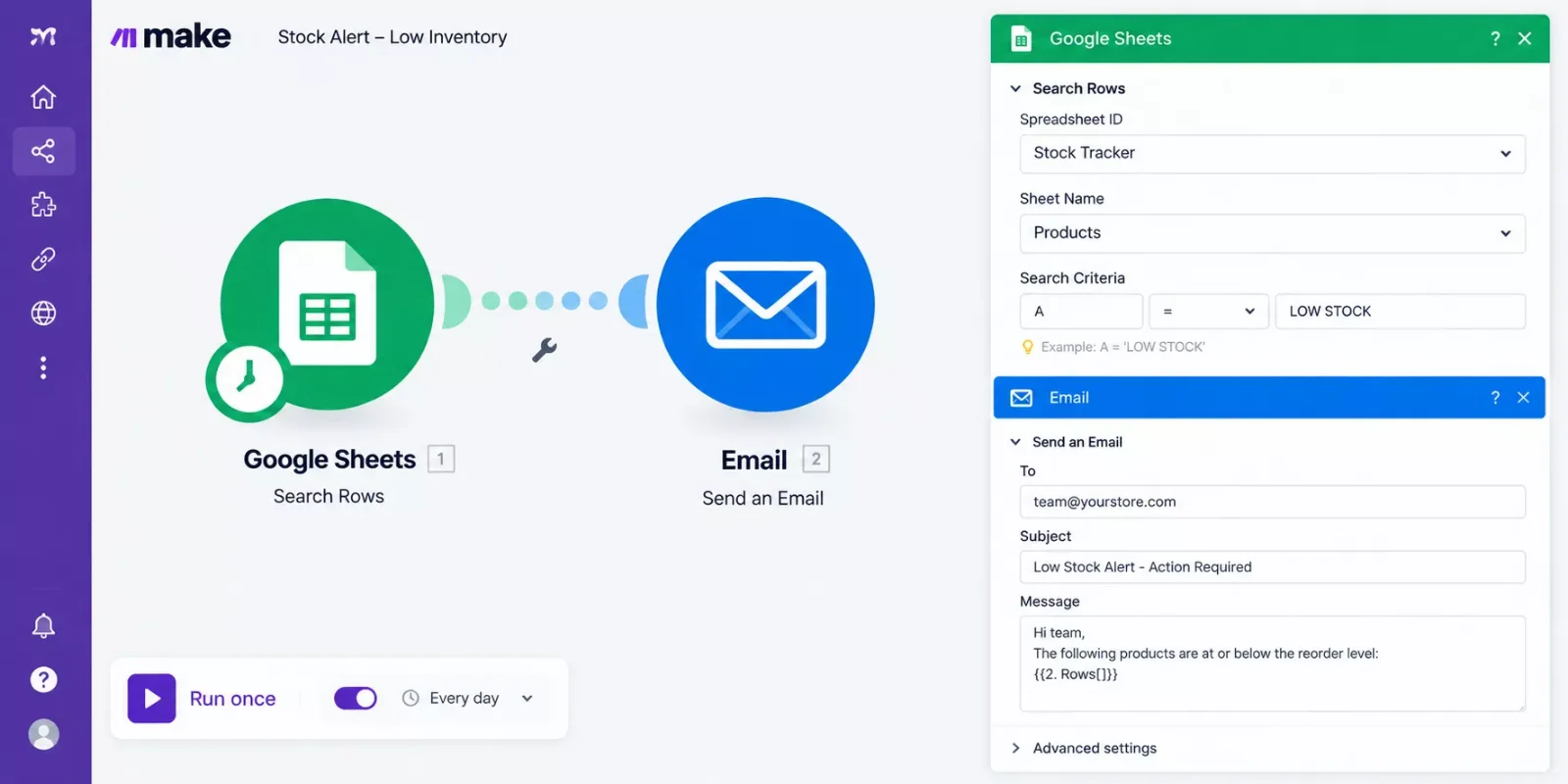
A two-module Make.com scenario: Google Sheets Search Rows followed by an email module.
On cost, Make's help center says the first module of each run uses one credit, and every later action uses one credit per item. A once-a-day schedule uses about 30 credits a month for the check, and each alert email adds one credit.
A check that finds nothing still uses a credit. Make's Free plan includes 1,000 credits a month, so a once-a-day check fits, but confirm current limits on Make's pricing page. The same tracker-plus-reminder pattern works for money too: see invoice tracking that auto-reminds late-paying clients.
⚠ Watch Out For: This scenario sends the same alert every day until you restock or change the count. If you run it every few minutes instead of once a day, it also uses far more credits.
People Also Ask
What is the best way to track inventory for a small business without buying software?
A simple spreadsheet is enough for many small shops: one row per item, a quantity column, a reorder level, and a status formula that flags low stock. Update it after every sale or delivery.
What is a reorder point, and how do I calculate it?
A reorder point is the stock level at which you should place a new order. A common formula is average daily sales times supplier delivery time in days, plus a safety cushion. When your count reaches that number, reorder.
What is safety stock, and how much do I need?
Safety stock is extra inventory you keep to cover demand spikes or late deliveries. It is the cushion in the reorder-level formula above. The right amount depends on how much your sales and your supplier's delivery times vary, so start modest and adjust.
Can Google Sheets handle inventory management for a small business?
Yes, for one location, a modest product list, and hand updates. Once you need barcode scanning or several sales channels in sync, look at inventory software.
Is Excel or Google Sheets better for small business inventory management?
Both can hold similar columns. The built-in alert and the Make.com steps here are written for Google Sheets, so use Sheets if you want to follow them exactly.
Can I use a barcode system for my small business with this sheet?
The sheet in this guide does not scan barcodes. For scanning at the shelf, look at inventory tools that offer it, such as the barcode scanning Toast describes for Toast Retail.
What a Stock Sheet Can and Cannot Do
A stock sheet with a low-stock alert gives a small business a count it can trust and a warning before an item sells out. It cannot count your shelves for you, and the alert is only as good as the numbers you type in.
⚡ Pro Tip: Count your top sellers once a month and fix any numbers that drifted. The alert only reads your sheet, so a wrong number gives you a wrong warning.
Maybe this is more setup than you want to take on this month. If so, start small: write a reorder level for your five best sellers first. That one step already makes the sheet worth opening.
If setting up the full alert is not the best use of your week, it is the kind of stock-alert setup SmartSoloFlow builds in Make.com, and I build it as a no-code architect for small teams like yours.
Want This Built for Your Business?
Tell me what you sell and how you track stock today, and I'll set up the low-stock alert in Make.com for your business.
Let's TalkFound this guide useful? Share it with a fellow freelancer who's still doing things manually. 🚀
Got a question or a workflow roadblock? Drop it in the comments below, happy to help.
Details checked: October 2026
Last Updated: October 21, 2026

// Comments