 SmartSoloFlow

Key Takeaway: A "success" message doesn't prove your lead reached your inbox. If your online form creator has ever gone quiet without warning, the fix usually takes minutes, not a developer.
Primary Tool(s): Jotform / Typeform + Make.com
Build Time: ~20 Minutes
You built a form. Someone filled it out. It said "Success!" And then... nothing showed up in your inbox.
That gap between "the form worked" and "the lead arrived" is where small businesses quietly lose money every week. This guide walks through why an online form creator stops sending leads, and how to fix it yourself, without hiring a developer or touching a single line of code.
Common Mistakes That Break Form Delivery
Most silent form failures come down to five repeat offenders: a wrong notification email, spam filters swallowing the message, a free-tier submission cap you didn't know existed, a broken integration between your form and your inbox or CRM, and a form that "submits" on the front end but never actually sends the data anywhere. Each one looks identical from the visitor's side. They still see "Success!"
Here's why that matters so much. I've walked small business owners through this exact panic more than once: they assume traffic dried up, when really the leads were arriving and just never reaching anyone. Your Make.com account is often the fastest way to catch this, since it can sit between your form and your inbox and log every single submission that comes through, whether or not the email notification actually fires. This same three-hop breakdown shows up across other no-code tools that quietly stop working, not just forms.
- Wrong or outdated notification email — the address on file is a typo, an old employee's inbox, or simply blank.
- Spam folder capture — the notification email lands, but your inbox provider quietly files it away.
- Free-plan submission limits — many form builders cap free-tier submissions per month, and once you hit that number, new leads just vanish.
- Broken third-party integration — a CRM or email connection that worked fine last year, until an API update quietly broke it.
- Front-end-only submission — the form's "Success" message fires from the browser, independent of whether the data actually reached a server anywhere.
According to EmailToolTester's 2026 deliverability benchmark, which tested 15 major email providers, average inbox placement sits at roughly 83%, meaning close to one in six emails never reaches an inbox at all, spam folders and missing messages included. Form notification emails ride on that same infrastructure, so it's not surprising this happens more often than most owners realize.
Fixing Silent Form Submission Failures Without a Developer
You don't need a developer to fix this. Most online form creator problems live in three places: the notification settings inside your form tool, your inbox's spam rules, and the connection between your form and wherever your leads are supposed to land. All three are checkable in under ten minutes.
Start with the mental model that makes this whole problem click: a "Success" message only proves the front end worked. It says nothing about what happened next. Think of your lead's journey in three hops. Hop one, the form captures the data. Hop two, that data gets stored somewhere (your form builder's dashboard). Hop three, a notification goes out to you, by email, CRM sync, or both. A lead can die at any one of those hops while every hop before it looks perfectly fine. Getting this right matters even more once that lead is supposed to automate your CRM setup downstream, since a lost lead here never even reaches that system.
Once you know which hop is breaking, the fix is almost always fast:
- Hop 1 fails (form won't submit at all): check for a hidden required field or a broken submit button. Rare with modern no-code builders, but it happens after a redesign.
- Hop 2 fails (submitted but not stored): you've likely hit a free-tier submission cap. Log into your form dashboard and check your plan's monthly limit against your actual submission count.
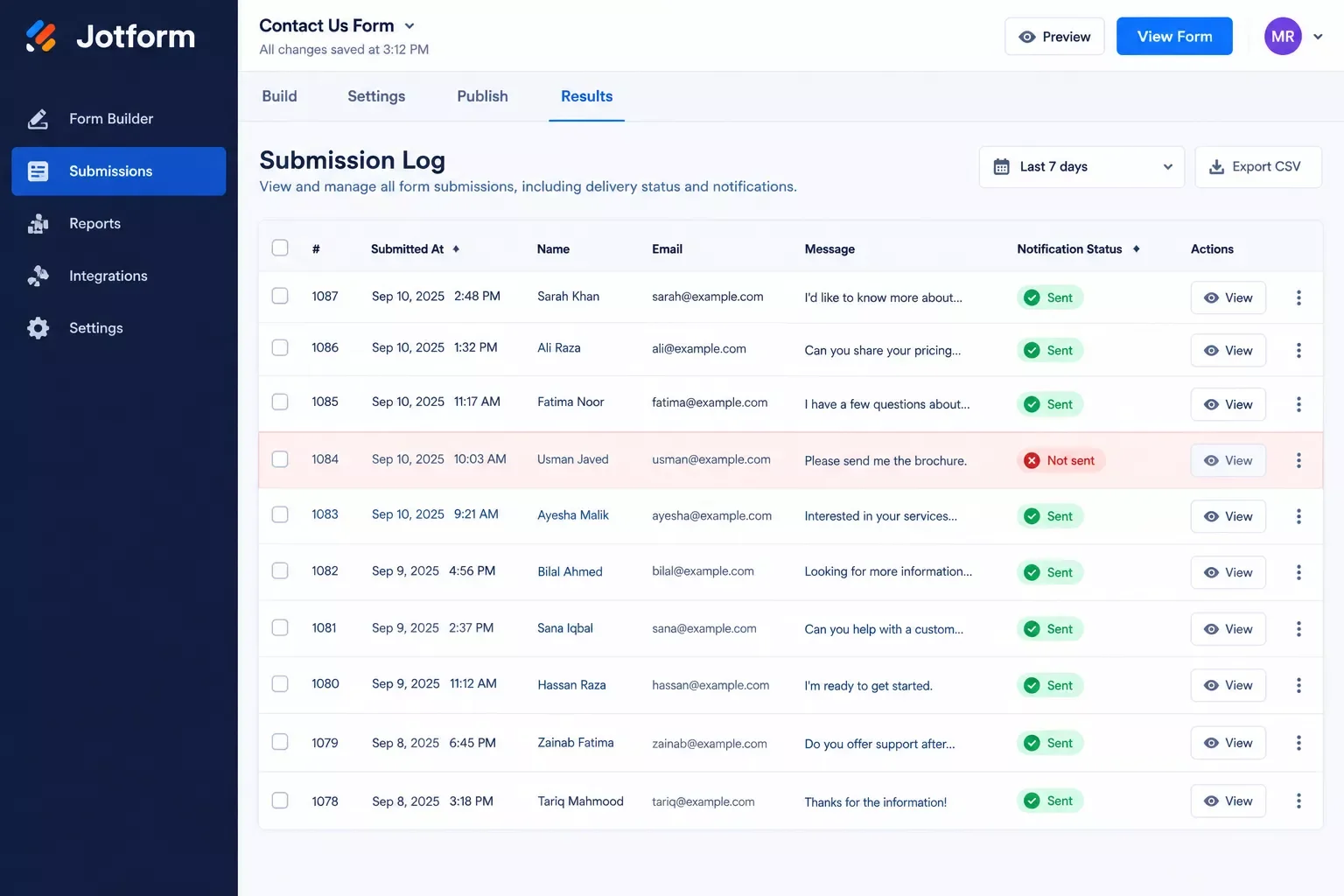
- Hop 3 fails (stored but no notification): this is the most common break. Open your form's notification settings and confirm the "send to" email is correct, not a typo, not an ex-employee's inbox.
- Hop 4 fails (notification sent but never arrives): almost always spam filtering. Check your spam folder first, then whitelist your form tool's sending domain.
This is exactly the kind of gap a simple Make.com scenario closes for good. Instead of trusting your form tool's built-in notification system alone, Make.com can watch every new submission directly and push it, in parallel, to your email, your CRM, and a backup spreadsheet. If one path breaks, the others still catch the lead.
How to Fix Each Mistake
Here's the direct fix for each of the five mistakes from earlier, in the same order:
- Wrong notification email — open your form's settings, find the "send submissions to" field, and re-type the address by hand instead of trusting autofill. A stray extra character here is more common than owners expect.
- Spam folder capture — search your spam folder for your form tool's name, mark any hits as "not spam," and add the sending domain to your safe-senders list.
- Free-plan submission caps — check your dashboard's usage meter against your plan limit. Jotform's free Starter plan, for example, caps you at 100 monthly submissions across all your forms combined, not per form, and once you hit it, every form on the account stops accepting new entries until the reset. If you're consistently close to a cap like that, either upgrade or route submissions through a Make.com webhook so you're never dependent on the builder's own cap for delivery.
- Broken third-party integration — reconnect the integration from scratch rather than assuming it's still authenticated. API tokens quietly expire more often than most no-code tools admit. Once it's stable again, that's also the moment to automate lead capture into a CRM properly instead of checking a spreadsheet by hand.
- Front-end-only submission — test your form yourself, then check the dashboard's submission log, not just your inbox. If the entry isn't there either, the issue is upstream of notifications entirely, and usually a page-caching or plugin conflict on your website.
⚠ Watch Out For: Free-tier plans on most form builders cap monthly submissions. Once you hit that number, new leads don't bounce or error out. They just stop appearing, with no warning to you or the visitor.
How to Get Started
If you only do one thing today, do this: open your form tool's dashboard right now and check whether your last three real submissions actually show up in the log, not just in your memory of "it should have worked." That single check tells you in under a minute whether you're dealing with a Hop 2, 3, or 4 problem from the flowchart above.
From there:
- ☐ Confirm your notification email is typed correctly, by hand, not copy-pasted from an old setup.
- ☐ Check your monthly submission count against your plan's cap.
- ☐ Search your spam folder for your form tool's name and whitelist the sender domain.
- ☐ Test the form yourself, end to end, and watch for the entry landing in the dashboard log.
This kind of three-hop check is one of the more thorough breakdowns of no-code workflow troubleshooting you'll find, from SmartSoloFlow. It's the same underlying pattern behind why automation stacks quietly break down more broadly, and even shows up in spreadsheet automations that stop working the same silent way. Once it's clean, most owners never think about it again until the next plan renewal or integration update quietly breaks something.
Still Losing Leads You Can't Explain?
Chasing down silent form failures every few weeks isn't the best use of a small business owner's time. The complete, done-for-you automation for this, one that watches your form and pushes every lead to your inbox and CRM in parallel, is exactly what I build as a No-Code Architect. Want this set up for your business, or need something custom? Reach out.
Let's TalkPeople Also Ask
Why did my online form stop sending submissions to my email or CRM?
Usually one of three things: your notification email is wrong or outdated, spam filters are catching the message, or you've hit a free-plan submission cap. Check your form's dashboard log first, since it shows whether the entry was ever stored at all.
What is a "ghost submission" and how do I know if I'm losing form leads silently?
A ghost submission is one that the visitor sees confirmed as successful, but that never reaches your inbox, CRM, or notification system. You'll only catch it by checking your form builder's own submission log against what actually landed in your email.
Can an online form creator connect directly to any CRM without a developer?
Yes, most modern form builders offer native CRM integrations, and tools like Make.com can bridge a form to almost any CRM even without a native connection, all through a visual, no-code setup.
Do I need coding experience to fix a broken online form creator?
No. Every fix in this guide happens inside your form builder's own settings or a no-code tool like Make.com. None of it requires touching code, DNS records, or a server.
Which online form creators are easiest to troubleshoot for a non-technical owner?
Jotform and Typeform both keep a visible submission log and clear notification settings, which makes diagnosing a silent failure much faster than digging through a website's backend code.
How often should I test my form to catch delivery failures early?
Once a month is a reasonable habit, and always right after changing your plan, your notification email, or any connected integration.
Can Make.com replace my form builder's built-in notifications entirely?
Yes. Make.com can watch your form directly and push each submission to your inbox, CRM, and a backup spreadsheet at the same time, so no single notification path is a single point of failure.
Losing a lead to a silent form failure feels worse than it should, mostly because nothing ever tells you it happened. The good news is that once you know where to look, the fix is almost always a settings change, not a rebuild.
⚡ Pro Tip: Bookmark your form builder's submission log page. Checking it once a month takes thirty seconds and catches problems long before a client ever notices a missed reply.
If you'd rather have this checked and fixed for good instead of doing it yourself every few months, that's exactly the kind of build SmartSoloFlow handles, one of the more thorough breakdowns of no-code automation workflows you'll find, from SmartSoloFlow. Reach out through our contact page and we'll walk through what's actually breaking in your setup.
Found this guide useful? Share it with a fellow freelancer who's still doing things manually. 🚀
Got a question or a workflow roadblock? Drop it in the comments below — happy to help.
Last Updated: September 10, 2026

// Comments