 SmartSoloFlow

Key Takeaway: Jasper and the native OpenAI/ChatGPT module are the easiest AI email writers to actually connect to a Make.com scenario today. Copy.ai works too, through a community-built integration. Lavender and Grammarly are worth using, but they plug into your stack differently than the others, and this guide is honest about that.
The best ai email writer for a Make.com user isn't the one with the flashiest features. It's the one that actually connects to the automations you've already built. If you're a solopreneur or small agency owner running scenarios in Make.com, the real question isn't "which AI writes the best email," it's "which AI tool can I plug into a scenario without duct-taping five apps together." That confusion, too many options, unclear about which ones genuinely integrate, is the exact problem this guide solves. Below are six AI tool reviews and comparisons, ranked by how cleanly they fit into an existing Make.com stack, not just by writing quality alone. Some connect natively. Some need a webhook bridge. One doesn't connect to Make at all, and I'll tell you exactly why it still made the list.
- Why Add an AI Email Writer to a Make.com Stack Instead of Switching Platforms?
- AI Email Writers That Actually Integrate With Make.com Scenarios
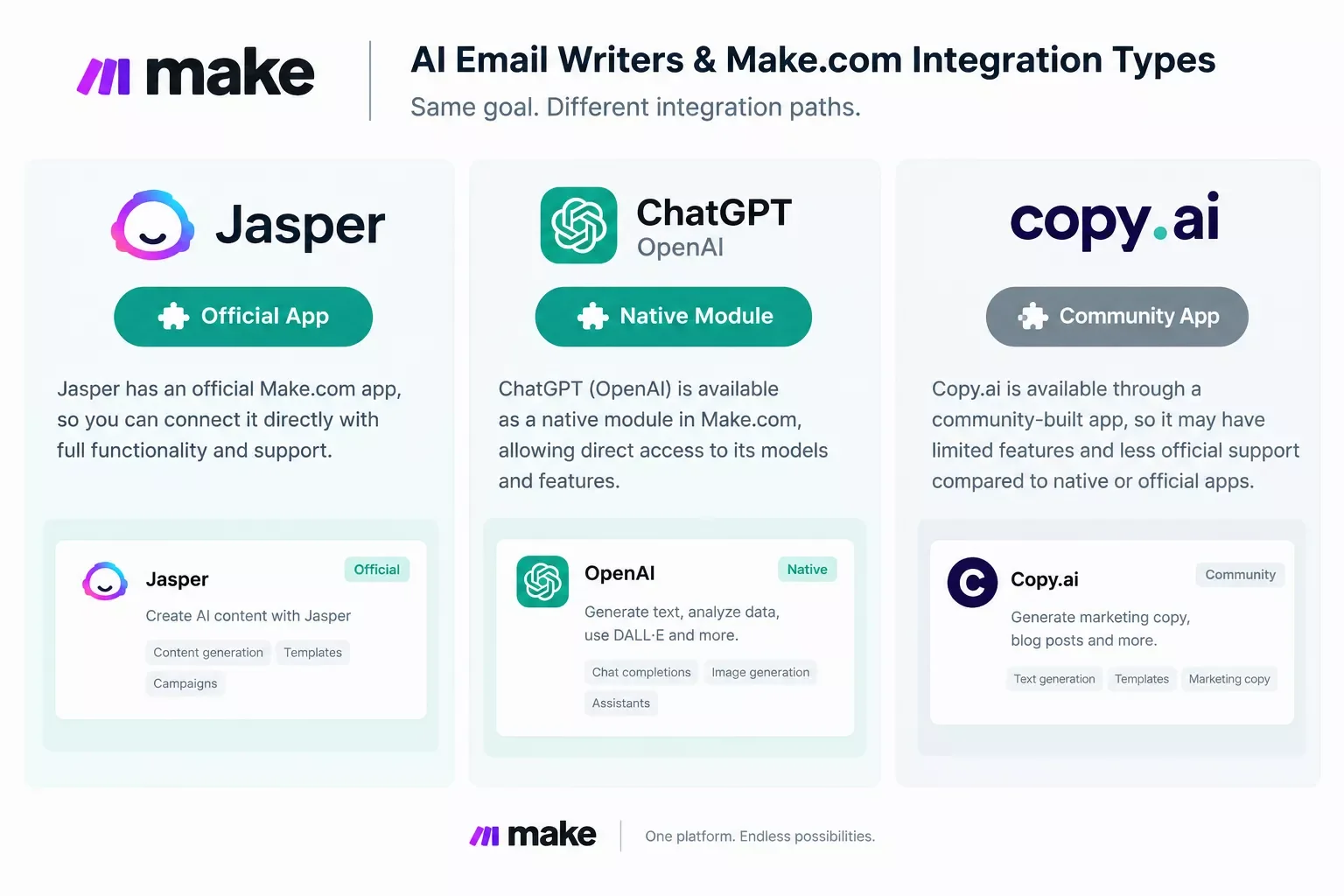
- 1. Jasper — The Only Tool Here With an Official Make.com App
- 2. ChatGPT / OpenAI — The Most Flexible, Because Make.com Already Speaks Its Language
- 3. Copy.ai — Works With Make.com, But Read This Before You Build On It
- 4. Writesonic — API-First, Built for a Webhook Bridge
- 5. Grammarly — Not a Drafting Tool, a Quality Gate Before You Send
- 6. Lavender — The One Tool on This List That Doesn't Connect to Make.com
- Master Stroke — Integration With Make.com
- Conclusion
Success Story: Adding an AI Writer Without Rebuilding a Stack
For example: a freelance consultant running client-onboarding automations in Make.com kept writing follow-up emails by hand after every scenario finished. Connecting one AI email writer to that same scenario turned a 10-minute manual step into something the automation handled on its own, with the consultant only reviewing before send.
Why Add an AI Email Writer to a Make.com Stack Instead of Switching Platforms?
Most "best AI email writer" guides assume you're starting from zero. You're probably not. If you're reading this, there's a decent chance you already have a Make.com scenario running, maybe pulling new leads into a CRM, or triggering a follow-up sequence. Ripping that out to adopt an all-in-one email platform is a step backward, not forward.
The smarter move is treating the AI email writer as one more module in a system you've already built. You keep your triggers, your data mapping, your CRM connections. You just add a step that writes a better first draft than you would, faster than you could. Tools like AI automation tools that pair with your Make.com stack follow this same logic across other categories, not just email.
Here's what trips people up: not every AI email writer is built for that. Some are browser extensions meant to live inside Gmail. Others are full API-first platforms designed to be called from exactly the kind of automation you're running. Knowing the difference before you pick one saves you a wasted afternoon. If you'd rather build the trigger side yourself first, our guide on how to set up email automation that triggers itself covers that half of the system.
AI Email Writers That Actually Integrate With Make.com Scenarios
Here's the short answer: two of the six tools below have a real, working connection to Make.com right now. One is official and vendor-supported. One is community-built and works, but isn't maintained by Make or the tool itself. The rest connect through a webhook, an API call, or don't connect to Make.com directly at all, and I'll flag which is which as we go.
1. Jasper — The Only Tool Here With an Official Make.com App
Jasper connects to Make.com through a real, vendor-built integration, not a workaround. Make.com Fit: direct, official, and supported by Jasper's own team.
Jasper published its own Make.com integration through three core actions: Run a Command, Run a Template, and Make an API Call. That means you can drop a Jasper module straight into an existing scenario and have it generate an email draft the moment a trigger fires, whether that's a new lead in your CRM or a form submission.
The catch: you need a Jasper Business plan and an API key to unlock this. If you're already paying for Jasper at a lower tier, this is the one real limitation to check before you build anything around it.
Best for: solopreneurs and small agencies who want brand-consistent email copy across a full Make.com stack, not just one-off drafts. Jasper's tone and brand-voice settings carry over into every scenario, so an email drafted through automation still sounds like you. If you want the deeper dive on how Jasper stacks up outside of Make.com specifically, see our Jasper vs. Claude comparison.
2. ChatGPT / OpenAI — The Most Flexible, Because Make.com Already Speaks Its Language
If you want full control over how your emails get written, the native OpenAI module built into Make.com itself is hard to beat. Make.com Fit: native, no third-party app required.
Make.com ships with its own OpenAI integration, the same connection used across thousands of scenarios for content generation, summarization, and yes, email drafting. You write the prompt once, map your trigger data into it, and every email that comes out follows the same structure.
This isn't a polished, purpose-built "email writer" product. It's a blank canvas. You supply the tone, the structure, and the guardrails. For someone comfortable writing a good prompt, that's actually the advantage. You're not fighting a tool's opinion of what a good email looks like.
Watch out for: without a well-built prompt, output can drift generic fast. Budget time upfront to write and test your prompt before trusting it to run unattended in a live scenario.
3. Copy.ai — Works With Make.com, But Read This Before You Build On It
Copy.ai connects to Make.com, but not through Copy.ai's own team. Make.com Fit: functional, community-maintained, worth a small caveat before you rely on it.
The Copy.ai integration available inside Make.com's app directory is built and supported by a third-party developer, not by Make or Copy.ai directly. It works, and it's been used in real scenarios for tasks like publishing generated copy or triggering weekly email drafts. But if something breaks, you're troubleshooting through the community app's own support channel, not Copy.ai's help desk.
Best for: teams already using Copy.ai for broader marketing copy who want their email drafts to flow through the same system, and who are fine with a community-supported connection rather than an official one.
4. Writesonic — API-First, Built for a Webhook Bridge
Writesonic doesn't have a dedicated Make.com app, but it doesn't need one. Make.com Fit: connects through Make's built-in HTTP and Webhooks modules, using Writesonic's own REST API.
Because Writesonic exposes a full REST API with webhook support, you can wire it into a Make.com scenario using Make's generic HTTP module. It takes a bit more setup than clicking "connect" on a native app, mapping the API call, handling the response, but it's a well-documented API, not a fragile workaround.
This approach also means you're not limited to email drafting. The same connection can pull other Writesonic outputs into a scenario if your stack grows later.
Best for: builders who don't mind a slightly more technical setup in exchange for direct API control, and who want speed on high-volume drafts, cold outreach sequences, follow-up variations, and similar repeatable email types.
5. Grammarly — Not a Drafting Tool, a Quality Gate Before You Send
Grammarly earns its spot on this list for a different reason than the rest. Make.com Fit: API-based, best used as a check step, not a drafting step.
Grammarly doesn't have a dedicated Make.com app, and its current developer API is documented for account and license management, not for pulling tone or clarity checks into a third-party workflow. If you want an automated review step, the more reliable route right now is running drafts through Grammarly's own browser extension or app manually before they go out, not wiring it into a Make.com scenario.
The honest limitation: Grammarly doesn't write your email from scratch. It reviews and polishes something already written, by you or by another AI module earlier in the same scenario. Pair it with Jasper or the OpenAI module rather than expecting it to replace either one.
Best for: anyone who's nervous about AI-drafted emails going out unreviewed. Adding a Grammarly check as a scenario step catches the awkward phrasing an AI module might miss, before a client ever sees it.
6. Lavender — The One Tool on This List That Doesn't Connect to Make.com
This one deserves an honest flag rather than a workaround pitch. Make.com Fit: none, directly. Lavender is built for Zapier, HubSpot, Pipedrive, and Slack, not for Make.com scenario automation. If you're weighing dedicated AI tools against each other more broadly, our breakdown of the best AI voice generator for Make.com automation covers a similar official-vs-none integration gap in a different tool category.
Lavender is genuinely excellent at what it does, real-time scoring on tone, personalization, and reading level, right inside Gmail or Outlook as you type. It's a coaching layer, not an API you call from a scenario. That's by design. It's meant to sit next to a human writing an email, not inside an unattended automation.
So why include it here? Because "best for Make.com users" sometimes means knowing what not to automate. If you're sending high-stakes emails, a client proposal, a negotiation, running the draft through Lavender manually before it goes out, even one generated by Jasper or ChatGPT earlier in your stack, catches things automation alone won't.
Best for: reviewing AI-drafted emails before they leave your outbox, not for plugging into a scenario.
Master Stroke — Integration With Make.com
Here's the real shortcut most of these guides miss: you don't need to pick just one tool from this list and build your whole stack around it. The smartest setup usually pairs two: one that drafts (Jasper or the native OpenAI module) and one that reviews (Grammarly, or Lavender used manually before high-stakes sends). It's the same "add, don't replace" thinking behind how we added an AI customer service bot to Make.com, and it's the same logic our AI SEO tools that connect to Make.com roundup uses too.
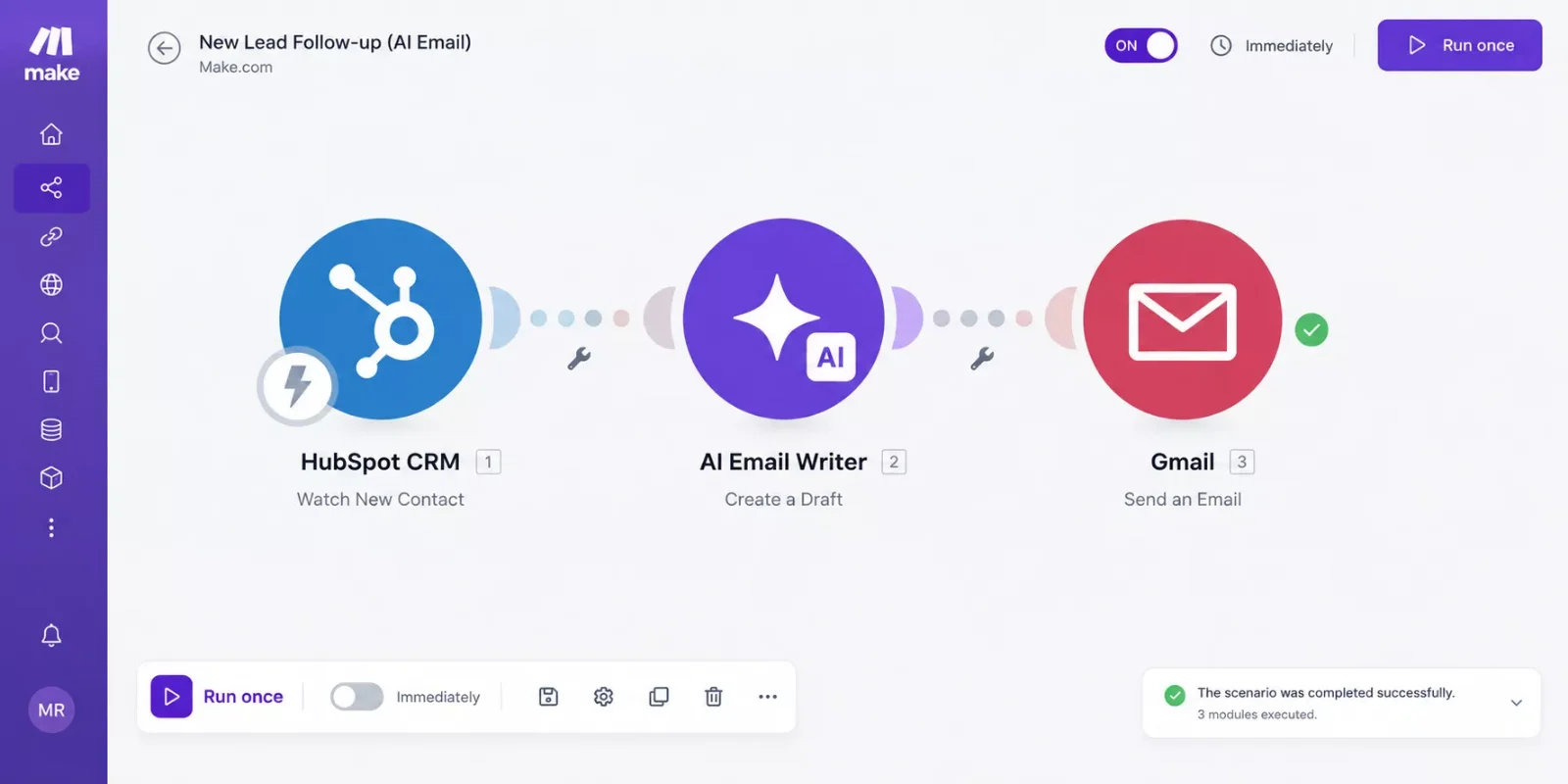
A simple version looks like this: a new lead lands in your CRM, Make.com triggers a scenario, the OpenAI or Jasper module drafts a personalized follow-up using the lead's actual data, and the draft lands in a queue for a quick human glance before it sends. That's not a fully hands-off system, and it shouldn't be, but it turns a 10-minute writing task into a 30-second review.
This is exactly the kind of build that multiplies what a Make.com stack can already do. If you want this working alongside your existing stack without piecing it together yourself, this is exactly what I build.
People Also Ask
Which AI email writer pairs best with an existing Make.com automation setup?
Jasper pairs best if you want an official, vendor-supported connection. It has a dedicated Make.com app with three core actions built specifically for automation. The native OpenAI module is a close second if you're comfortable writing your own prompts instead of using a packaged tool.
Can Make.com draft emails automatically, or do I need a separate AI email writer?
Make.com can draft emails on its own through its built-in OpenAI module, no separate tool required. A dedicated AI email writer like Jasper adds brand-voice consistency and templates, which the raw OpenAI module doesn't include out of the box.
How do I connect an AI email writer to a Make.com scenario so drafts trigger automatically?
For tools with an official Make.com app, like Jasper, add the app's module directly to your scenario and map your trigger data into it. For API-only tools like Writesonic or Grammarly, use Make's HTTP module to call their REST API and map the response back into your scenario.
Do I need a paid plan to connect these AI email writers to Make.com?
Usually, yes. Jasper's Make.com integration requires a Business plan with API access. Writesonic and Grammarly's API-based connections also typically need a paid tier, since free plans rarely include API or webhook access.
Is the native OpenAI module in Make.com free to use?
The module itself is included in Make.com, but you pay OpenAI directly for API usage based on how much text you generate. For occasional email drafts, this cost is usually small, but it's worth checking current OpenAI pricing before running it at high volume.
What's the best use case for adding an AI email writer to a Make.com stack?
Repetitive, data-driven emails work best: lead follow-ups, onboarding sequences, and status updates where the structure stays the same but the details change. High-stakes emails, like client negotiations, still deserve a human pass before sending.
Conclusion
You don't need to abandon your Make.com stack to get better email drafts. Pick a tool that actually connects to what you've already built, Jasper or the native OpenAI module for most people, and let it handle the repetitive drafting so you can focus on the emails that actually need your full attention.
Top Pick — Jasper: ★★★★☆ (4.2/5) — the only tool on this list with an official, vendor-supported Make.com app, which is what earns it the top spot for anyone building this into an actual scenario rather than just testing prompts by hand.
⚡ Pro Tip: Start with the native OpenAI module before paying for a separate tool. It's already inside Make.com, and testing your prompt there first shows you exactly what you need from a dedicated email writer before you commit to one.
⚠ Watch Out For: API-based connections (Writesonic, Grammarly, and the OpenAI module) usually bill per use. Draft volume can add up fast if a scenario runs more often than expected, so check your usage settings before letting one run unattended.
Want this set up for your business, or need something custom? Let's talk.
Want Your Make.com Stack Handling This Automatically?
If you'd rather not spend a weekend wiring this together yourself, this is exactly the kind of build I set up so it just works, drafts, review, send, without you touching it.
Let's TalkSmartSoloFlow helps solopreneurs and small teams pair the right AI tools with the Make.com automation workflows they're already running. Get in touch if you want this built for your business.
Found this guide useful? Share it with a fellow freelancer who's still doing things manually. 🚀
Got a question or a workflow roadblock? Drop it in the comments below — happy to help.
Last Updated: September 10, 2026

// Comments