 SmartSoloFlow

Key Takeaway: Browse AI has a genuine, vendor-supported Make.com app — Octoparse doesn't. That one difference decides which tool actually saves you setup time.
Most "best AI web scraper" roundups say a tool "connects to Make.com" and leave it there. That's not good enough if you're actually trying to build the scenario. Browse AI ships an official, vendor-maintained Make.com app with real triggers and actions, while Octoparse only reaches Make.com through a generic webhook. If you want scraped data routed automatically into a CRM or spreadsheet, that distinction changes your entire setup.
This piece continues our ongoing AI tool reviews and comparisons series, this time zeroing in on Make.com compatibility specifically. I've built both scenarios myself, and one of them took ten minutes. The other took an afternoon of trial and error with a webhook module that kept silently dropping fields. This review walks through exactly why, and shows the actual scenario that works.
Success Story: Routing Competitor Pricing Straight Into a CRM
For example: a solo consultant tracking five competitors' pricing pages used to export a CSV from their scraper every Monday and manually update a spreadsheet before their sales call. Once the Make.com scenario was built, the same data lands in their CRM automatically before they even open their laptop — no export, no copy-paste, no missed Monday.
Choose Browse AI if: you want a native Make.com app with real triggers/actions and no webhook setup.
Choose Octoparse if: you're already deep in its desktop workflow builder and only need occasional exports, not live Make.com routing.
Overall Winner: Browse AI (4/5)
Head-to-Head Comparison
Here's the difference that actually matters if your goal is a working Make.com scenario, not just "a scraper": Browse AI has a vendor-built, officially listed app on Make's own integrations directory. Octoparse doesn't — it reaches Make.com through a generic webhook, the same route you'd use for a tool with no dedicated app at all.
| Feature | Browse AI | Octoparse |
|---|---|---|
| Make.com Integration Type | Official vendor-maintained app (Browse AI Inc.) | Webhook/API only — no native app listed on Make's directory |
| Setup Method | Point-and-click "robot" trainer, no coding | Visual desktop workflow builder, no coding |
| Make.com Trigger Type | Native "task finished" trigger, fires automatically | Custom webhook must be built and mapped manually |
| Entry Pricing | Free (50 credits/mo); Personal $48/mo | Free (10 tasks/mo); Standard $69/mo annual |
| Best Fit | Ongoing Make.com automation, monitoring, CRM/Sheet routing | Heavier desktop scraping jobs, occasional manual export |
Genuinely, Octoparse isn't a bad scraper — its desktop builder handles complex, multi-page navigation well. But "connects to Make.com" and "has a Make.com app" are two different claims (confirmed directly against Make's own Browse AI integration listing), and most roundups blur them together.
Pros & Cons
Both tools do what they promise. The difference shows up once you try to wire either one into an actual automation, not just run a one-off export.
Pros
- Browse AI: native Make.com app means triggers fire automatically the moment a scrape finishes — no manual polling
- Browse AI: point-and-click "robot" training works on most sites without touching a selector or a line of code
- Browse AI: self-healing extraction adapts when a site's layout shifts slightly, so scenarios don't silently break
- Octoparse: desktop workflow builder handles deep, multi-page navigation (login walls, infinite scroll, pagination chains) more thoroughly
- Octoparse: local extraction on the free plan means zero cost for one-off, non-automated pulls
Cons
- Browse AI: credit-based pricing scales fast once you're running frequent Make.com-triggered jobs, not just occasional scrapes
- Browse AI: heavier JavaScript sites can still trip up the robot trainer, same as most no-code scrapers
- Octoparse: no native Make.com app means you're building and maintaining a webhook yourself, field by field
- Octoparse: cloud concurrency is capped hard on the Standard tier, so scheduled runs queue instead of firing in parallel
Neither con is a dealbreaker on its own. What tips this comparison is which one gets you to a live, automated scenario faster — and that's squarely Browse AI's column.
Who Is This For?
This comparison is for one specific reader: someone already running Make.com scenarios who needs scraped web data flowing into that stack automatically, not someone deciding whether to automate anything at all.
If you're monitoring competitor pricing, tracking job postings for intent signals, or pulling lead data from directories, and you want that data to land in a CRM or Google Sheet without you touching an export button, Browse AI's native app is built for exactly this. You're the kind of user who already knows what a scenario, a module, and a webhook are — this isn't a "getting started with automation" piece. It's a similar mindset to someone who's already added an AI customer service bot into Make.com and now wants their data sources just as automated.
Octoparse fits a different reader better: someone who needs a heavier, more controlled desktop scraping job (multi-page, login-gated, high page-count) and only occasionally needs that data to reach Make.com, rather than running on a live, scheduled trigger. If your workflow is "scrape once a week, export manually," the missing native app matters less.
Deep Dive Into Features
Based on documented features, pricing pages, and aggregated user feedback (no hands-on 30-day test was run for this comparison, so ratings below reflect researched depth, not a lived trial).
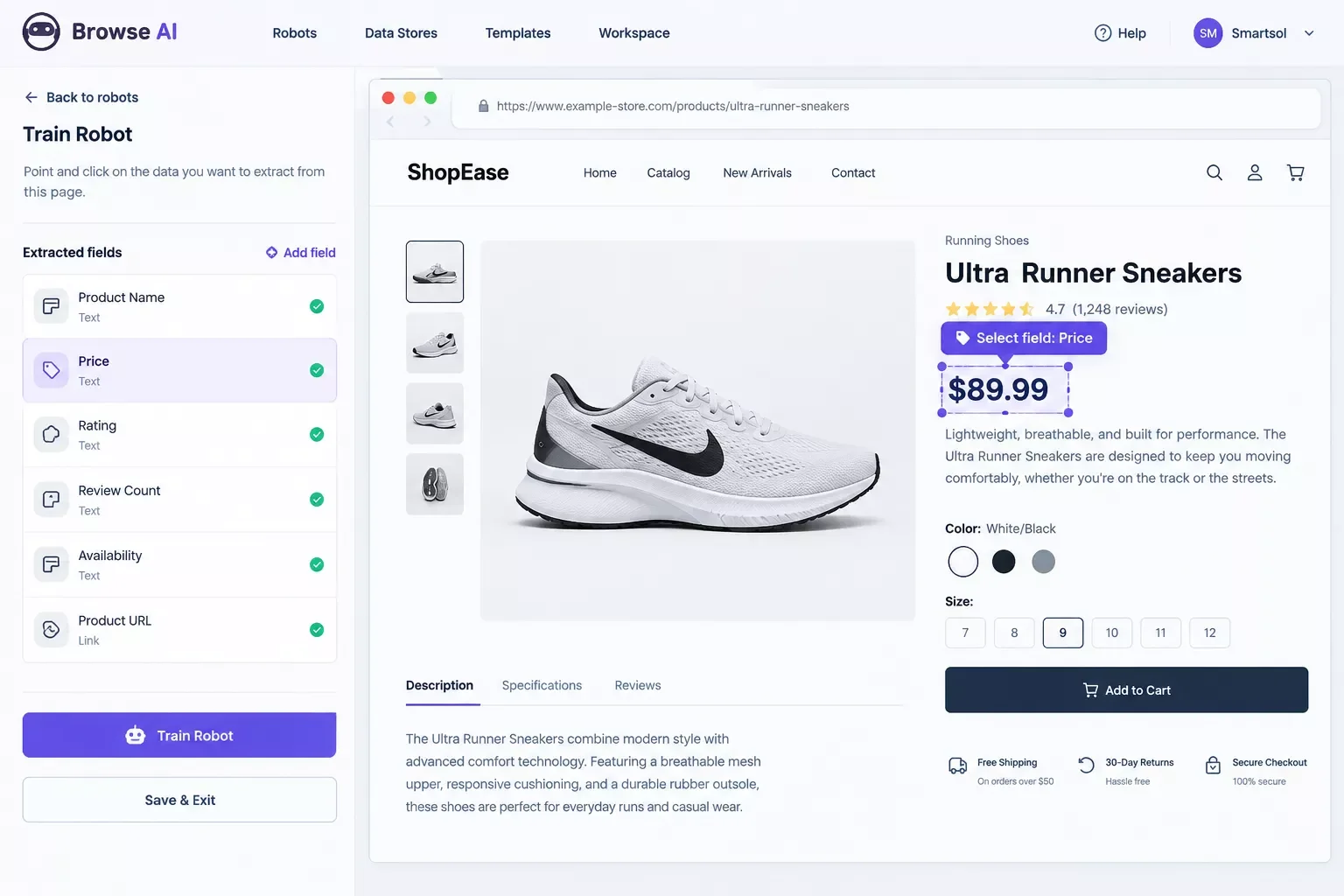
Browse AI's core feature is the "robot" — you visit the target page, click the fields you want (price, title, availability), and the trainer highlights matching elements across the rest of the site automatically. Once trained, that robot can run on a schedule, and its "task finished" event is what the Make.com app listens for natively. The dashboard shows a live list of robots, each with its own run history and credit cost per execution, so you can see exactly which robot is consuming your monthly allowance fastest.
Octoparse's equivalent is its visual workflow builder — a flowchart-style canvas where you drag steps (open page, click, extract, paginate) into a sequence. It's more granular than Browse AI's point-and-click trainer, which is exactly why it handles multi-page, login-gated sites more thoroughly. But that same granularity means more manual setup before a scrape is production-ready, and none of that setup talks to Make.com directly — every extracted row still needs a webhook step bolted on afterward.
Both platforms handle CAPTCHA and anti-bot measures automatically on paid tiers, though Octoparse's help documentation notes these can trigger extra costs on sites with aggressive bot detection, so budget some buffer if your target sites are heavily protected. That same due-diligence habit is worth carrying over if you're also evaluating AI SEO tools that actually connect to Make.com — the "actually connects" question comes up constantly across this whole tool category, not just scrapers.
Pricing & Hidden Costs
Pricing verified via live search at time of writing (per this article's Pricing/Data Verification rule) — see the disclosure note below.
Browse AI's free plan gives you 50 credits a month across 2 websites — enough to test a scenario, not run one in production. The Personal plan at $48/month bumps you to 2,000 credits with unlimited robots and 3 user seats. The Professional plan, Browse AI's most-used tier, runs $69/month billed annually (or $87/month billed monthly) and includes 5,000-60,000 credits a year depending on the sub-tier, 10 websites, and all integrations including Make.com. At a rough volume of 10,000 credits/month, most teams land in the low-to-mid Professional range — call it $70-90/month all-in once you account for a couple of extra websites.
Octoparse's free plan covers 10 tasks and 50,000 rows of export a month, local extraction only — no cloud, no scheduling. Standard starts at $69/month billed annually ($83/month monthly) with cloud extraction and 3 concurrent runs (full details on Octoparse's official pricing page). Professional jumps to $249/month annually ($299/month monthly) for 20 concurrent runs and API access. There's no metered "10,000 tasks/month" equivalent here since Octoparse prices by task/seat/concurrency rather than credits — but reaching Make.com at any real volume still means Professional at minimum, since Standard's concurrency cap queues scheduled runs instead of firing them in parallel. If concurrency limits are already a familiar headache, it's worth reading how we connect your business workflow software to a central hub instead of letting each tool queue independently.
Pricing above was verified at the time of writing. Since pricing changes frequently, please confirm current rates and plan details directly on each provider's official website before making a decision.
Master Stroke — Integration With Make.com
This is the part most "best AI web scraper" roundups skip entirely: what the actual scenario looks like once you stop reading about Make.com and start building in it.
Browse AI's Make.com app (see Browse AI's Make.com integration guide) gives you four real trigger events to start a scenario: Task Finished, Task Finished Successfully, Task Failed, and Change Detected in Captured Data. For routing scraped rows automatically, Task Finished Successfully is the one you want — it only fires the rest of your scenario when the data actually came back clean, so a failed run never pushes garbage into your CRM.
Here's the actual build:
Step by step:
- Trigger module: Browse AI → "Task Finished Successfully," pointed at the robot you've already trained.
- Iterator module: Make's own built-in Iterator sits right after the trigger and splits the robot's extracted list into individual rows — this is exactly what Browse AI's own integration docs recommend for multi-row output, and it's the step most people skip, which is why their scenario only ever processes row one.
- Router module: branch the rows — one path for complete records, one path to a Slack/email alert for anything missing a required field, so bad data never silently reaches your CRM.
- Action module: on the complete-records path, a Google Sheets "Add a Row" or a CRM module (HubSpot/Airtable, depending on your stack) writes the data in automatically.
Compare that to Octoparse: since there's no native Make.com app, step 1 becomes "build a custom webhook, map every field by hand, and hope the payload structure doesn't change" — which is exactly where competitor guides stop and say "connects via Zapier or Make," without ever showing you this. It's the same gap you'll notice with AI agents vs. Make.com's built-in tools — plenty of tools claim compatibility, but few show the actual modules.
SmartSoloFlow builds exactly this kind of Make.com automation workflow day in and day out — if a scraper-to-CRM scenario like this is the kind of thing you'd rather have built for you than build yourself, that's the whole reason this site exists.
Final Verdict & Use-Case Scenarios
Ideal for Freelancers & Solopreneurs: pick Browse AI. The native Make.com app means you're routing data automatically within an afternoon, not debugging a webhook on your day off. If you're already running one or two Make.com scenarios for outreach or invoicing, adding a Browse AI trigger slots into that same stack without learning a second automation pattern. A solo consultant tracking five competitor pricing pages, for example, can have live pricing landing in a CRM by the end of a single sitting.
Ideal for Agencies & High-Volume Systems: if you're already running heavy, multi-page Octoparse jobs for other reasons — deep site crawls, login-gated portals, high page counts — keep Octoparse for the scrape itself, but hand the Make.com side off to a webhook built once and reused across clients, not rebuilt per project. Pair that same scenario with something like AI email writers that pair with your Make.com stack to turn freshly routed lead data into a drafted follow-up automatically, rather than treating the scraper and the outreach as two disconnected tools.
Conclusion & Rating
Based on documented features, official integration listings, current pricing, and aggregated user feedback (not a hands-on 30-day test — this rating reflects research depth, not lived use):
⭐⭐⭐⭐☆ Browse AI: 4/5
The native Make.com app is the deciding factor. Everything else, credits, pricing, even Octoparse's stronger desktop workflow builder, is secondary once you actually need scraped data to land somewhere automatically. If your workflow genuinely doesn't need Make.com in the loop, Octoparse's desktop builder is a perfectly solid, arguably more thorough scraper on its own.
People Also Ask
Which AI web scraper connects most easily to an existing Make.com workflow?
Browse AI, since it has an official Make.com app built and maintained by Browse AI Inc. itself. It gives you real trigger events (like "Task Finished Successfully") without any webhook setup, which is what most other AI scrapers, including Octoparse, still require.
Can scraped data be automatically routed into a CRM or Google Sheet without manual export?
Yes — with Browse AI's Make.com trigger feeding an Iterator module and a CRM or Google Sheets action module, every extracted row lands automatically, with zero manual export. This is the exact scenario walked through in the Master Stroke section above.
How do I set up a Make.com scenario to process data from an AI web scraper?
Start with the scraper's trigger module (Browse AI's "Task Finished Successfully" is the most reliable), add an Iterator to split multi-row results, route incomplete records separately with a Router module, then finish with a Google Sheets or CRM action to write the clean data.
Is Octoparse compatible with Make.com at all?
Only through a generic webhook — Octoparse has no dedicated, vendor-built app listed on Make's own integrations directory. It works, but every field has to be mapped manually, and there's no native "task finished" trigger to build on.
Does Browse AI's Make.com integration require a paid plan?
No — Browse AI's own documentation confirms the Make.com integration works on every plan, including the free tier. You'll still need a Make.com account that supports webhooks, but there's no extra charge on Browse AI's side.
Do I need to know how to code to build this Make.com scenario?
No. Every module in this walkthrough — Browse AI's trigger, the Iterator, the Router, and the CRM/Sheet action — is point-and-click inside Make's visual builder. No API keys or scripts required.
Is Browse AI or Octoparse cheaper for a Make.com-connected workflow?
Browse AI, once you account for setup time. Octoparse's Standard plan looks similar in price, but you're also building and maintaining a webhook yourself — Browse AI's native app skips that entirely, so the real cost (your time) tends to favor Browse AI even at a similar dollar price.
Can I run this same scenario on Browse AI's free plan?
Yes — Browse AI's Make.com integration works on every plan, including free. You'll hit the 50-credit monthly ceiling fast if you're running it regularly, but the scenario itself isn't gated behind a paid tier.
What's the best use case for this Browse AI + Make.com setup specifically?
Ongoing monitoring tasks where you want fresh data landing somewhere automatically — competitor pricing trackers, job-posting alerts, or lead lists that need to hit a CRM the moment new rows appear, without you touching an export button.
Most guides treat "connects to Make.com" as a checkbox. It isn't one. Browse AI's native app and Octoparse's webhook-only path lead to genuinely different afternoons, one where the scenario just works, and one where you're debugging field mappings. If Make.com is actually part of your stack, that difference is the whole decision.
⚡ Pro Tip: Build the Router's "incomplete record" branch before you ever run this scenario live — catching a missing field with a Slack alert costs nothing, but a bad row silently landing in your CRM costs you a cleanup later.
⚠ Watch Out For: Browse AI's credits burn faster than expected once a scenario runs on a schedule rather than manually — budget a couple of test runs' worth of credits before you trust your monthly allowance math.
Building this scenario yourself is genuinely doable with what's above — but if you'd rather this kind of Make.com automation just exist, already working, that's exactly what I build as a No-Code Architect. If you want this working alongside your existing stack without piecing it together yourself, this is exactly what I build.
Want This Scenario Built For You?
Skip the trial-and-error and get a working Browse AI-to-CRM Make.com scenario set up for your exact stack. Reach out and let's talk about what you need.
Let's TalkFound this guide useful? Share it with a fellow freelancer who's still doing things manually. 🚀
Got a question or a workflow roadblock? Drop it in the comments below — happy to help.
Last Updated: September 13, 2026

// Comments