 SmartSoloFlow

Key Takeaway: GTD in Todoist only holds up when capture stops depending on memory. Set up the five steps once, then automate the one step that needs consistency instead of judgment.
System Goal: Every open loop lands in your Todoist Inbox without you typing it in
Core Framework: Getting Things Done (GTD) in Todoist, with Make.com handling capture
The most common GTD Todoist mistake is treating the Inbox like a place you fill by hand. For solopreneurs already overwhelmed working alone, that step gets skipped first, and the whole system starts to slip.
This guide shows how to set up Getting Things Done in Todoist, then fix the weak spot: capture. You'll see the five GTD steps in Todoist terms, where manual capture leaks, and how a Make.com scenario can drop emails and form entries from your website into your Todoist Inbox.
Once everything lands in one place, you can plan the captured tasks into time blocks without wondering what you forgot. Short on time? Read the capture section first. It carries most of the payoff for a one-person business.
- The Core Problem
- My Productivity Strategy
- Implementation (Step-by-Step)
- The Manual Way
- The Automated Way
- Automate GTD Inbox Capture in Todoist With a Make.com Scenario
- If a Todoist or Gmail Module Throws an Error
- Close the Loop: A GTD Todoist Weekly Review Powered by Your Inbox
- When This Setup Is More Than You Need
- Frequently Asked Questions
- Make Capture the Easy Part
The Core Problem
The core problem is capture. A GTD Todoist setup only works when every open loop lands in your Inbox, and most of those loops don't start in Todoist. They arrive as client emails and form entries, usually while you're busy with something else. Typing them in later means trusting your memory again.
Todoist's own GTD guide starts with the same idea: get everything out of your head and into the Inbox. It's solid advice. But the guide assumes you'll do the typing. Todoist's Gmail add-on helps, yet it turns one email into one task per click, so a busy week still leaves gaps.
That's the gap Make.com fills. Make is a visual automation platform, and it includes a Todoist app with a Create a Task module. A scenario can watch Gmail for new messages, or catch a form entry through a webhook, then create the task for you. The sections ahead build that step after covering GTD itself.
My Productivity Strategy
The GTD method has five steps: capture, clarify, organize, reflect, and engage. Todoist covers each one with built-in features. My strategy is simple: keep four steps manual, because they need your judgment, and automate capture, because it only needs consistency.
- Capture. Get every open loop into the Todoist Inbox, the default home for new tasks until you sort them.
- Clarify. Decide whether each item is actionable and what the concrete next step is. If it takes under two minutes, do it now.
- Organize. Move tasks from the Inbox into projects, split big ones into sub-tasks, and add dates, labels, and priorities.
- Reflect. Review current, upcoming, and completed tasks often, and check Todoist Karma for your progress trends.
- Engage. Work the tasks, choosing by the time you have, your energy, and what's urgent.
Why only capture? Clarify, organize, reflect, and engage all ask you to think. Capture just asks you to be consistent, and consistency is exactly what breaks when you're busy. That's why the Todoist Inbox is the first place I'd automate.
Implementation (Step-by-Step)
Implementation comes down to two lanes. The manual lane covers clarifying, organizing, and reviewing. The capture lane brings new items into your Inbox, and a scenario can run it. Build the manual lane first, so you know what the automation replaces.
The Manual Way
Make the Todoist Inbox your single habit: type or dictate tasks as they come up. For email, use the Gmail add-on to turn a message into a task, or forward it to your Todoist email address. Once a day, clarify each item and move it into a project with a date and priority.
This works while you're at your desk. It leaks when a client replies during a Zoom call, or a form entry sits unread in your email. Each leak feels small. Together, they're why the system stops being trusted.
The Automated Way
The automated way keeps the same steps and replaces only the typing. A Make scenario watches your sources and creates a Todoist task when something new arrives. Gmail is checked on a schedule, so the task appears when the scenario next runs, not the second the email lands. A form entry sent to a webhook is instant.
One cost to know: every scheduled check uses a credit, even when nothing new shows up. An instant webhook run only starts when data actually arrives.
Todoist now lists its own Automations feature, including a template that creates a task when you star a Gmail email. Availability may depend on your account, so check it first. If it covers your sources, use it. Make earns its place when you need form entries or filters.
Features above were checked at the time of writing. Tools change often, so confirm current details in each tool's official documentation.
Automate GTD Inbox Capture in Todoist With a Make.com Scenario
To automate GTD inbox capture in Todoist, build a Make scenario with two modules: a trigger that spots new items, and Todoist's Create a Task module. Each email or form entry you choose to watch becomes a task in your Inbox. You set it up once, then Clarify and Organize stay in your hands.
- Create the trigger. Start a new scenario and add Gmail's Watch Emails module. Connect your Google account when asked, then set what it watches, such as one label, so only emails you've marked become tasks.
- Add Todoist's Create a Task. Search for Todoist, choose Create a Task, and click Create a connection. Sign in, agree to the access request, then click Run once to save the connection.
- Map the fields. Put the email subject into the task content, and set a priority if you want one. Leave the project field alone so new tasks land in your Inbox, then confirm that with a test run.
- Run once, then switch it on. Send yourself a test email, click Run once, and check Todoist. If the task is there, choose how often the scenario checks Gmail and turn scheduling on.
- Swap in a webhook for forms (optional). Replace Gmail with Webhooks' Custom webhook, paste its address into your form tool, and send a test entry while Make is waiting. Check that your Make plan includes webhooks first. The rest of the scenario stays the same.
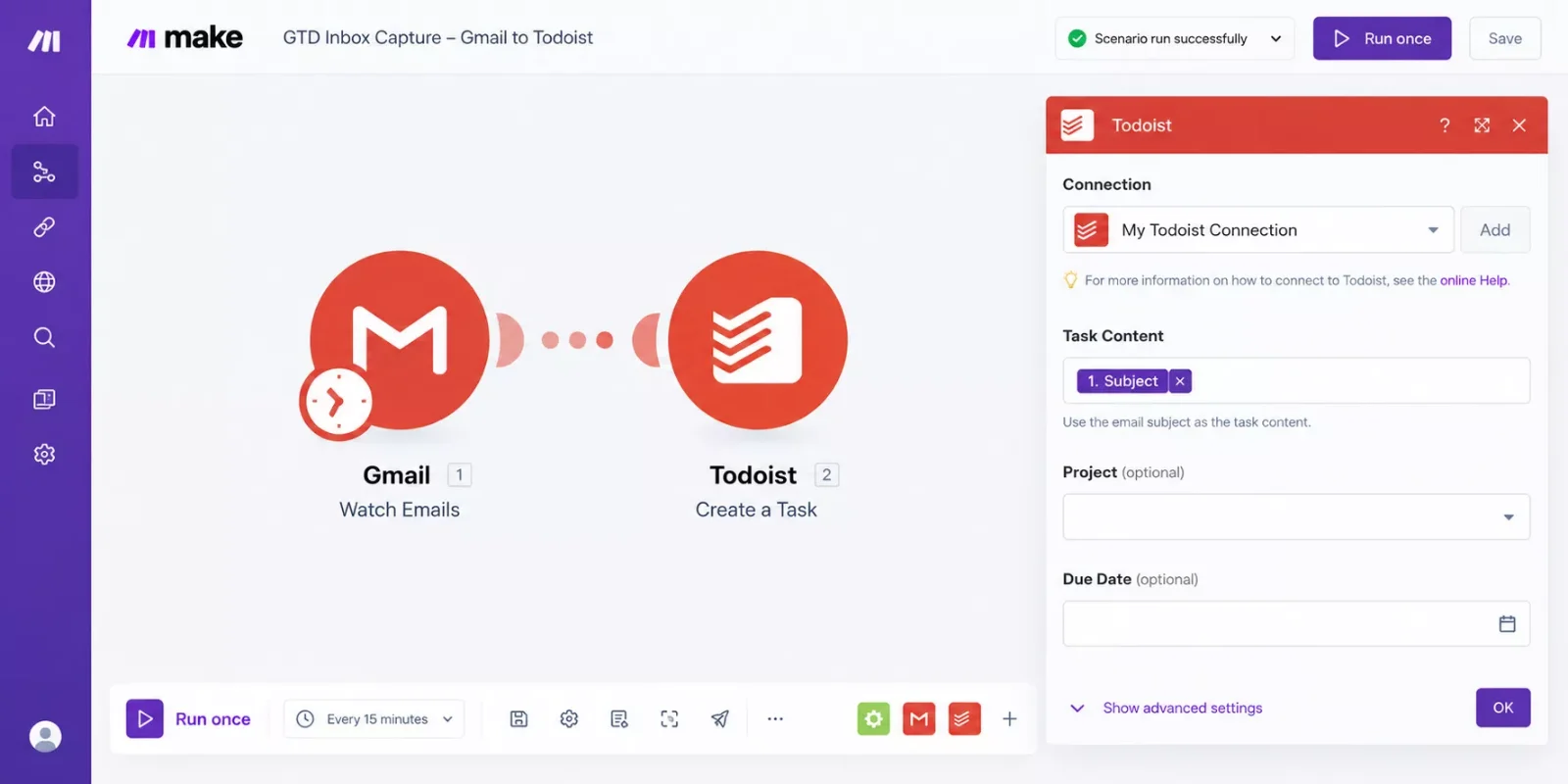
The two-module capture scenario in Make: Gmail Watch Emails feeding Todoist Create a Task.
Check the timing before you switch it on. A one-hour schedule means at least 24 checks a day, and each check uses a credit, even when no new email arrived. A form webhook only runs when an entry comes in.
You don't need a developer for any of this. Todoist lists the Make integration for its Beginner, Pro, and Business plans, and both connections use a normal sign-in screen. Check Make's current plan limits before you build.
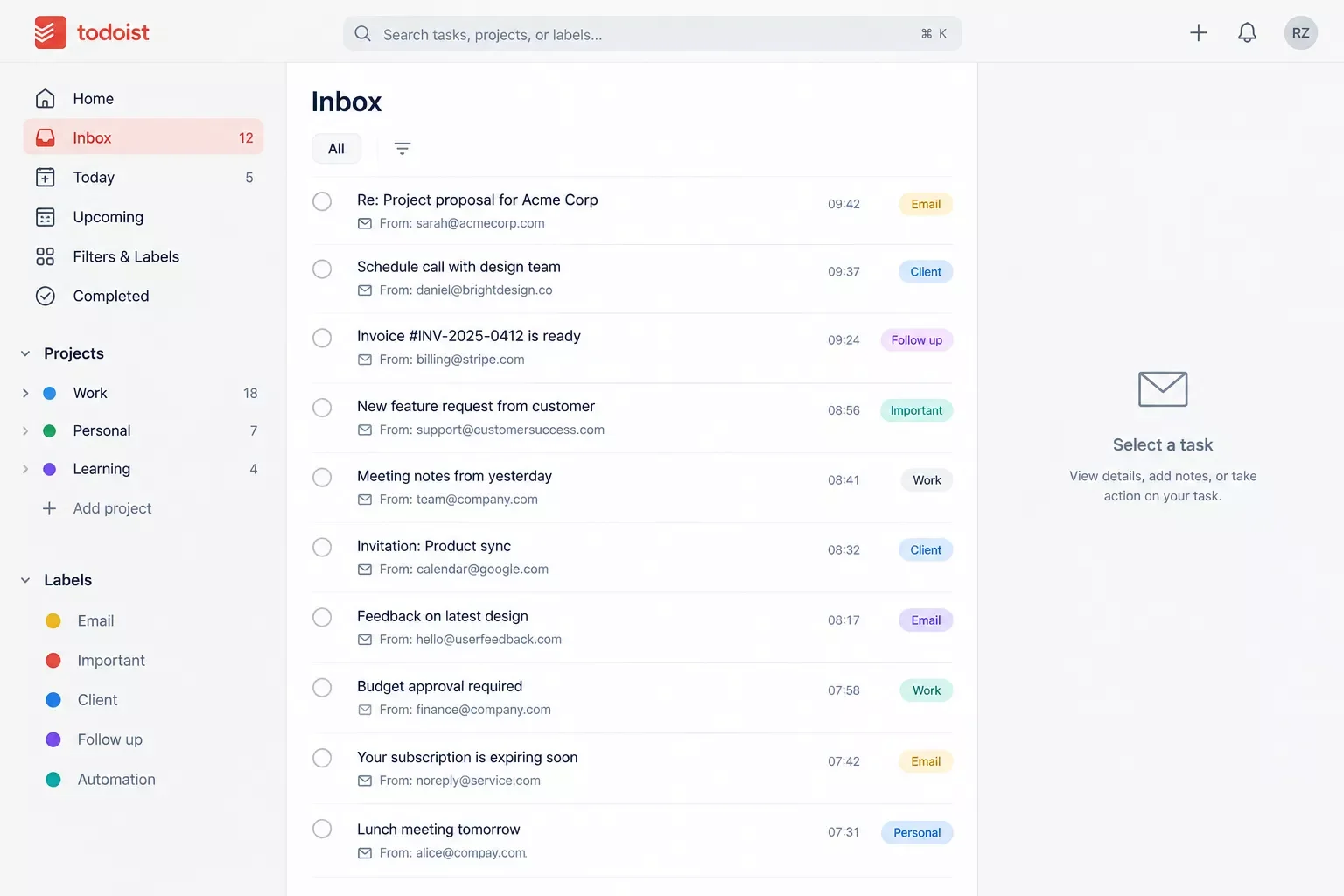
New emails arriving as tasks in the Todoist Inbox, ready to clarify.
If a Todoist or Gmail Module Throws an Error
Three error types are worth knowing here: a rate limit, an unavailable app, and an account problem. Make names each one, and each has a clear fix.
- RateLimitError (HTTP 429). The app limited how fast Make could send requests. Make delays the next run by itself. To smooth it out, add a Break error handler with a short delay to that module, or lengthen the schedule.
- ConnectionError. The app was unavailable, which Make flags with an HTTP 503 or 504 response. Check Make's status page, then add a Break error handler so Make saves the failed run and retries it after a delay.
- Scenario switched off after an account error. An AccountValidationError or InvalidAccessTokenError means the saved connection is no longer accepted, and Make can deactivate the scenario and notify you. Review your Todoist or Google credentials, reauthorize the connection in Make, then turn scheduling back on.
If tasks stop appearing, check the scenario's History first. A silent failure here recreates the leak you built this to close.
Close the Loop: A GTD Todoist Weekly Review Powered by Your Inbox
A GTD weekly review in Todoist starts with an empty Inbox, and that's where automated capture pays off. David Allen's checklist opens with Get Clear, which includes getting every inbox to zero, and the rest of the review builds on that clean starting point.
The checklist runs in three parts: Get Clear, Get Current, and Get Creative. In Todoist, that means clearing the Inbox into projects, reviewing upcoming and completed tasks, and checking your someday ideas. Todoist's own weekly review guide suggests picking a regular time, such as Friday afternoon, so you head into the weekend with nothing hanging over you.
By review day, the week's emails and form entries are already sitting in the Inbox as tasks. You spend the hour deciding, not collecting. If the Inbox looks thin for a busy week, check the scenario's History before you trust it. It's the same idea behind a to-do list that fills itself: collection happens without you.
When This Setup Is More Than You Need
You may not need this scenario at all if your captures are mostly typed by you, or if only a few emails a week need to become tasks, which is a perfectly fine place to be. In that case, Todoist's Gmail add-on or forwarding is enough, and the extra moving parts aren't worth the upkeep.
A scenario is one more thing to maintain. It needs a working connection, a schedule that uses credits, and a look at the History whenever something stops. If you're already overwhelmed, a tool you have to babysit can make the week heavier, not lighter.
Also check Todoist's own Automations before building anything. If its Gmail template covers your sources, you can skip Make for now and come back when you need form entries or filters. Start small: automate one source for two weeks, then decide whether it's worth adding more. A smaller system you trust beats a bigger one you don't.
People Also Ask
Can Todoist create tasks from email automatically?
Partly. Todoist's Gmail add-on turns one email into one task per click, and forwarding works too. For hands-off capture, Todoist now lists its own Automations feature, and a Make scenario can watch Gmail and create the task for you. Check which option your account supports.
Do I need a paid plan to automate GTD capture in Todoist?
Not necessarily. Todoist lists the Make integration for its Beginner, Pro, and Business plans. On the Make side, every scheduled check uses a credit, and a 15-minute schedule means 96 checks a day. Pick a Make plan by how often you need the scenario to check, and read Make's pricing page for current limits.
How often should I do a GTD weekly review?
Weekly, as the name says, on a slot you'll actually keep. Todoist's guide suggests Friday afternoon, and David Allen's view is that any frequency beats skipping the review. Put it on your calendar like a client call, so a busy week can't quietly erase it.
What is the two-minute rule in GTD?
If a task takes under two minutes, do it right away instead of adding it to a list. Todoist's GTD guide includes this in the clarify step. It keeps tiny jobs out of your projects, while anything bigger gets a project and a clear next step.
Frequently Asked Questions
Will automating capture make me ignore my Todoist Inbox?
It can, if you treat capture as the finish line. Capture only collects. The value comes from clarifying and organizing those tasks on a regular schedule. A fuller Inbox is a reason to schedule that review, not to skip it.
How much time will this save me each week?
No single number fits everyone, because it depends on how many emails and form entries you handle. The saving comes from removing a repeated manual step, and from the items you no longer miss. Count what you copy by hand in a normal week before you build.
What should I automate first?
Start with one source, usually your busiest Gmail label or a single form. Get that scenario running cleanly, check its History after a week, then decide on more. Each added source adds credits and upkeep. Small scenarios are easier to trust and easier to fix.
SmartSoloFlow is not affiliated with or endorsed by David Allen & Co. or Todoist. GTD and Getting Things Done are trademarks of their respective owners.
Make Capture the Easy Part
A GTD Todoist setup doesn't fail because the method is hard. It fails because the first step depends on you remembering. Fix that step, and clarifying, organizing, and reviewing get lighter, because they start from a complete Inbox. You don't need a perfect system this week, just one reliable front door.
⚡ Pro Tip: Give each capture source one Gmail label or one form, and add a new source only after the last one has run cleanly for two weeks.
Short on hours? I get it. Before you build anything, keep a list this week of what you copy into Todoist by hand. That list is your build plan, and it shows which source to automate first.
If you'd rather get that time back than spend a weekend wiring it up, this is the kind of complete, done-for-you automation I build as a No-Code Architect for solopreneurs.
Want this running without the build? SmartSoloFlow sets up Make.com automations like this one for solopreneurs.
Found this guide useful? Share it with a fellow freelancer who's still doing things manually. 🚀
Got a question or a workflow roadblock? Drop it in the comments below, happy to help.
Last Updated: October 9, 2026

// Comments