 SmartSoloFlow

Key Takeaway: Time blocking works, but manually rebuilding your calendar every morning is where most solopreneurs quit. Automate the block-creation step and the method finally sticks.
System Goal: Turn your task list into a self-building calendar
Weekly Time Savings: ~3-5 Hours/week
Core Framework: Priority-Based Time Blocking
Time blocking for solopreneurs means assigning every task a fixed slot on your calendar instead of working off an open-ended to-do list. It fixes the core problem behind solo-business burnout: no walls between deep work and constant interruptions. The catch? Rebuilding that calendar by hand every day is exactly what makes most solopreneurs abandon the method within a month. The fix isn't a better planner. It's letting a tool like Make.com auto-populate your blocks straight from your task priority, so the system runs itself while you actually do the work.
- 1. Protect Your Deep Work Block Before Anything Else Touches Your Calendar
- 2. Theme Your Days Instead of Fragmenting Every One of Them
- 3. Batch Your Micro-Tasks Into Two or Three Controlled Windows a Day
- 4. Build In Recovery Time So Blocking Doesn't Turn Into Overbooking
- 5. Assign Energy Levels to Time Slots, Not Just Task Types
- 6. Auto-Populate Your Calendar Blocks From Task Priority (Instead of Rebuilding It by Hand)
- 7. Review and Adjust Your Blocks Weekly, Not Just Once and Forget It
- 2026 AI Productivity Hacks
- 📚 Explore This Topic Further
- Conclusion
Success Story: The Solopreneur Who Stopped Rebuilding Her Calendar Every Sunday
For example: a freelance consultant spends every Sunday night manually blocking out her week task by task, then watches the schedule fall apart by Wednesday when new client work bumps everything else. Once her task manager pushes new priorities into a Make.com scenario that rebuilds her calendar blocks automatically, that weekly reset disappears entirely, and Wednesday's chaos stops derailing the rest of her week.
Running your own business means you're the strategist, the marketer, the bookkeeper, and the person answering client emails at 9 PM, all before lunch some days. That kind of constant role-switching is exhausting, and it's exactly why so many solopreneurs feel busy all day yet finish with nothing crossed off. Time blocking fixes that structural problem. But here's what nobody tells you upfront: the method only works if the calendar actually gets built, and building it by hand, every single day, is where most people quit.
I've watched this pattern play out with client after client. Someone gets excited about time blocking, blocks out a beautiful week on Sunday night, and by Wednesday the whole thing has collapsed because a new task showed up and nobody updated the calendar. The method didn't fail. The manual labor behind it did. If you've already read through our one-system approach to stopping role-switching, this article is the calendar-specific piece of that puzzle.

1. Protect Your Deep Work Block Before Anything Else Touches Your Calendar
The single highest-leverage move in time blocking is protecting one uninterrupted block for your most important task before your inbox opens. Cal Newport, the productivity researcher who's written about time blocking for over a decade on his own blog, estimates that serious time blockers accomplish roughly twice as much work per week compared to people running their day reactively off a to-do list. That's not a small difference. It's the gap between working every weekend and actually having one.
I used to open email first thing every morning, thinking I was "getting ahead." What that really meant was reacting to other people's priorities before I'd touched my own. Now I put my highest-value task in the very first block of the day, before Slack or Gmail are even open. It's a small rule, but it's the one that protects everything else.
The trick is treating that block like a client meeting, not a suggestion. If you wouldn't cancel a call with your biggest client to check email, don't cancel your deep work block for the same reason.
2. Theme Your Days Instead of Fragmenting Every One of Them
Switching between five different types of work in a single day comes with a real cost: your brain needs time to reload context every time you switch tasks, and that reload time adds up fast across a week. Themed days solve this by assigning each day a single primary focus instead of mixing marketing, admin, delivery, and sales into every single day.
A simple five-day structure might look like this: Monday for planning and admin, Tuesday and Wednesday for deep client delivery, Thursday for marketing and content, Friday for calls and business development. You're not blocking hours anymore. You're blocking entire days for one mode of thinking, and that's a bigger shift than it sounds like on paper.
What I've seen work best is starting with just one themed day before converting your whole week. Pick the day that currently feels the most scattered, theme it, and see how much lighter it feels before you commit further.
3. Batch Your Micro-Tasks Into Two or Three Controlled Windows a Day
Email replies, invoice edits, quick client messages, social media updates: none of these take long individually, but left unchecked they interrupt your real work dozens of times a day. The fix is grouping them into two or three short windows, say 20 minutes at 11:30 AM and again at 4:00 PM, instead of letting them ping you all day long.
This is also where I first introduced Make.com into my own setup, and it changed how the whole system held together. Instead of manually deciding when to check email or update a spreadsheet, I built a simple Make.com scenario that watches for new client messages and flags anything urgent, so my batching windows actually stay batching windows instead of turning into another open tab I keep glancing at.
Set a hard stop for each micro-task window. Use a timer if you need to. The goal isn't to answer everything in that block, it's to stop everything else from leaking into your protected deep work time.
4. Build In Recovery Time So Blocking Doesn't Turn Into Overbooking
Time blocking has a failure mode nobody warns you about: turning your calendar into a wall-to-wall schedule with zero breathing room. When every single minute has a label, one delayed client call knocks the rest of your day sideways, and you spend the evening feeling like you failed a system you built for yourself.
Build 10 to 15 minute buffers between major blocks. Use them for a short walk, a coffee refill, or just staring at a wall for five minutes. This isn't wasted time. It's what actually lets the next block start with a clear head instead of a rushed one.
⚠ Watch Out For: Blocking every single minute of your day with zero buffer is one of the fastest ways to burn out on time blocking entirely. One delayed call shouldn't be able to wreck your whole afternoon.
I learned this one the hard way. My first month time blocking, I scheduled back-to-back blocks from 8 AM to 6 PM with nothing in between, and by week two I dreaded opening my calendar. Adding buffers wasn't a productivity hack. It was the difference between a system I could actually keep using and one I abandoned in three weeks.
5. Assign Energy Levels to Time Slots, Not Just Task Types
Not all hours in your day carry the same mental sharpness, and pretending they do is one of the quieter ways time blocking underperforms. Your hardest, most creative work belongs in whatever window your brain is actually sharpest, whether that's 7 AM or 9 PM, and your lowest-energy tasks (data entry, filing, routine emails) belong in the slump hours most people try to push through instead of working with.
I used to schedule strategy work for 3 PM because that's when I "had a gap." Now I protect my sharpest hour, which for me is early morning, for anything that requires real thinking, and I save the afternoon slump for tasks that don't need my best brain. The blocks didn't change. When I did them did.
If you're not sure when your energy peaks, track it for one week without changing anything. Just note how sharp you feel every couple of hours. The pattern usually shows up fast, and it's rarely what you assumed going in.
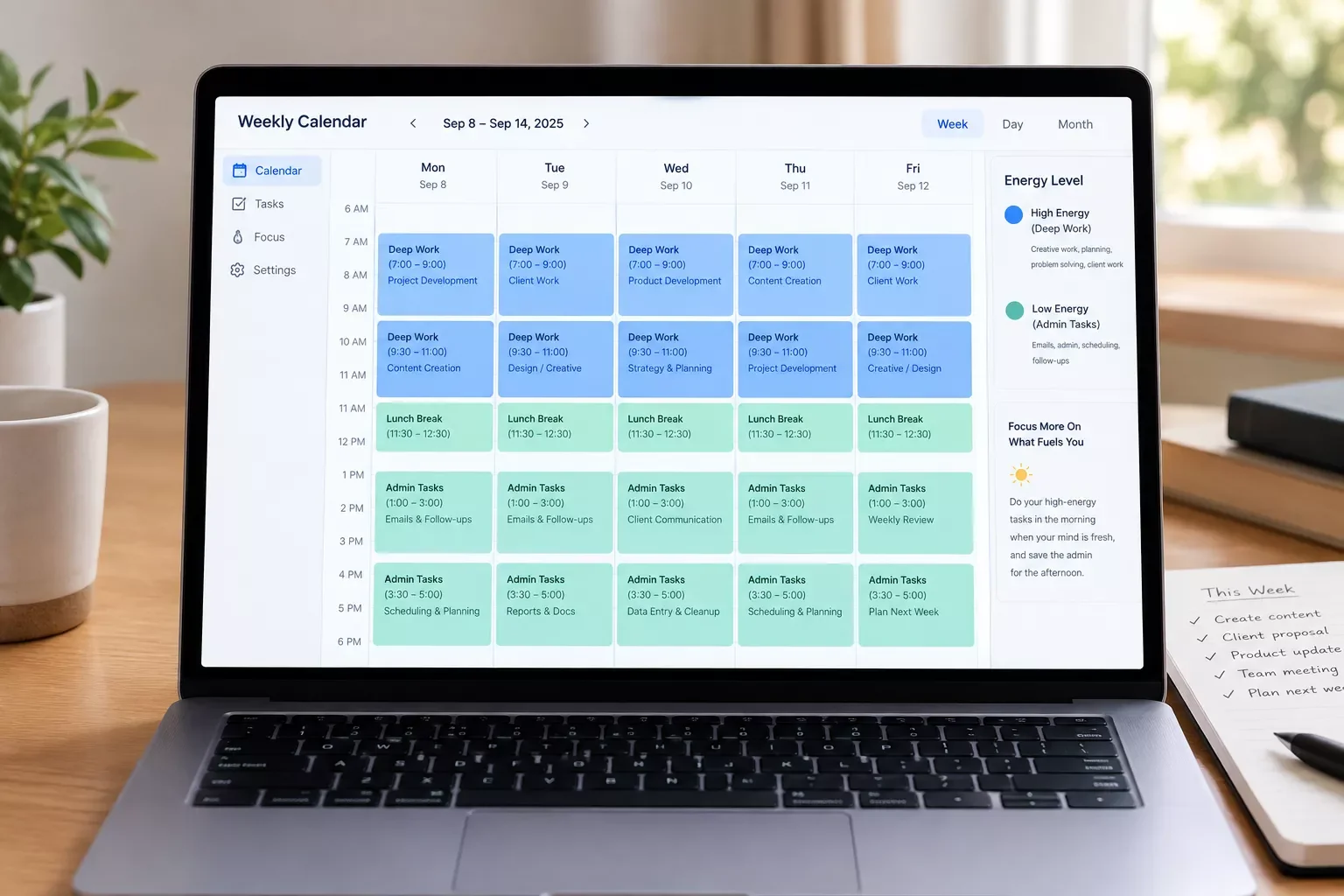
6. Auto-Populate Your Calendar Blocks From Task Priority (Instead of Rebuilding It by Hand)
Here's the part almost nobody covers: your task list changes every single day, but your calendar doesn't update itself, and that gap is exactly why most solopreneurs quietly abandon time blocking within a month. The fix isn't a better manual system. It's letting your priority list drive your calendar automatically.
With a Make.com scenario, this works in a straightforward way. Your task manager (Todoist, in most setups I build) flags a task's priority level. Make.com watches for new or updated high-priority tasks, checks how much time each one realistically needs, and creates a matching block directly in Google Calendar, positioned in your next open slot instead of stacked on top of something else. No manual dragging, no Sunday-night calendar rebuild, no forgetting to move yesterday's leftover task into today.
This is the piece every competing guide on time blocking skips entirely. They'll tell you to block your calendar. None of them show you how to stop being the one who has to rebuild it every day. It also pairs well with a broader stack — if you're curious what other AI automation tools work alongside Make.com, that's worth a look once this piece is running. And this is exactly the kind of setup where a well-structured no-code CRM or lead-capture system on the front end makes the automation even more useful, since your task priorities often start the moment a new lead or client request comes in.
Want Your Whole Intake Process Automated Too?
If new leads and client requests are what's flooding your task list in the first place, a free automated CRM setup can route them straight into your priority system before they ever hit your inbox.
See How Lead Capture Feeds This System7. Review and Adjust Your Blocks Weekly, Not Just Once and Forget It
Time blocking isn't a set-it-once system. Your workload shifts, client priorities change, and a block structure that worked in March can feel completely wrong by June. The solopreneurs who stick with this long-term treat their calendar as something they check in with weekly, not something they build once and abandon when reality doesn't match it.
Spend 10 minutes at the end of each week looking at what actually happened versus what you'd planned. Which blocks got skipped? Which ones ran long every time? That's not a failure of the method, that's data. Adjust the block lengths, not your commitment to the system itself.
If you've automated the block-creation step covered above, this weekly review gets a lot lighter. You're not rebuilding anything from scratch, you're just fine-tuning durations and priorities, and the calendar handles the rest.
U.S. Small Business Administration research drawing on Bureau of Labor Statistics data shows self-employed workers are more than twice as likely as traditional employees to report their weekly hours varying unpredictably from one week to the next, which tracks with what I hear constantly from solopreneur clients: the hours are there, the structure around them usually isn't.
2026 AI Productivity Hacks
A few smaller additions worth layering on top of the core system above, once the basics are solid. These aren't replacements for the calendar-block automation covered earlier, just friction-removers for the blocks you've already built.
- Voice-to-text task capture: instead of typing tasks into Todoist mid-call, a quick voice memo that gets transcribed and auto-added to your priority list keeps you from losing tasks between meetings. This matters more than it sounds like, because the tasks solopreneurs lose track of are usually the ones that came up in conversation, not the ones already sitting on a list.
- AI-drafted first passes: letting an AI tool draft a rough first version of routine content (client update emails, simple social posts) inside your themed content-day block means you're editing instead of starting from a blank page, which shortens that block significantly.
- Priority re-scoring: some task managers now let an AI layer re-rank your priority list as new tasks come in, so the automated calendar-block system covered above is always working from an up-to-date priority order instead of yesterday's snapshot.
None of these replace the core time blocking system. They just remove a bit more friction from the blocks you've already built, and they're worth adding only after the basics above are actually sticking.
People Also Ask
What is time blocking and how does it help a solopreneur manage their day?
Time blocking is a scheduling method where you assign every task a fixed slot on your calendar instead of working off an open-ended to-do list. For solopreneurs juggling every role in the business, it creates clear walls between deep work and constant interruptions, which cuts down on reactive, scattered days.
Can time blocking be automated so calendar blocks are created based on task priority?
Yes. Tools like Make.com can watch a task manager such as Todoist for priority changes, check your Google Calendar for open time, and create a matching block automatically, so you're never manually rebuilding your schedule from scratch each day.
How long should each time block be for deep work versus admin tasks?
Deep work blocks typically run 60 to 90 minutes, long enough to get into focused work without becoming mentally exhausting. Admin and micro-task blocks work better shorter, usually 20 to 30 minutes, since that work rarely benefits from extended focus.
Is time blocking better than a regular to-do list for solopreneurs?
For solopreneurs specifically, yes, because a to-do list has no relationship to your actual available hours. Time blocking forces every task onto a real calendar slot, which exposes overcommitment immediately instead of letting it pile up unnoticed until deadlines collide.
Do I need special software to start time blocking?
No. Google Calendar alone is enough to start. The tools become useful later, once you want the block-creation step itself automated instead of done by hand every day.
What happens if something urgent breaks my time block?
Move the bumped task to your next open slot rather than abandoning the block system for the day. One interruption doesn't mean the method failed, it means one block needs to shift.
How is time blocking different from time boxing?
Time blocking assigns a category of work to a stretch of time, like "9 to 11 AM is writing." Time boxing sets a hard limit on one specific task within that stretch, regardless of whether it's finished.
📚 Explore This Topic Further
More Solopreneur-Productivity systems worth automating:
- CRM for Solopreneurs: How I Automated Mine in 2026
- How to Automate Invoicing Software for Freelancers in 2026
- 6 Appointment Booking Software Options for Solopreneurs in 2026
- To Do List App That Fills Itself: My 2026 Automation Setup
- How to Set Up Email Automation That Triggers Itself in 2026
- 6 Best Social Media Scheduling Tools That Auto-Post in 2026
- Memo App to CRM: My Automated Voice Note Setup in 2026
- How to Automate Expense Tracking App Reports in 2026
Conclusion
Time blocking isn't complicated. Protecting your best hour, theming your days, batching the small stuff, building in recovery time, matching tasks to your actual energy, reviewing weekly: none of it requires special software to start. What it requires is consistency, and consistency is exactly what breaks down the moment rebuilding your calendar becomes another daily chore on top of everything else you're already carrying alone.
That's the real reason most solopreneurs abandon time blocking within a few weeks. It's not the method. It's the manual labor hiding behind it.
⚡ Pro Tip: Start with just one automated piece, like auto-creating blocks for your highest-priority tasks, before automating your entire calendar. Small wins here compound fast once you trust the system.
If you'd rather get that time back than spend a weekend building this yourself, this is exactly the kind of system I set up so solopreneurs don't have to. Time blocking is one piece of a bigger automation puzzle, and building the connections between your task manager, your calendar, and everything else running your business is what I do as a No-Code Architect.
Want This Running Automatically, Without the Weekend Project?
If you'd rather hand off the setup than build it yourself, let's talk about what an automated calendar system could look like for your specific workflow.
Let's TalkFound this guide useful? Share it with a fellow freelancer who's still doing things manually. 🚀
Got a question or a workflow roadblock? Drop it in the comments below — happy to help.
Last Updated: September 10, 2026

// Comments