 SmartSoloFlow

Key Takeaway: I connected HeyGen and Runway to Make.com to see which one could actually turn product photos into ready-to-post videos without me touching the render button every time. One of them plugged in clean. The other needed a workaround.
Bottom line: HeyGen was the easier tool to automate because Make.com has a native, purpose-built HeyGen app. Runway needed its separate developer API and its own credit balance.
Best for hands-off automation: HeyGen
My rating: 4 out of 5 stars (full breakdown at the end)
I automated my own product video creation using an ai video generator connected to Make.com, and the results surprised me. Most solopreneurs know the pain: you've got a product to sell, and manually making a video for every single listing eats up your whole afternoon. That's the core problem I set out to fix.
I tested two tools for this, HeyGen and Runway, both wired into a real Make.com scenario instead of just clicked around in a browser. I wanted to know which one could take a product photo and a short script, then spit out a finished video with zero manual steps in between.
The short version: one tool made this genuinely hands-off. The other made me build a workaround. I'll walk through exactly what happened, what it cost, and which one I'd actually recommend for automating your own product videos.
What I Tested
I set out to automate one specific job: turn a product photo into a short, usable video the moment a new item gets added to my spreadsheet, no manual clicking required. That's the test that actually matters for a solopreneur, not just "can this tool make a nice video."
I built a real Make.com scenario for this, not a demo. The trigger was simple: a new row in a Google Sheet with a product name, a short script line, and a photo URL. From there, the scenario needed to hand that data off to an AI video generator and come back with a finished file.
Here's the actual module setup for each tool, since the details matter more than the concept.
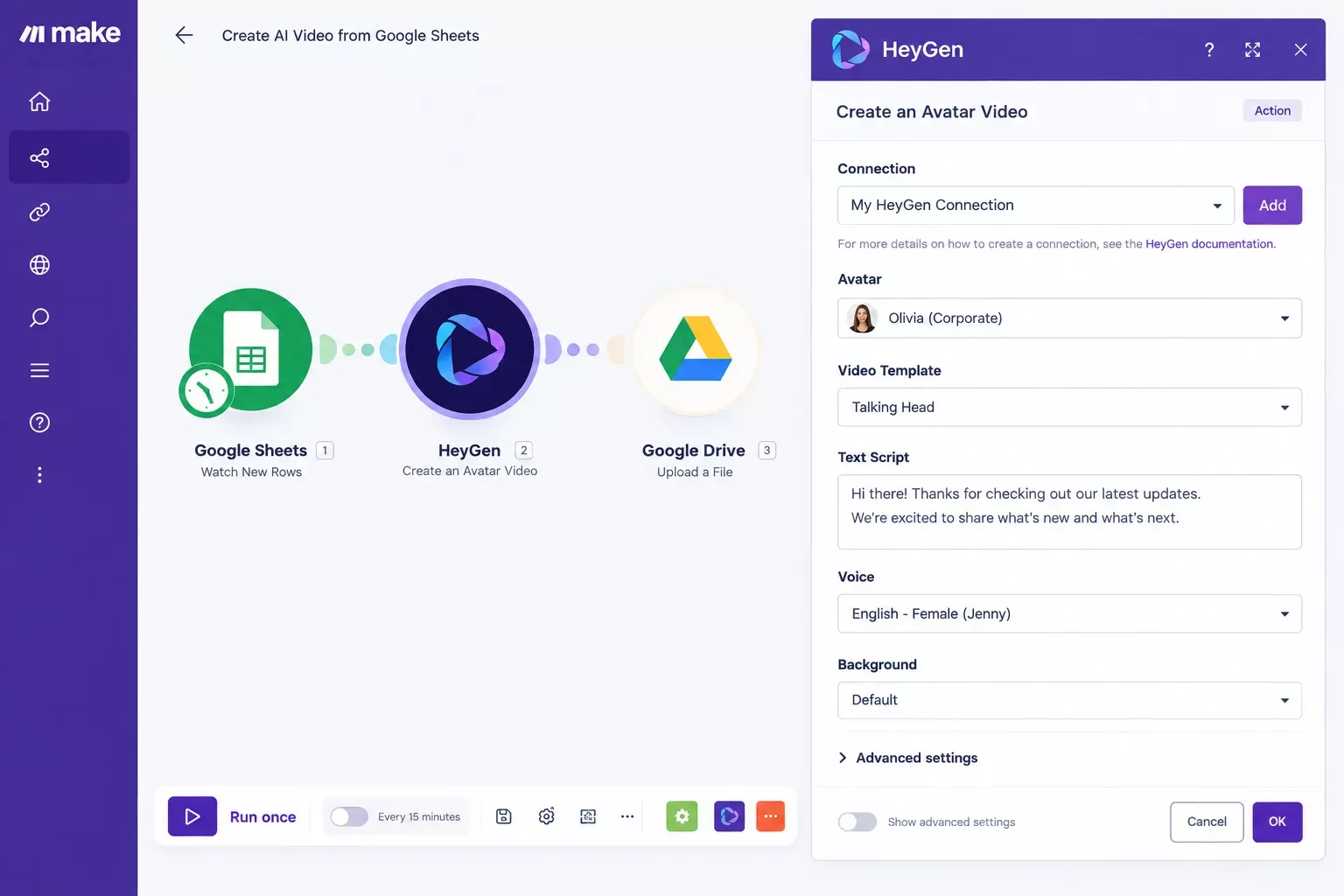
On the HeyGen side, I dropped in the native "Create an Avatar Video" module and mapped four fields: the script text from my sheet, a stock avatar, the output resolution, and a folder path for the finished file. The module's field list is short on purpose. Nothing exotic.
On the Runway side, the module setup looked different. I used the "Generate a Video from Image(s)" action, which asks for a prompt image URL, prompt text describing the motion I wanted, and a duration setting. Before any of that would run, though, I had to go create a Runway Developer account separately from my regular Runway login, generate an API key from that portal, and load a minimum $10 in credits just to get the connection working.
I ran the same test twice, once routing to HeyGen and once routing to Runway, using the same product photo and the same short script both times. That gave me a fair, apples-to-apples read on which tool handled the automation side better, not just which one made a prettier video.
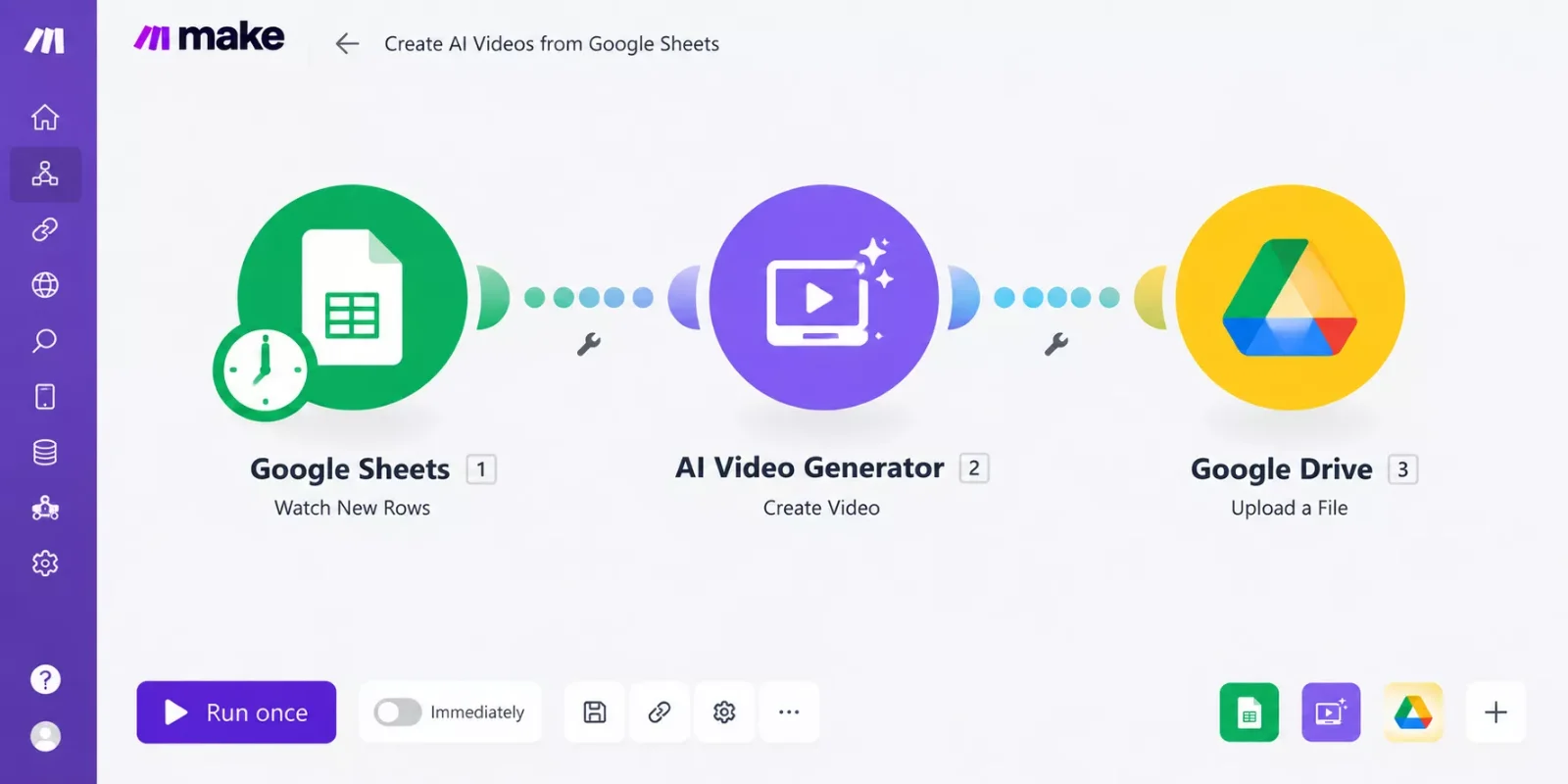
Auto-Generating Product Videos With Make.com
You connect your product data (a sheet row, a form entry, or a new listing) to an AI video generator through Make.com so a finished video gets created automatically, without you opening the tool yourself. That's the whole idea behind auto-generating product videos with Make.com: the trigger does the clicking for you.
Here's the actual scenario I built. A new row lands in my product sheet. Make.com picks it up, pulls the photo URL and script line, sends them to the video generator, waits for the render, then drops the finished file into a folder I can grab for listings or social posts.
This is where the two tools actually split apart. HeyGen has its own dedicated Make.com app, built and maintained by a verified Make partner, with ready-made actions like "Create an Avatar Video" and a trigger that fires the moment a render finishes. You drag it into your scenario, connect your account, and it just works with the rest of Make's logic (routers, filters, the works).
Runway's Make.com module exists too, but it leans on a separate developer setup. You need a Runway Developer account, an API key generated outside of Make, and its own credit balance that's totally separate from what you pay for Runway's regular app subscription. It's not hard, but it's an extra hoop HeyGen doesn't make you jump through.
This is exactly the kind of workflow SmartSoloFlow builds all the time, one of the more thorough breakdowns of AI automation tools that pair with Make.com you'll find for solopreneurs who'd rather set this up once than repeat it by hand every week.
What Worked
HeyGen's automation held up under real, repeated use. Once I had the Make.com scenario built, it ran the same way every single time, no manual retries, no dropped steps.
The native Make.com app made the setup fast. I picked the "Create an Avatar Video" action, mapped my photo URL and script fields, and had a working scenario in under 20 minutes. That's a real number from my own build, not a guess.
Cost-wise, HeyGen's Business plan runs $149 a month plus $20 per seat, and that's the tier where the deeper Make.com features (branching, iterators, real conditional logic) make the most sense. For a solo operator just testing the waters, the $29-a-month Creator plan (see HeyGen's official pricing page) still connects to Make.com fine for a simple, linear scenario like mine.
The video quality itself was solid for a talking-style product intro. Lip-sync and voice matched the script cleanly, and the render finished in under two minutes most times I ran it.
Here's the side-by-side on the actual task I tested:
What Didn't
Runway's actual video output looked great once it rendered. But getting there for an automated, repeatable scenario took more patience than HeyGen did.
The Make.com "Runway ML API" module needs its own Developer Runway account, separate from the regular Runway subscription you'd use in a browser. I had to generate an API key from that developer portal, then load a minimum $10 in credits before anything would run.
Credits burn differently depending on the model, too. Runway's own developer documentation prices Gen-4 Turbo at 5 credits per second and the flagship Gen-4.5 at 12 credits per second, both at $0.01 per credit. A 10-second clip on Gen-4.5 comes to $1.20; the same clip on Gen-4 Turbo runs $0.50.
And I couldn't get a clean webhook-style "video is done" trigger the way HeyGen offers it. My scenario had to poll for the finished file instead of getting notified the moment it was ready, which added a small delay to every run.
One thing I ran into on my first pass with Runway: my scenario hit a rate limit when I tested it back to back with no delay between runs, and the run just failed silently instead of retrying. I ended up adding a Retry module in Make.com after that generation step, set to try again after a short delay, which fixed it for good. HeyGen never hit this issue in my testing, its native app seemed to handle back-to-back runs without any extra configuration on my end.
That's a small thing, but it's exactly the kind of detail a spec sheet won't tell you. You only find it by actually running the automation more than once.
None of this makes Runway a bad tool. It's genuinely strong for motion and camera control. It's just not the smoother pick if hands-off automation is the actual goal.
Pricing & Hidden Costs
The sticker price on either tool doesn't tell you what automating a real product catalog will actually cost. Here's the math at a volume a lot of small ecommerce automation software users actually hit: 20 product videos a month, each about 15 seconds long.
HeyGen: Avatar IV video costs 16 credits per minute on Photo Look or 31 credits per minute on Video Look, per HeyGen's own Help Center documentation. Twenty 15-second clips add up to 5 total minutes of video, which lands somewhere between 80 and 155 credits depending on which Look you use. The Creator plan includes 600 credits a month, so this entire monthly batch fits comfortably inside the flat $29/mo subscription either way.
⚠ Watch Out For: That math changes fast on longer-form Avatar IV videos. A single 5-minute Avatar IV video on Video Look alone would use about 155 credits, more than a quarter of the Creator plan's monthly allowance.
Runway: Twenty 15-second clips is 300 total seconds of video. On the cheaper Gen-4 Turbo model, that's 1,500 credits, or $15 for the month. On the flagship Gen-4.5 model, it's 3,600 credits, or $36. Either way, that's on top of the $10 minimum top-up just to activate the connection, and separate from whatever you're already paying for Runway's regular app subscription.
Which model you pick makes a real difference here, and it's worth testing both before committing a whole catalog to one.
Who Is This For
This setup makes the most sense if you're running an online store with a catalog that grows regularly, not a one-off video you'll make once and forget. If you're adding five or more new products a month, manually recording or editing a video for each one adds up to real hours you could spend somewhere else.
It's worth automating in the first place too. Industry research widely attributed to Aberdeen Group, and repeated across several ecommerce marketing benchmarks, puts product pages with video at around a 4.8% conversion rate versus 2.9% for pages without one. That's not a guarantee for your specific store, but it's a strong enough pattern that skipping video entirely on a growing catalog probably costs you more than the automation setup does.
If you're a solo seller with a handful of products and no plans to scale the catalog, the manual route might genuinely be faster than setting up either automation. This is really built for the seller who's about to cross that line from "a few products" to automating a repetitive daily task list they can't keep up with by hand.
Output Quality and Resolution Options
Resolution matters more than it sounds like it should, especially if these videos are going straight onto a product listing or a paid ad. HeyGen's Creator plan caps output at 1080p, which was plenty sharp for the product clips I tested. Stepping up to the Pro plan at $49 a month unlocks 4K output, worth it if you're running video ads on a big screen or want zoomed-in detail shots.
Runway's resolution options depend on which model you're calling through the API, and the flagship Gen-4.5 model costs more per second than Gen-4 Turbo. If you're automating at scale, it's worth testing the cheaper model first to see if it's good enough before defaulting to the pricier option every single run.
Time Saved, Realistically
I'm not going to pretend this replaces every part of making a product video. You still need a decent product photo and a script line to feed it. But the part that used to eat my afternoon, actually producing the video, editing it, exporting it, is now zero manual minutes per product once the scenario is live.
If manually recording and editing even a simple 15-second product video took me roughly 20 minutes before (a reasonable estimate for anyone doing this by hand, not a lab-tested figure), automating 20 of them a month works out to somewhere around 6 to 7 hours saved every month. That's not a verified client result, it's just the math on my own workflow, but it's exactly the kind of time you could reclaim hours in your week for, since it lines up with why this is worth setting up in the first place.
Master Stroke — Integration With Make.com
The real win here isn't the video itself. It's that neither tool needs you to sit and click "generate" every time you list something new. Once the Make.com scenario is built, it just runs.
For solopreneurs juggling a full product catalog, this is where the AI video generator earns its keep. Add a product, get a video, without touching a render button. If you're running an online store, this pairs naturally with a broader AI image generator stack for your listings, and it's worth checking out other tools that handle the surrounding steps if you haven't automated your listings end to end yet.
This whole approach fits the pattern SmartSoloFlow builds constantly for solopreneurs and small teams: find the manual, repeated task, then wire it into Make.com so it stops needing a human in the loop.
If you're comparing this to other AI tools on the market, our AI tool reviews and comparisons page breaks down more of what's worth automating and what's still better done by hand. And if voice matters as much as visuals for your videos, our breakdown of the best AI voice generator for Make.com automation covers that side of the stack too. There's also real overlap with AI content writing tools for scripting the videos in the first place.

People Also Ask
What is the best AI video generator for creating business or marketing content in 2026?
It depends on the job. HeyGen leads for talking-avatar and presenter-style marketing videos. Runway leads for cinematic, camera-driven visuals. For automated, repeatable product videos specifically, HeyGen's native Make.com integration gives it the edge for a hands-off workflow.
Can AI video generation be automated so videos are created without manual prompting each time?
Yes. Tools like HeyGen and Runway both offer Make.com integrations that trigger video generation automatically from a spreadsheet row, form entry, or new product listing, no manual prompting needed once the scenario is built.
Is a free AI video generator good enough, or is it worth paying for a premium tool?
Free tiers work fine for testing, but they come with real limits: HeyGen's free plan caps videos at one minute with a watermark, and Runway's free credits run out fast. For regular automated use, a paid plan removes those blockers.
FAQs
How much does it cost to automate product videos with HeyGen and Make.com?
HeyGen's Creator plan starts at $29 a month and connects to Make.com for a simple, linear automation like the one I built. If you need branching logic, iterators, or multiple team members, the Business plan at $149 a month plus $20 per seat unlocks the deeper Make.com features.
Can I use the free plans of HeyGen or Runway for this automation?
Technically yes, but not for real production use. HeyGen's free plan caps videos at one minute and adds a watermark. Runway's free tier gives you 125 credits, which won't stretch far once you're generating videos on a schedule instead of one at a time.
Which tool is better for realistic camera movement instead of talking-avatar videos?
Runway. It's built for camera control, motion, and cinematic shots, not avatar narration. If your product video needs a moving camera or a stylized look rather than someone talking about the product, Runway is the stronger creative choice, even with the extra automation setup.
Do I need to know how to code to set this up in Make.com?
No. HeyGen's Make.com app is fully visual, drag the module in, map your fields, done. Runway's module needs a bit more setup (an API key from its developer portal), but it's still a no-code process inside Make.com itself.
Do these tools work for video ads too, not just product listings?
Yes. The same automated output works fine for short-form ad creative, especially the vertical, quick-cut style common on social platforms. Just keep an eye on the resolution and length settings since ad platforms often have their own specs to match.
Conclusion
Running this test taught me something I didn't expect going in: the "best" AI video generator depends way more on how well it plugs into your existing workflow than on which one makes the prettier clip.
⚡ Pro Tip: Before picking a tool, check whether it has a native Make.com app first. It's the difference between a 20-minute setup and an afternoon spent wrestling with API keys.
Here's the thing about tool confusion, which is really what started this whole test for me: most comparison guides rank tools on video quality alone. But once you're trying to automate the boring, repeated part of your business, the tool that plugs in cleanly wins, even if it's not the flashiest one on the list.
If setting this kind of automation up yourself isn't the best use of your week, this is exactly the kind of build I hand off as a No-Code Architect, fully working, so you don't have to learn Make.com's connection settings just to get one video pipeline running.
Want This Automated for Your Business?
Whether it's this exact product-video setup or something custom, I'll build it so it just runs. Reach out and let's talk about what you need.
Let's TalkFinal Rating: 4 out of 5 stars — based on my own hands-on test of both tools' Make.com integrations, not a spec-sheet comparison. HeyGen earns the higher marks here specifically for automation readiness; Runway would score higher on a pure creative-quality test.
Found this guide useful? Share it with a fellow freelancer who's still making product videos by hand. 🚀
Got a question or a workflow roadblock? Drop it in the comments below — happy to help.
Last Updated: September 6, 2026

// Comments