 SmartSoloFlow

Key Takeaway: A single Make.com scenario checks every new lead against your existing records, flags duplicates before a rep ever sees them, scores genuinely new leads with AI, and routes each one straight to the correct region's Slack channel.
Estimated Time Saved: ~3-5 Hours/Week (for teams currently cross-checking and hand-assigning leads across multiple reps or regions)
Complexity Level: Intermediate
Est. Credits Usage: ~4-6 credits per run (4 for a duplicate match, 5 for a genuinely new lead, 6 if the AI-scoring step retries)
If your team still routes leads by memory or a shared tally sheet, lead deduplication and routing automation fixes the two failures that cost Make.com users and template buyers the most time: the same lead getting called twice, and a fresh lead landing in the wrong rep's queue. This guide walks through a tested Duplicate Guard & Territory Router scenario. A webhook catches every new lead the moment it comes in, checks it against your existing Airtable records, scores genuinely new leads with AI, and routes each one straight to the correct region's Slack channel. No spreadsheet tally required, and no rep finds out about a duplicate by cold-calling someone who already said no.
Success Story: The Roofing Company That Was Tallying Leads by Hand
For example: a roofing company splitting leads across 15 reps by rough mental tally is exactly the kind of setup this scenario was built for. Once the webhook and router are live, no rep has to guess who already has a lead, and no lead sits unrouted because nobody remembered to hand it off.
Picture this. A new lead comes in through your contact form, or through a chatbot that routes leads on its own. Somewhere in the group chat, a rep says they'll take it. Ten minutes later, a different rep calls the same person, because nobody checked if it was already claimed. Meanwhile, a genuinely new lead from a different region sits untouched in a shared inbox, because whoever normally routes leads is out for lunch.
That's the nightmare. Here's the fix. This builds on our full AI Workflow Automation guide with one specific, tested scenario.
😩 THE NIGHTMARE (Before)
Leads get distributed by rough mental tally or a shared spreadsheet. Duplicates slip through and get called twice. A lead from the wrong region sits in the wrong rep's queue until someone notices.
✨ THE DREAM (After)
A webhook catches the lead the second it arrives. Make.com checks it against your records, scores it, and drops it into the right region's Slack channel automatically. Nobody has to remember anything.
This isn't a theory piece. It's the actual Make.com scenario, built and tested across five real scenarios: leads for Region A, Region B, Region C, a lead with no recognized location, and a genuine duplicate.
How This Workflow Works
A new lead hits your webhook, and Make.com checks it against Airtable for a match on email and phone within seconds, before anyone on your team even sees it. That's what speed to lead automation actually means in practice: the check happens before a human could have acted anyway.
If Make.com finds a match, it flags the existing record and sends a Slack alert to your team, so nobody wastes a call on someone who already said no, or already said yes to a different rep. If it doesn't find a match, Google Gemini AI scores the lead's buying intent from 0 to 100 based on the message itself. The lead gets written to Airtable with that score attached, and a Slack message goes straight to the correct region's channel instead of a shared inbox everyone learns to ignore.
Five error-handling branches sit underneath these core steps, so a slow API call or a brief Slack outage never takes the whole scenario down with it. The full breakdown is in Advanced Error Handling below.
The Template Showcase Card below pulls its own photo, pricing, and Gumroad link from a synced sheet, so nothing here needs to be typed twice. If you'd rather not build this from scratch, the tested Duplicate Guard & Territory Router template gets you the whole scenario, ready to import.
Tools Required
This scenario runs on four tools, and you already know at least three of them. Nothing here needs a developer or a custom app.
- ☐ Make.com: runs the entire scenario, start to finish
- ☐ Airtable: stores every lead record, flags duplicates, and keeps your CRM data hygiene intact instead of letting repeat contacts pile up over time
- ☐ Google Gemini AI: scores each new lead's buying intent from 0 to 100
- ☐ Slack: sends duplicate alerts and regional lead notifications
If you already use Airtable, or a free CRM you built for capturing leads, nothing here replaces it. This scenario just adds the checking, scoring, and routing layer on top of records you're probably already keeping. The only new account you might need is a free Google AI Studio account for the Gemini API key, and that takes about two minutes to set up. Landing pages matter here too: if your lead source is one of these landing page builders that auto-route leads, this scenario still runs the same duplicate check before anything gets assigned.
Build Your Own Lead Deduplication & Routing System with Make.com
You don't need an enterprise routing platform to fix this. Lead deduplication and routing automation works just as well built directly in Make.com with Airtable as your database, at a fraction of the cost of the tools built specifically to sell you this feature.
Take Chili Piper, one of the more established routing platforms. As of 2026, its published seat pricing runs roughly $15 to $30 per user, per month, on top of a separate platform fee that typically starts around $150 a month and climbs from there with volume.
For a small team, that adds up fast. LeanData, another common pick, doesn't publish pricing at all. You have to talk to sales to find out what it costs.
- 📊 Enterprise platform (Chili Piper): $15-30/user/month, plus a $150+/month platform fee
- 📊 This build: whatever your existing Make.com plan already costs, plus a few credits per lead
One honest caveat. Airtable does have its own native Automations feature, and for a single, simple rule, like notifying you when a new row appears, it works fine on its own. Where it runs out of room is exactly what this scenario needs: checking against existing records across two fields, scoring a lead with an outside AI model, and branching to different Slack channels by region. That's multi-app orchestration, and it's where Make.com actually earns its place instead of just being another tool bolted on for no reason. You can confirm this yourself on Airtable's own Make.com app page.
Setup Guide
⚡ Pro Tip: This isn't just a text walkthrough. The Setup Guide PDF that comes with the template is a click-by-click implementation guide with annotated screenshots for every screen you'll configure, so you're never guessing which field to fill in next.
This template is built by a Make Academy Certified builder, tested and verified as working before it's ever listed for sale. Every step below was verified across five real test paths (Region A, Region B, Region C, an unrouted-lead fallback, and the duplicate-detection path itself) using a real buyer account, not just the original build.
This walkthrough follows all 16 stops in the real build, 11 core modules plus 5 error-handling branches. If you only build the 11 numbered modules and skip the lettered ones, the automation still runs, right up until something goes wrong, and then it won't recover on its own.
- New Lead Intake (Webhook). Add a Webhooks module and generate a custom webhook URL. Your lead form (or a form that was previously having trouble sending leads through) sends its data here. Expected fields: name, email, and phone (all required), message (required), plus location and source (both optional). If location doesn't match a recognized region, the lead routes to an "unrouted leads" fallback instead of getting lost.
- Brand (Set Variable). Add a Tools > Set Variable module named "Brand" with the value "SmartSoloFlow (smartsoloflow.com)". This is a standard first step in every SmartSoloFlow scenario.
- Config: Your Airtable Base ID and Table (Set Variables). Enter your own Airtable Base ID and table name here once. Every other Airtable module in this scenario reads from this one config step automatically. Nothing else in the build needs to know your Base ID directly.
⚠ Watch Out For: Create your Airtable connection through a temporary native Airtable module first, not directly inside the Make an API Call module you'll use in step 4 below. When you open the connection dialog, Airtable will ask what to grant. Make sure the permission screen shows both a "can see" section and a "can edit" section. If you only see "can see" with no "can edit" section, cancel and try again with "Everything you have access to" selected, then click Grant access. Skipping this and connecting straight inside Make an API Call is the single most common way this template throws a [403] permission error the first time it tries to write a record.
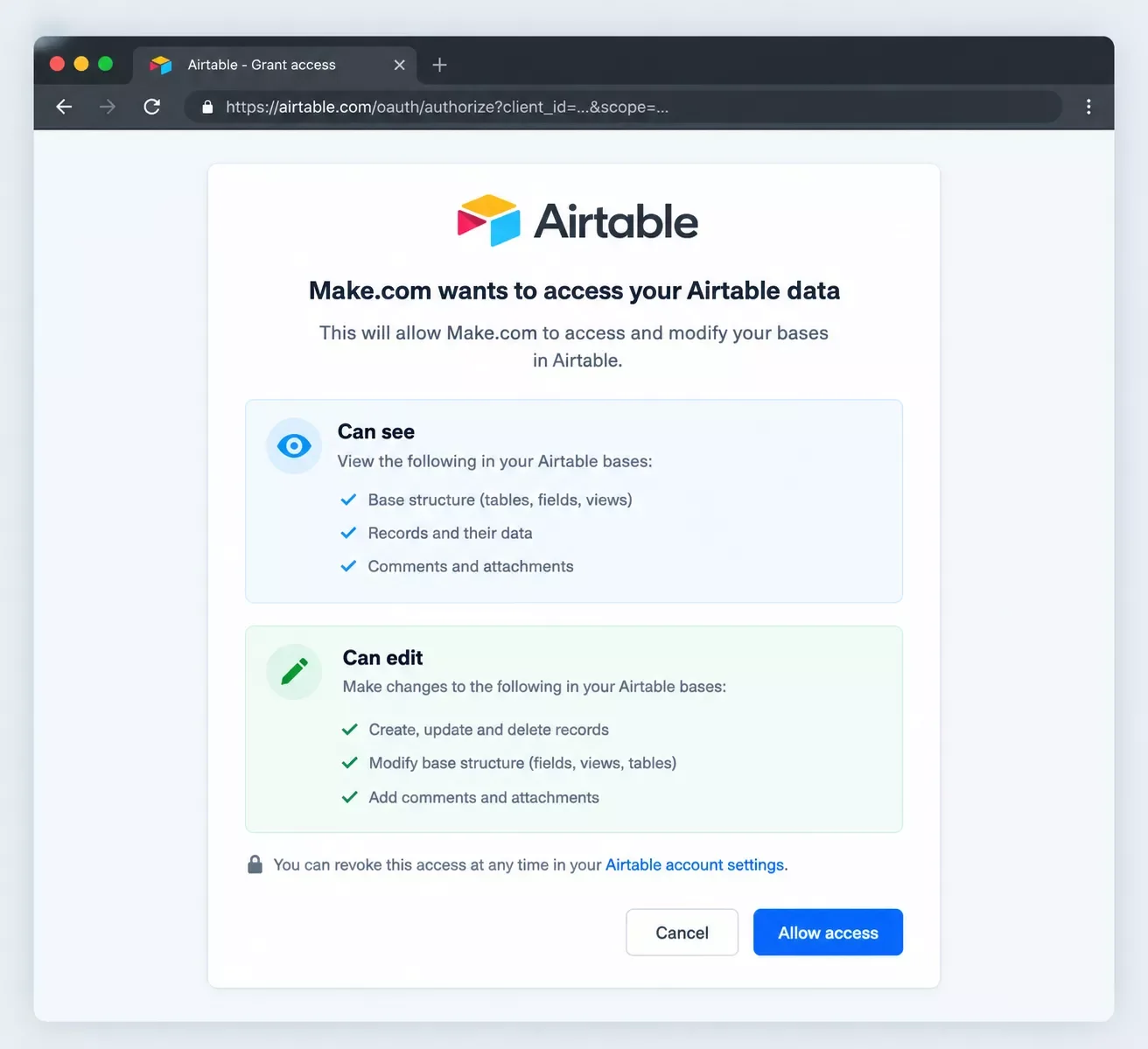
- Check for Existing Contact (Make an API Call). This module searches Airtable for a record matching the lead's email or phone, using the connection you just created safely in the step above.
- 4a (on error) — Treat as New Lead if Search Fails (Flow Control: Resume). If the Airtable search itself fails for any reason, this branch resumes the scenario and treats the lead as new rather than letting the whole run die on a search hiccup.
- Route: Duplicate vs New Lead (Router). This is the fork in the road. One path handles a genuine duplicate. The other handles a genuinely new lead.
- Duplicate Path: Flag Existing Record (Make an API Call). Updates the existing Airtable record so your team can see it was hit again, instead of quietly ignoring the repeat contact.
- Alert: Duplicate Channel (Send a Message). Sends a Slack message to your team so nobody wastes a call on a lead someone is already working.
- 7a (on error) — Ignore if Slack Alert Fails (Flow Control: Ignore). If Slack is briefly down, this branch lets the scenario finish instead of failing the whole run over a notification.
- Score Lead with AI (Google Gemini AI). First, get a free Gemini API key. It takes about two minutes and needs no credit card. Go to aistudio.google.com, sign in with your Google account, click Create API key, and copy the key that appears. Back in Make, click the AI-scoring module on the canvas, click Add next to Connection, paste your key, and click Save. Google's free-tier limits shift occasionally, but this template's usage comfortably fits inside the free tier for a normal lead volume.
- 8a (on error) — Resume with Default Score (Flow Control: Resume). If the AI call fails or times out, this branch resumes with a default score of 50 instead of stalling the lead entirely.
- Sanitize Score (Set Variables). Strips anything that isn't a digit from the AI's response, clamps the result between 0 and 100, and falls back to 50 if the output is unusable. This keeps a stray sentence from the AI out of a field that's supposed to hold a clean number.
- Write New Lead Record (Make an API Call). Writes the genuinely new lead to Airtable, reusing the same Airtable connection and Base ID from step 3 automatically. There's nothing else to configure here.
- 10a (on error) — Retry on Airtable API Error (Flow Control: Break). If Airtable's API rejects the write (a rate limit, a brief outage), this branch retries automatically instead of losing the lead.
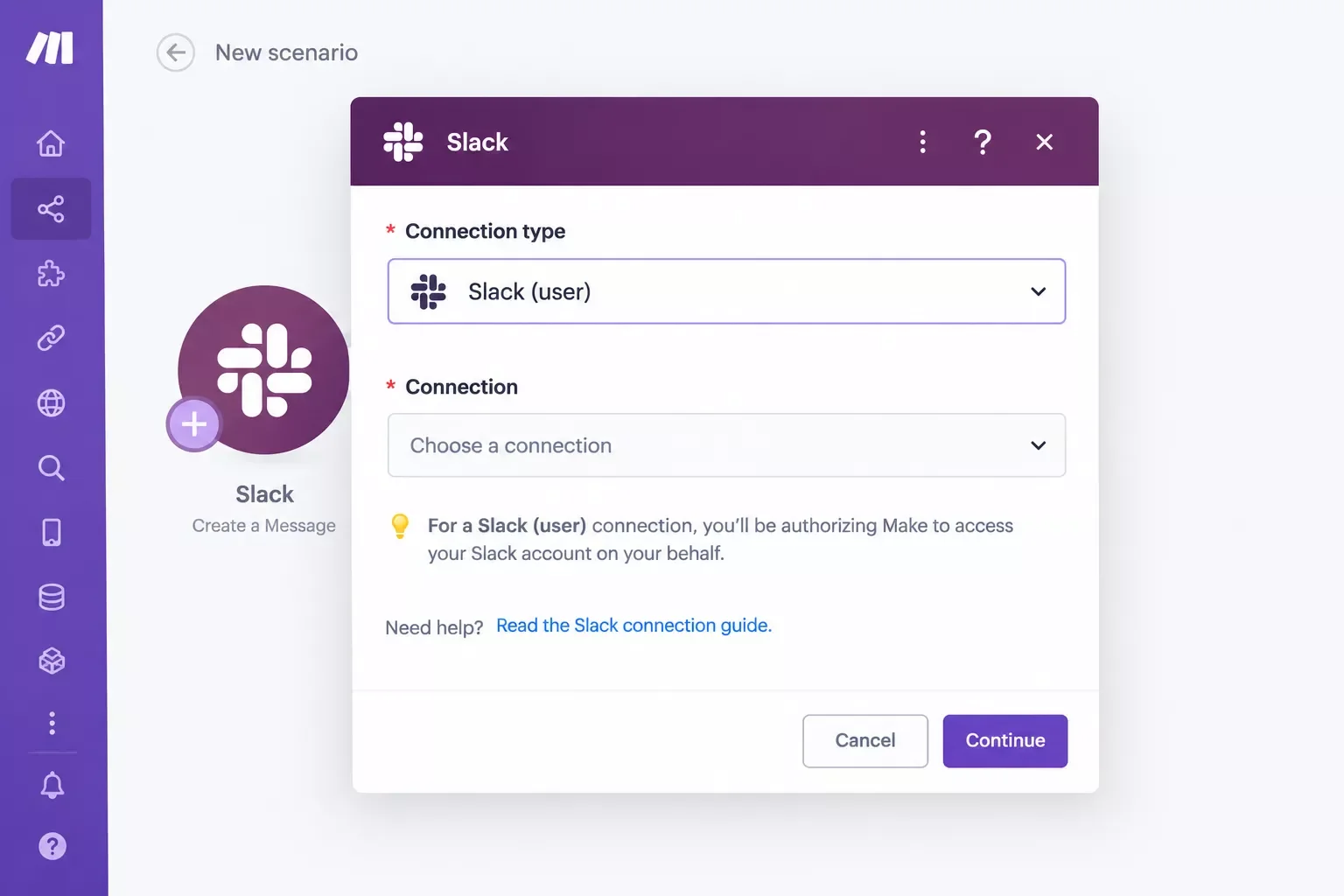
- Notify Correct Territory Channel (Send a Message). Click either Slack module on the canvas and create a connection. Choose "Slack (user)", not a generic bot connection. It sends alerts straight to any channel you're already in. Give the connection a name and click Save. You'll only need to do this once. The other Slack module in this scenario (step 7 above) reuses the same connection automatically. One note if you're connecting Slack for the first time: additional scopes are required for the Make an API Call module specifically. Check Slack's own API documentation and add scopes for every API call this connection will make.
- 11a (on error) — Ignore if Slack Alert Fails (Flow Control: Ignore). Same as step 7a. A Slack hiccup never takes down the rest of the run.
Once all 16 stops are wired up, run it once for real. Send one test lead for each region you route to, one with a location Make.com won't recognize (it should land in your unrouted-leads fallback, not vanish), and one duplicate of a lead you already sent. If all five come out where they should, you're done.
One thing this template promises up front is zero field-mapping after setup. Here's exactly what that means, field by field.
Every field above is already wired into the template. The only thing you configure yourself is your Base ID and table name, back in step 3.
Here's the exact prompt the AI-scoring module uses. Paste it in as-is, and it's already tuned for this scenario.
You are a B2B lead-qualification assistant for a sales team. Score this incoming lead's buying intent and quality on a scale of 0 to 100, where 0 means no genuine interest and 100 means highly qualified and ready to buy. Base the score on urgency, clarity of need, and professionalism expressed in the message.

Lead details:
Name: {{1.name}}
Email: {{1.email}}
Source: {{1.source}}
Message: {{1.message}}

Respond with ONLY a single integer number between 0 and 100. Do not include any other text, explanation, or punctuation.
Advanced Error Handling & Architect Tips
A template that only works when every API call succeeds isn't actually finished. This scenario has five built-in error handlers, and each one exists because something specific goes wrong in real use, not because more branches look more impressive.
- Search fails, treat as new (step 4a). Airtable's search API occasionally times out for no real reason. Instead of the whole run dying on a search hiccup, this branch just treats the lead as new. Worst case, you get one lead logged twice instead of a lost lead.
- Slack alerts, ignored on failure (steps 7a and 11a). A notification is not the point of this scenario. The lead record is. If Slack has a brief outage, these branches let the run finish and write the record anyway, instead of failing the entire scenario over a message that didn't send.
- AI scoring, resume with a default (step 8a). If Gemini's API is slow or briefly unavailable, this branch resumes with a default score of 50 rather than stalling the lead in limbo. A mid-range default score is a safer failure than no score at all.
- Airtable write, retry on error (step 10a). Writing the new lead record is the one step that truly cannot fail silently. If Airtable's API rejects the write, this branch retries automatically instead of quietly dropping the lead.
The pattern across all five: a notification can fail quietly, but the actual lead record never gets lost without a retry or a fallback in place first.
People Also Ask
Can small businesses use lead routing tools without hiring a dedicated RevOps team?
Yes. Enterprise routing platforms are built assuming a RevOps team manages them, which is part of why they cost so much. A Make.com scenario like this one is built once and then runs on its own, with no dedicated operator needed day to day.
How does automated lead deduplication actually prevent duplicate follow-ups?
It checks every new lead against existing records (usually by email and phone) before anyone gets assigned to it. If a match exists, the system flags the existing record and alerts your team instead of creating a second entry a different rep might call.
What's the difference between lead routing and lead scoring?
Routing decides who gets the lead, usually based on region or team. Scoring decides how urgently it should be worked, based on buying intent. This scenario does both: it scores the lead with AI, then routes it to the correct region's Slack channel.
What happens to a lead if Make.com can't tell which region it belongs to?
It doesn't get dropped. Any lead with a location Make.com doesn't recognize routes to an unrouted-leads fallback channel instead, so someone still sees it and can assign it manually.
Is Airtable's free plan enough to run something like this?
For most small teams, yes. This scenario just needs a base with a leads table and API access, both available on Airtable's free tier. You'd only need to upgrade once your record count or usage grows well past a small team's normal volume.
Do I need a paid Make.com plan to run this scenario?
Not necessarily. This scenario has 11 core modules plus 5 error handlers, all running on a webhook trigger. Whether you need a paid Make.com plan depends on your monthly operation volume, not on anything specific to this template.
What happens if the same person submits two leads at once?
The duplicate check runs on every single incoming lead, not just once a day. If two submissions from the same email or phone arrive close together, the second one still gets checked against Airtable and flagged as a duplicate.
Can I add more regions to the router later without rebuilding the whole scenario?
Yes. The Router module is where region logic lives. Adding a new region means adding a new route inside that one module, not touching the webhook, the duplicate check, or the AI-scoring step at all.
Do I need coding experience to set this up?
No. Every step in the Setup Guide is a click, a paste, or a dropdown selection inside Make.com's visual builder. The one technical-feeling step, getting a free Gemini API key, takes about two minutes with no code involved.
Manual lead routing doesn't fail because your team is careless. It fails because tally sheets and memory don't scale past a handful of reps. The fix isn't a $500-a-month enterprise platform built for a RevOps department you don't have. It's a Make.com scenario that catches every lead the instant it arrives, checks it against what you already know, and puts it in front of the right person without anyone having to remember to do it.
That's what this template does, tested across five real scenarios before it ever went up for sale. If you're also running leads through a real AI sales agent for qualification via Make.com or automating your CRM as a solopreneur, this scenario slots into either setup without a rebuild.
⚡ Pro Tip: Run your "unrouted lead" fallback test first, before any of the region tests. It's the one path teams forget to check, and it's the difference between a lead quietly disappearing and a lead landing somewhere a human will actually see it.
If you'd rather watch someone build this once before doing it yourself, Architect includes a full video walkthrough alongside everything Solo gives you. Solo works just as well if you're comfortable following the written Setup Guide alone.
Ready to stop tallying leads by hand?
Need this adapted to a setup that's a little different from the template?
If your lead flow has extra steps (a CRM this doesn't natively write to, or a scoring rule specific to your business) reach out and we'll talk through what a custom build would look like.
Let's TalkFound this guide useful? Share it with a fellow freelancer who's still doing things manually. 🚀
Got a question or a workflow roadblock? Drop it in the comments below, happy to help.
Last Updated: October 1, 2026

// Comments