 SmartSoloFlow
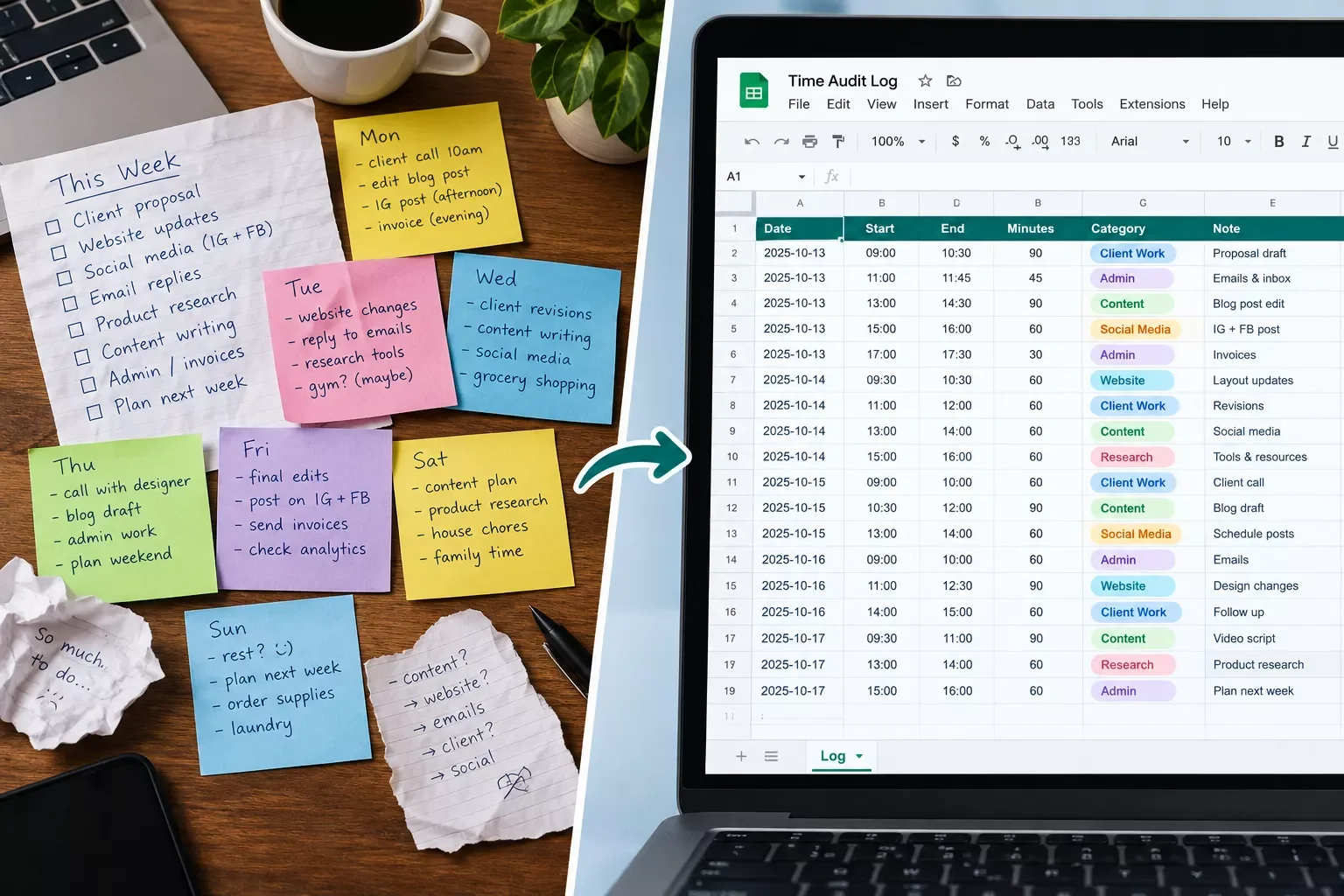
Key Takeaway: A time audit shows where your week really goes. Log everything for seven days, sort it into a few categories, and review the totals once.
System Goal: See where your hours actually go in one normal week
Core Framework: One-week time audit, with a manual log first and an automated log second
What is a time audit? It is a one-week record of what you actually do, hour by hour, so you can see where your time goes before you try to change it. For solopreneurs, the hard part is not the idea. It is keeping the log going when client work piles up.
This guide shows a simple method: log everything for seven days, sort it into a few categories, and review the totals. You will also see how a Make.com scenario can copy finished time entries into a Google Sheet, so your weekly review needs no copy-and-paste.
Once you know the numbers, you can block your time around what the audit shows. Follow the steps yourself, or have SmartSoloFlow build the Make.com version so you keep your hours for client work.
- The Core Problem
- My Productivity Strategy
- Set Up Your Audit Log Before Day One
- Implementation (Step-by-Step)
- The Manual Way
- The Automated Way
- From Toggl Track to Google Sheets: Log Time Entries Automatically for Your Weekly Time Audit
- Set Up the Scenario
- Map the Fields
- Watch-Outs and Costs
- Read Your Week in the Sheet
- Conclusion
The Core Problem
The core problem is simple: you feel busy all week, but you cannot say where the hours went. Without that picture, every schedule fix is a guess. A time audit gives you the picture. It takes one week of honest logging, and it works best when logging takes almost no effort.
Memory is a poor timekeeper. You remember the big client call. You forget the forty small switches between your inbox, an invoice, and a Slack ping.
Here are some common places solo hours leak:
- Checking email and Slack between every task, so deep work never starts.
- "Quick" admin such as invoices, receipts, and 1099 bookkeeping.
- Zoom calls that run twenty minutes over.
- Small requests from clients that never made it onto your task list.
The catch is the logging itself. A paper log or a spreadsheet works fine, but it is easy to skip on a busy day, and a half-filled week tells you very little. Make.com can handle one part of this.
It can copy finished time entries from a tracker into a Google Sheet on a schedule, so you are not retyping them. It will not start your timer for you, so the habit still matters.
My Productivity Strategy
To run a time audit, log what you do for seven days, group the entries into a few categories, total each category, and compare the totals with what you expected. Then pick one change to test the following week. The steps below keep it short.
- Pick a normal week. A holiday or a product launch will skew the numbers.
- Choose four to six categories before you start, such as client work, admin, sales, learning, and breaks.
- Log as you go, in blocks of about 15 minutes, with one short note per block.
- Fill the gaps at the end of each day, while you still remember.
- After day seven, add up the hours in each category.
- Compare the totals with your guess and choose one change to test.
A time audit is a short study with an end date. Ongoing time tracking has no end. You are gathering evidence for one decision, not building a habit you must keep up forever.
Keep the first audit boring. A plain Google Sheet beats a fancy setup you will abandon by Wednesday. I've used Google Sheets, so the examples later in this guide use it.
One caution: the audit shows what you did, not what you should have done. The numbers are a starting point for a decision, and the decision is still yours.
Set Up Your Audit Log Before Day One
Before day one, decide what you will record for each block of time: the date, the length, one category, and a short note. That is all a basic time audit worksheet needs. Keeping it small is what helps it survive a busy week.
Here is a simple layout for your Google Sheet, with one row per block of time:
- Date
- Start and end time, or total minutes
- Category, picked from a fixed list
- Note, in a few words (for example, "invoice for the ACME project")
Pick the category list now and stick to it. Four to six labels is plenty. If you rename them halfway through the week, the totals stop being comparable, and the audit loses most of its value.
A solo service business might use Client Work, Admin and Finance, Sales and Outreach, Learning, and Breaks. Add an "Unplanned" label for the quick requests that interrupt you. That is often where the surprises hide.
If you prefer Excel, the same time audit template works there with the same columns. A Google Sheet has one advantage: it connects easily to automation later on. Add an in-cell dropdown list to the Category column, so you pick a label instead of typing one.
Implementation (Step-by-Step)
You can run a time audit two ways: by hand in a Google Sheet, or by letting a tracker record the time while a Make.com scenario copies it into your Sheet. Start by hand if you have never done an audit. Move to the automated route when logging starts to feel like a chore.
The Manual Way
- Create a Google Sheet with the columns from the last section.
- Set a repeating phone reminder every two hours to log what you did since the last one.
- At the end of each workday, spend five minutes filling any gaps and fixing categories.
- On day seven, add up the hours for each category on a separate Summary tab.
⚠ Watch Out For: If you only log at the end of the day, you will forget the small switches between tasks. A two-hour reminder catches most of them.
Here is an illustration. Say you are a freelance designer who bills clients through 1099 invoices. On Friday you add up your client work and find it is far below the hours you felt you worked. That gap is exactly what the audit exists to show.
The Automated Way
Manual logging works, but it depends on you remembering every block. A tracker with a start and stop timer (the kind people call a time audit app) records the time while you work.
A Make.com scenario can then check the tracker on a schedule and add a new row to your Google Sheet for each finished entry. Your weekly review reads from that Sheet instead of from memory.
Two limits are worth knowing. The scenario only copies entries that already exist, so you still have to start the timer. And because it runs on a schedule, new entries show up after the next run, not instantly. The next section walks through the exact scenario: the Toggl Track connection, the field mapping, and the Sheet layout.
From Toggl Track to Google Sheets: Log Time Entries Automatically for Your Weekly Time Audit
To log time entries into a Google Sheet automatically, connect Toggl Track to Make.com with an API token, use the Toggl Track "Watch Time Entries" trigger, and send each entry to a Google Sheets "Add a Row" module on a schedule. You still start and stop the timer yourself. The scenario only copies finished entries.
Make marks the Toggl Track app as Verified and says Make itself supports and maintains it. You need a Toggl Track account, a Google account, and a Make account. Setup uses one copied API token and one Google account connection, with no code.
Toggl Track's own reports can already total a week without any Sheet. The Sheet route earns its place when you want your weekly history, your own categories, and your own formulas in one file.
Set Up the Scenario
- In Toggl Track, open your profile icon, choose Profile settings, and copy your API token.
- In Make, start a scenario and add the Toggl "Watch Time Entries" trigger, and pick the one that is not marked "Deprecated". Next to Connection, click Add, name the connection, paste your API Token, and click Continue.
- Under "Choose where to start," pick "From now on," or "Since specific date" if you want to begin on day one of your audit week. Limit is required and defaults to 2 results per cycle, so raise it if you log more than two entries between checks.
- Add the Google Sheets "Add a Row" module, connect your Google account, and pick your audit spreadsheet and its log tab.
- Map the fields using the table below.
- Set the schedule. An hourly or daily check is plenty for a weekly audit.
- Click Run once, confirm a row appeared, then switch the scenario on.
Map the Fields
Field names were checked against Toggl Track's API documentation in October 2026. Confirm them in your own module output before you rely on them.
Watch-Outs and Costs
⚠ Watch Out For: Toggl's API documentation describes a running timer as having a negative duration and no stop time. Make does not say whether this trigger passes running timers through, so add a filter between the two modules that only lets entries with a stop time continue.
Make also describes this trigger as firing when a time entry is created or updated. An entry you edit later may arrive again, so check your Sheet for duplicate rows during your weekly review.
This is a polling setup, so new rows appear after the next scheduled check, not instantly. Make checks even when you logged nothing. Make's help puts the trigger alone at 24 credits a day on an hourly schedule, or 30 credits a month on a daily one. Each Add a Row counts as one more credit in Make's own course.
Credit figures come from Make's help pages and may change. Confirm your plan's monthly credit allowance on Make's pricing page.
Read Your Week in the Sheet
To read your week in the Sheet, total the minutes for each category with SUMIF or a pivot table, compare each total with your guess, and note the biggest surprise. Then choose one change to test next week.
Here is a time audit example with made-up numbers. You guessed 28 hours of client work, but the Sheet shows 19. Admin adds up to 11 hours, and Unplanned to 6. The 9-hour gap between your guess and the total is the thing to chase.
- Totals by category: compare each one with what you expected.
- Unplanned blocks: which requests interrupt you most often?
- Gaps: hours with no entry at all, which may mean forgotten logging or real free time.
- Week over week: once two weeks sit in the Sheet, see what moved.
If you already run a weekly review in a task app, drop the Sheet totals into that routine.
Test a single change, such as batching your admin into a fixed hour, so you know what caused any shift. A habit tracker can then help you keep that change going. Because the Sheet keeps every week, you can compare them later without starting from memory.
If your log grows over several months, it helps to know why spreadsheet automations break as volume grows.
People Also Ask
What is a time audit, and how is it different from ongoing time tracking?
A time audit is a short study with an end date, where you record what you do so you can see where your hours go. Ongoing time tracking has no end date. The audit gathers evidence for one decision, then stops, which makes it far easier to keep up than a permanent habit.
How do I do a time audit for my own week as a solopreneur?
Pick a normal week, choose four to six categories, and log each block of time with a short note. Fill any gaps at the end of each day. After day seven, total each category and compare it with your guess.
Do I need a time audit app, or can I use a spreadsheet?
A spreadsheet is enough for a first audit, and it needs no new software. A tracker with a start and stop timer helps later, when manual logging gets skipped on busy days.
What should a time audit worksheet include?
Keep it small: the date, the length of each block, one category from a fixed list, and a short note. Add an Unplanned label for interruptions. Four to six categories is plenty, and a short fixed list keeps the totals comparable from one day to the next.
Can I automate the logging part of a time audit without writing code?
Yes, for the logging step. Make lets you connect Toggl Track to Google Sheets by pasting an API token and mapping fields. It copies finished entries on a schedule, so you still start and stop the timer yourself.
Will automating my time log actually save me time?
It removes the retyping of finished entries into your Sheet, and nothing more. It does not start your timer. If you only log a handful of blocks a day, the manual Sheet is faster to set up and perfectly fine for one audit.
What should I do if I forget to log a block?
Mark it as Unlogged instead of guessing. A guessed entry quietly corrupts your totals, while an honest gap shows you when logging breaks down. If the same time of day keeps going blank, that pattern is worth noticing.
Does a bad-looking audit mean I have been wasting my time?
No. The audit shows what happened, not a grade. Unplanned work and admin are normal for a solo business. Treat the numbers as a starting point, pick one change, and see what happens next week.
How often should I repeat a time audit?
Repeat it when your workload changes or when a fix does not seem to help. If you keep the Sheet running, earlier weeks stay in one place, so comparing two weeks takes minutes instead of a fresh start.
Conclusion
You now have a plain way to see where your week goes: log for seven days, total the categories, and change one thing. The audit does not need to be perfect. It needs to be finished.
Pick the route that fits how you work today. Choose the manual Sheet log if you track a handful of blocks a day or you are running your first audit. Choose the Toggl Track and Make route if you already use a timer and the weekly copy step is the part you skip.
⚡ Pro Tip: Add a column called Surprise and mark any block that felt longer or shorter than you expected. Review those rows first, because they point at the habits you were least aware of.
If one week still feels like a blur, run a second week by hand before you build anything. You will learn which fields you actually use, and any automation gets simpler.
A done-for-you version of this audit log is work I take on as a No-Code Architect, built around the tools you already use, so the weekly copy step stops being your job.
Want This Built for Your Business?
SmartSoloFlow publishes Make.com automation guides and builds custom workflows for solo businesses. If you want a time-logging setup around the tools you already use, tell us what they are.
Request a BuildFound this guide useful? Share it with a fellow freelancer who's still doing things manually. 🚀
Got a question or a workflow roadblock? Drop it in the comments below, happy to help.
Details checked: October 2026
Last Updated: October 17, 2026

// Comments