 SmartSoloFlow
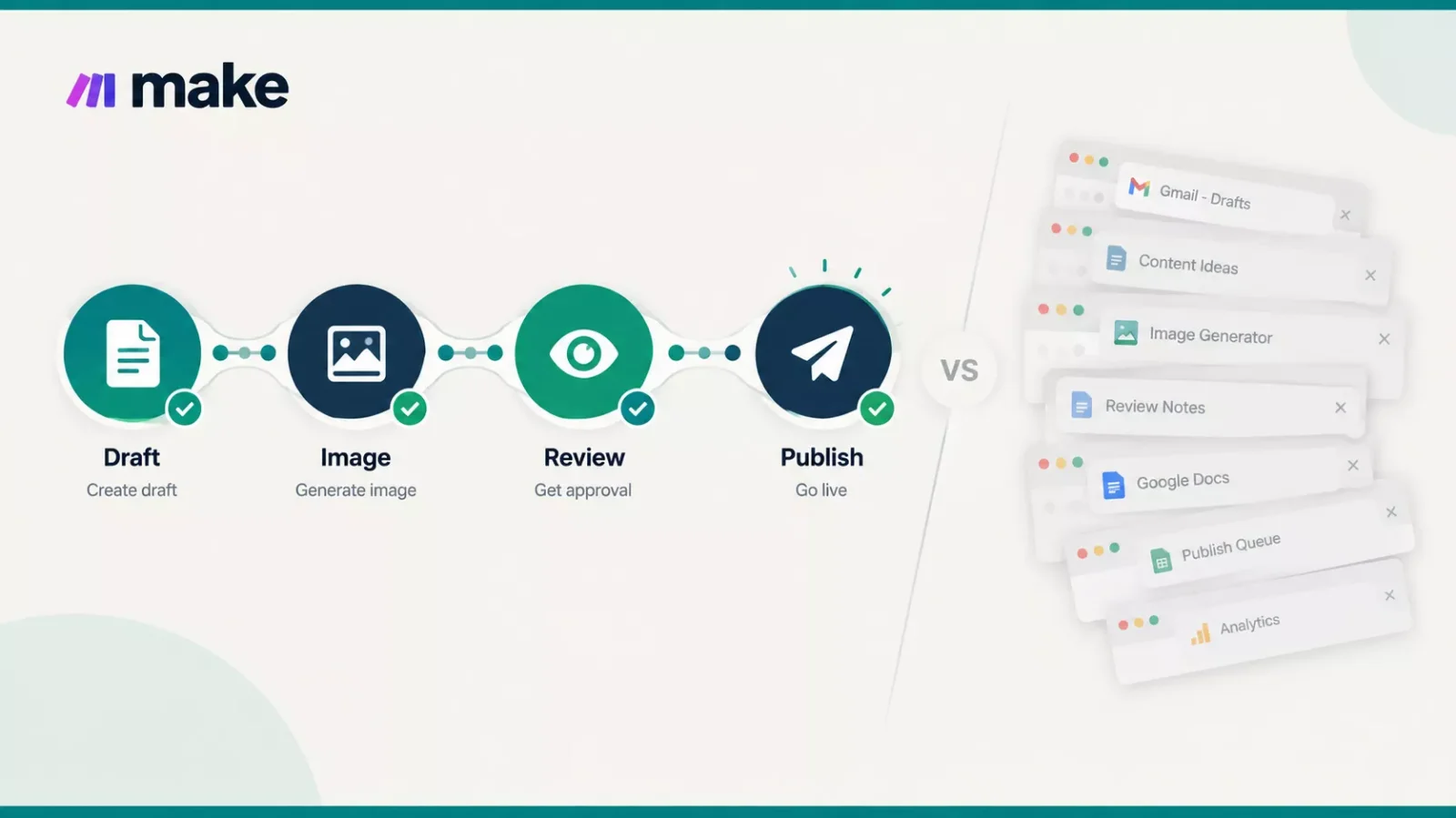
Key Takeaway: Choose AI content creation tools by the output you need and where it has to end up, then automate only the hand-offs you repeat every week.
Which AI content creation tools are actually worth your time, and how do you connect them so content moves forward without you copying it between tabs? If you're a tech enthusiast comparing tools, the real confusion isn't a shortage of options. It's telling which ones fit your kind of content and which ones only add another login.
This guide sorts the tools by what they produce: text, images, video, search-focused editing and scheduling. It gives you four questions for choosing, shows where a tool's built-in features are enough, and then explains how to chain your picks into one draft-to-publish workflow using Make.com, an automation platform.
Tool details were checked in October 2026, and the table in the first section shows each tool's role at a glance.
- Which AI Content Creation Tools Do You Actually Need?
- How to Choose: Four Questions Before You Pick a Tool
- Free AI Content Creation Tools: What the Free Plans Actually Cover
- Deep Dive Into Features: Three Differences That Matter
- Where Your Style Is Stored
- Drafting and Publishing in One Place
- What the Usage Meter Counts
- Pros & Cons: Stacking Separate Tools vs One Suite
- Who Is This For? Matching the Approach to Your Work
- Connect AI Content Creation Tools Into an Automated Publishing Workflow
- Choose the Trigger First
- Connect Only Where Content Changes Apps
- Keep a Person in the Loop
- Master Stroke: Integration With Make.com
- Pricing & Hidden Costs: What a Stack Really Costs You
- Final Verdict & Use-Case Scenarios
- Ideal For
- Skip This If
- Frequently Asked Questions About AI Content Creation Tools
- Where to Start With AI Content Creation Tools
TL;DR: Need text first? Start with a general assistant like ChatGPT, or a marketing-focused writer like Jasper if brand voice matters across a team.
Need visuals or video? Canva covers design and has its own content planner, Midjourney is built around image generation, and HeyGen around talking-avatar video.
Copying drafts between tools by hand? That hand-off is the step to automate with Make.com, once the tools are chosen.
Which AI Content Creation Tools Do You Actually Need?
Start with the output you publish most often. Text tools draft and rewrite copy, image tools generate visuals from prompts, video tools turn scripts into clips, search-focused editors score a draft before it goes live, and scheduling tools publish it. Pick the one or two categories that match your work.
Details checked: October 2026. Tool capabilities above were verified at the time of writing. Plans and features change often, so confirm current details on each vendor's official website before you decide.
No tool wins every row. A general assistant such as ChatGPT touches several rows, while a dedicated tool concentrates on one. Which of the best AI content creation tools suits you depends on how much of your work sits in a single lane.
Choosing is only half the job. The other half is moving a finished draft from one tool to the next. Make.com is an automation platform where you build scenarios, trigger-based chains of modules, that pass data between apps. It can pick up that hand-off for you, and the workflow section later in this guide shows how.
How to Choose: Four Questions Before You Pick a Tool
Choose by answering four questions in order: where does the finished content need to end up, what type of content do you make most, who reviews it before it goes live, and which plan limits could stall you? The first answer often narrows the list faster than any feature comparison.
- Where does it need to end up? A blog, an email platform and a social feed each expect different formats. If the destination is a social feed, a tool with its own scheduler, such as Buffer or the content planner built into Canva, may already cover the last step. For a wider look, see how social scheduling tools compare.
- What do you make most? Match the category from the table above to your highest-volume content. Heavy text work points to the writing row. Visual-first work points to the image or video rows.
- Who reviews it? Someone has to read AI output before it's published. Decide whether that's you, a teammate or a formal approval step, because the answer decides whether you can safely automate publishing later.
- Which limits could stall you? Plans cap usage in different ways, such as usage allowances or seat counts. Check the vendor's own pricing page before you commit, and look at the limit on the feature you'll use most.
Most AI tools for content creation look alike on a features page, so these questions start from your workflow instead. If two tools fit, pick the one that exports to, or connects with, the place your content already lives.
Details checked: October 2026.
Free AI Content Creation Tools: What the Free Plans Actually Cover
Free AI content creation tools differ in what they limit: usage, connected channels or features. A free plan works well for testing a workflow, but the first limit you hit decides whether you can rely on it. Check what each limit actually counts before you build around it.
- ChatGPT: OpenAI's Free tier FAQ says ChatGPT is free to use and includes image creation and data analysis, with separate usage limits for tools like these. OpenAI also says ads may appear in the Free tier in certain countries.
- Canva: Canva's pricing page says Canva Free is available to anyone. Its AI tools draw from a shared monthly allowance that varies by plan, and paid plans list more AI than Free.
- Buffer: Buffer's pricing page lists a Free plan that connects up to three channels and holds 10 scheduled posts per channel at a time. Its paid plans list unlimited scheduled posts per channel.
- HeyGen: HeyGen's guide to free avatar videos says its free generator lets you create short videos.
- Midjourney: Its plan documentation describes every plan as a subscription, with four tiers.
⚠ Watch Out For: Free limits move. OpenAI's own FAQ notes that available limits can change over time, so re-check a vendor's page before you build a routine around a free plan.
Details checked: October 2026. Free-plan details were verified on each vendor's own pages at the time of writing and can change without notice.
Deep Dive Into Features: Three Differences That Matter
Three differences matter more than feature lists: how a tool stores your style, whether drafting and publishing happen in the same place, and what its usage meter counts. Each one changes how much work you do by hand and how quickly a free or low-tier plan runs out.
Where Your Style Is Stored
Jasper's Brand Voice page says every output can reflect your brand's voice, tone and style. Jasper's help says a Brand Voice is built from content you provide and becomes part of the prompt.
That matters when several people write with the same tool, because the style is saved in one place instead of being retyped each time. A single writer may not need that extra layer.
Drafting and Publishing in One Place
Buffer's AI Assistant page describes brainstorming ideas, rewriting content and repurposing existing posts, and Buffer is a scheduling tool, so drafting and scheduling sit in one app. Canva's Content Planner help says you can schedule designs to social media directly from the editor.
In both cases the hand-off from draft to publish happens inside one app, so there is less left to automate. Turning one post into several formats has its own guide on content repurposing.
What the Usage Meter Counts
Meters differ. Midjourney's plan documentation lists monthly Fast GPU time for each tier, and Canva's pricing page describes a shared monthly AI allowance. Buffer's Free plan limits connected channels and scheduled posts, while OpenAI says tools such as image creation and data analysis have separate usage limits. Knowing what gets counted shows which habit will hit the cap first.
⚡ Pro Tip: Write down the three things you do most each week, then check which meter counts them before you pick a plan.
Details checked: October 2026.
Pros & Cons: Stacking Separate Tools vs One Suite
Stacking separate tools lets you pick a tool built for each job, but it adds more accounts, more usage meters and more hand-offs. A single suite cuts the hand-offs, though it may do less in any one lane. The right side of that trade-off depends on how often you publish.
Pros
- You can pick a tool for each content type, such as Jasper for marketing copy or HeyGen for avatar video.
- You can replace one tool without rebuilding the rest of your setup.
- Free plans let you test several tools before paying for any of them.
Cons
- Each tool has its own account, plan and usage meter.
- Drafts, images and captions move between apps by hand unless you automate the hand-off.
- Style settings live in separate places, so consistency takes extra checking.
- Costs come from several plans instead of one.
A suite such as Canva narrows the stack: its pricing page lists AI features such as video creation and a chat assistant, and its Content Planner help describes scheduling designs from the editor. Whether the depth in each area matches a dedicated tool is something only your own test can answer.
Details checked: October 2026.
Who Is This For? Matching the Approach to Your Work
This guide fits people who publish regularly and want a short list of AI content creator tools matched to their work: solo creators and small business owners producing social posts, blogs, images or short videos. It also fits anyone comparing tools before paying, and anyone tired of copying drafts between apps by hand.
- People who publish on a schedule. A weekly blog, daily posts or a regular newsletter repeats the same hand-offs, and repeated steps are the ones worth automating.
- Solo creators and small business owners. With no editor or social manager to pass work to, every manual step costs your own time.
- Anyone testing before paying. The free plans covered above let you try several tools without a commitment.
- Not the best fit: people who publish rarely. If you post once a month, copying a draft by hand costs little, and one general assistant may be enough.
- Not the best fit: readers who want a ranked winner. This guide groups tools by job and doesn't rank them. For a broader look at the category, see our wider coverage of AI tools.
Connect AI Content Creation Tools Into an Automated Publishing Workflow
Connect AI content creation tools by chaining four steps with Make.com: a trigger starts the draft, an AI step writes or generates the asset, a review step lets a person approve it, and a publish step sends it to its destination. Keep the review step even if everything else is automated.
Example chain: a trigger starts the draft, AI steps create the text and image, a person approves, then the content is published.
Choose the Trigger First
Make has two trigger types. A polling trigger checks a service on a schedule. An instant trigger is a webhook: the service tells Make when new data arrives, and the scenario starts immediately. According to Make's Help Center, a trigger can only sit at the beginning of a scenario.
Schedules cost credits. Make Academy says every scenario run consumes credits, and its scheduling example shows a scenario using 2 credits per run on a 15-minute schedule adding up to 192 credits a day.
Another Make Academy unit adds that a scenario on a 15-minute schedule keeps running and consuming one credit each time, even when there is nothing left to process. So a polling trigger that finds nothing new still spends credits, which is why an instant trigger suits drafts that arrive unpredictably.
Connect Only Where Content Changes Apps
If a tool already schedules posts itself, such as Buffer or the content planner in Canva, you may not need a Make step at that point. Connect the tools where content leaves one app for another, such as a finished draft moving into a design, or an approved post moving to your website.
Keep a Person in the Loop
Put a person between the AI output and the publish step. Store the draft where a reviewer can read it, and send it on only after approval. No tool in this guide judges whether the content is accurate or on-brand for you, so that check stays with a human.
⚠ Watch Out For: Not every app has an instant trigger in Make. Make's webhooks documentation says instant triggers carry an INSTANT label in an app's module list, and that a custom webhook gives you a URL to send data to. If neither fits a tool, plan for a scheduled run and the credits it uses.
The next section checks, tool by tool, how each one connects to Make.
Details checked: October 2026.
Master Stroke: Integration With Make.com
Six of the seven tools above were checked for a Make connection. Five have a Make app, and Surfer reaches Make through its API because no Make app was found for it. What each connection needs, such as an API key or a paid plan, matters more than whether an app exists.
Details checked: October 2026. Connection and plan details were verified at the time of writing. Apps and plan requirements change, so confirm them on Make's app pages and each vendor's website before you build.
Midjourney is left out of this table because no Make app or API for it could be confirmed from Midjourney's or Make's own documentation.
Setup effort varies. Most connections ask you to sign in or paste an API key. OpenAI, Jasper and HeyGen use API keys, and Surfer's plan requirement is the one to check before you plan a build. A separate roundup covers more search-focused tools that connect to Make.
The payoff is one scenario that hands each finished asset to the next tool. As an example, a trigger module starts it, an OpenAI module drafts a caption, and a Buffer module schedules the post. If that start is a scheduled check, the credit use covered earlier applies.
More AI tools that pair with Make are covered separately, and the same idea scales into larger systems for automating a solo business.
Pricing & Hidden Costs: What a Stack Really Costs You
Hidden costs in an AI content stack come from three places: each tool's own usage meter, plan requirements that unlock connections, and the credits Make uses to run scenarios. Sticker prices miss all three, so add them up from the vendors' pages for your own volume.
- Plan requirements for connections. Surfer's docs say API requests are blocked without the required plan or add-on, and Make's Canva documentation says images are available for paid Canva accounts. A plan that works inside the app may not include API access.
- Stacked meters. A workflow that touches three tools draws on three separate allowances at once, and running out of any one stops the chain.
- Scenario credits. Make credits are separate from every tool's own plan, and Make Academy says every scenario run consumes credits. They scale with how often a scenario runs and how many modules each run uses.
- Review time. The human review step from the workflow section costs attention on every item, and that cost grows with your volume.
As an illustration only, not a Make benchmark: a scenario that uses 2 credits per run and runs 4 times a day uses 8 credits a day, or about 240 in a 30-day month. Count the modules in your own scenario to get your real figure.
⚠ Watch Out For: Free and low tiers can look sufficient until you connect them. Check API access and usage caps on your plan before you design a workflow around it.
Details checked: October 2026. Plan requirements were verified on the vendors' own pages at the time of writing and can change.
Final Verdict & Use-Case Scenarios
Match the stack to your publishing volume, not to a ranking. A solo creator can start with one assistant and one scheduler, a small business with a regular calendar benefits from one connected workflow, and a team with brand rules should check API access before automating anything.
Ideal For
- Solo creators posting often: a general assistant such as ChatGPT for drafts, plus a scheduler with its own AI assistant, like Buffer, or Canva's content planner if visuals come first. You may not need Make until the same hand-off repeats every week.
- Small businesses with a blog and social calendar: one text tool, one visual tool and a Make scenario that moves approved drafts to the scheduler, with the review step kept in place.
- Teams with brand guidelines: a tool with saved style settings, such as Jasper's Brand Voice, after you confirm that your plan includes the API access you'd need for automation.
- Video-led creators: HeyGen for avatar video, with the plan and API question settled before you build around it.
Skip This If
- You publish a few times a month. One app's built-in scheduler may cover the last step, and a Make scenario adds setup and credit use for little gain.
- You need every connection to be documented by the vendor. Check each tool's own documentation for an official Make app or API before you build around it.
- Your plan lacks API access. Surfer's docs say API requests are blocked without the required plan or add-on, so a Surfer step may not be available to you.
Details checked: October 2026.
📚 Explore This Topic Further
- Best AI Content Writer 2026: Jasper vs. Claude Compared
- 7 Best AI Image Generators for Automated Content in 2026
- Best AI Voice Generator for Make.com Automation in 2026
- I Automated Product Videos With This AI Video Generator (2026)
- 6 AI Email Writers That Pair With Your Make.com Stack (2026)
- Best AI PPT Maker: 6 Tools Compared for Automation in 2026
People Also Ask
What are the best free AI content creation tools?
It depends on the job, because each free plan limits something different. ChatGPT, Canva and Buffer each have a free plan, and HeyGen offers a free generator to try. Match the cap on each one to your own publishing habit before you commit.
Which AI content creation tool works best for social media?
Look for tools that cover the last step. Buffer pairs scheduling with an AI Assistant, and Canva combines design with a content planner. A drafting tool such as ChatGPT plus one of those two covers the whole path from caption to scheduled post.
Can AI content creation tools publish content automatically?
Some can. Buffer and Canva's content planner schedule posts themselves. For tools that can't, Make can pass finished content along when the tool has a Make app or an API. Keep a human review step before anything goes live.
How do I connect AI content creation tools to Make?
Open a scenario, add a module for the app, click Create a connection, then sign in or paste an API key when asked. Tools without a Make app, such as Surfer, need Make's generic HTTP module and the vendor's API documentation.
Details checked: October 2026.
Frequently Asked Questions About AI Content Creation Tools
How much should I budget for AI content creation tools?
There's no single figure. Costs come from each tool's plan, its usage meter, any plan needed for API access, and Make credits. Add those up from each vendor's own pricing page for your volume, and test with free plans first.
How do I compare AI content creation tools beyond their feature lists?
Compare where the content ends up, what the usage meter counts, which plan unlocks API access, and how the tool connects to Make. Those four points decide how much manual work stays with you, so check each one on the vendor's own pages.
Do I need Make.com to use these tools?
No. Every tool in this guide works on its own, and some, like Buffer and Canva, schedule posts themselves. Make becomes useful when content moves between apps by hand every week, or when you want an approval step between draft and publish.
Details checked: October 2026.
Where to Start With AI Content Creation Tools
Start with the category you publish most, not with the longest tool list. Pick one tool for it, test its free plan if there is one, and note which limit you hit first.
Once that works, read the dedicated comparison for your category in the topic list above: writers, image generators, voice, video, email or presentations. Then connect only the one hand-off that repeats, and keep a person reviewing before anything publishes.
⚡ Pro Tip: Connect one hand-off first and let it run for a few weeks before you add the next.
Moving drafts between tools by hand is the step worth handing off once it repeats. A useful first move costs nothing: write down each step from where the draft is created to where it's published, because that list becomes your scenario's module order.
If you'd rather have that chain built and working alongside your existing stack without piecing it together yourself, that's exactly what I build as a No-Code Architect.
Want this chain built for your stack?
SmartSoloFlow designs Make.com workflows that connect your content tools, with a review step you control. Tell us what you publish and where it needs to go.
Talk to SmartSoloFlowFound this guide useful? Share it with a fellow freelancer who's still doing things manually. 🚀
Got a question or a workflow roadblock? Drop it in the comments below, happy to help.
Last Updated: October 14, 2026

// Comments