 SmartSoloFlow
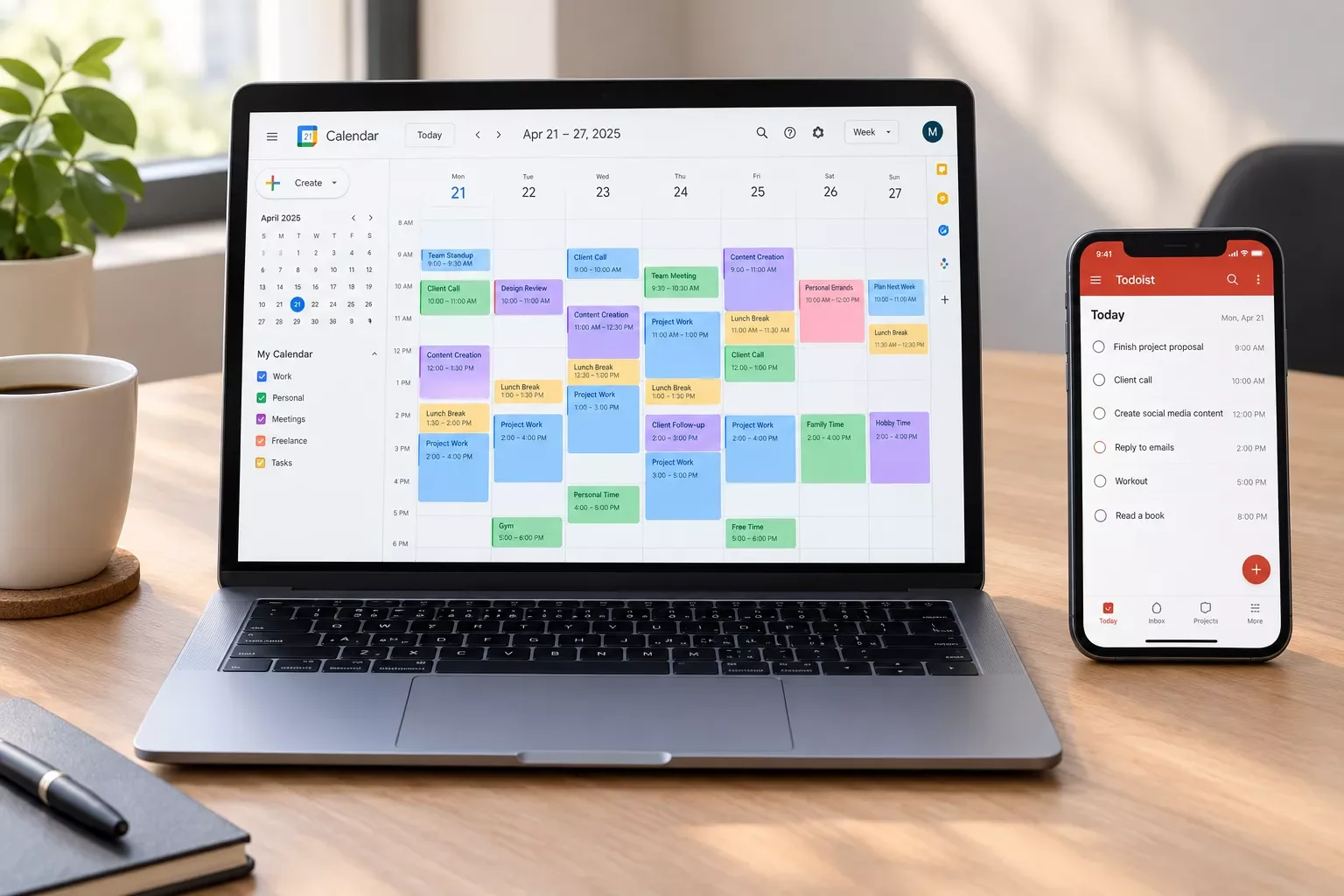
Key Takeaway: A weekly plan sticks when your task list builds it, not when you rebuild it by hand every Sunday.
System Goal: A week planned once and placed on your calendar automatically
Core Framework: Weekly planning with time blocking
Typing "plan my week" into a search bar usually means Monday is close and nothing is lined up. A manual routine is easy to skip on a busy Sunday.
Here's the short answer for solopreneurs: pick three priorities, give each Todoist task a day and a length, then let a Make.com scenario turn that list into Google Calendar blocks on a schedule.
This guide builds the plan once and lets it rebuild itself. You don't need a new planner app, just the two tools you may already use. Once the plan exists, time blocking your planned week is the natural next move.
Would you rather hand off the setup? SmartSoloFlow can build it in Make.com for you, or you can follow the steps below.
- The Core Problem: Monday Shows Up Before Your Plan Does
- My Productivity Strategy: How to Plan My Week in One Session
- A Weekly Schedule Template You Can Copy
- Do You Need a Template or a Printable?
- Implementation (Step-by-Step)
- The Manual Way
- The Automated Way
- How to Automatically Plan Your Week From Todoist Tasks in Google Calendar
- The Scenario at a Glance
- Build It, Step by Step
- What a Scheduled Run Costs
- Avoid Duplicate Events
- FAQs About Planning Your Week With Todoist and Google Calendar
- Your Week, Planned Before Monday Starts
The Core Problem: Monday Shows Up Before Your Plan Does
Weekly plans fail for a boring reason: they take real effort to build and almost nothing to break. One urgent client message on Tuesday makes the whole plan stale, so you stop rebuilding it. That's how a week ends up running you instead of the other way around.
Picture a freelance designer in Denver on Monday morning. Two client emails are waiting, an invoice is overdue, and the brand-guide project that pays the most this month hasn't been touched.
Todoist shows a long list of open tasks, and none of them has a day or a time attached. By noon she's answered email and put out two small fires. The brand guide slides to Thursday, then Friday.
The problem isn't effort. Urgent work is loud and important work is quiet, and a list without times can't compete with a full inbox. A plan only holds if it already sits on your calendar before the week starts.
Planning isn't the hard part. Keeping it going is. Make.com calls each automation a scenario, and you can set a scenario to run on a schedule, including weekly, according to Make's help center. Later in this guide you'll build one that reads your Todoist tasks and puts them on Google Calendar for you.
I've used both Todoist and Google Calendar, so the steps stay tied to what each app documents.
My Productivity Strategy: How to Plan My Week in One Session
A short, fixed session is enough to plan the week if you handle five things in order: review last week, capture every task in Todoist, choose three priorities, give each task a day and a length, then block the time. Do it at the same time each week. The steps below show how each one works.
- Review last week. Look at what got finished, what slid, and why. If you've never tracked where your hours go, a one-week time audit shows the pattern. A quick look here helps you avoid repeating the same overloaded Monday.
- Capture everything in Todoist. Dump client work, admin, and personal errands into one list, even the half-formed ones. Tasks that arrive by email or form are easy to lose, so automatic inbox capture helps keep the list complete.
- Choose three priorities. Pick the three outcomes that would make the week a win. Everything else is support work that fits around them. If two tasks both feel urgent, sorting them by urgent versus important settles which one earns a priority slot.
- Give each task a day, a time, and a length. This step matters most for what comes later. Todoist's help center says a timed task needs a date, a time, and a duration to appear as a calendar event.
- Block the time and leave buffer. Put your priorities on your best hours first, and protect deep-work hours from meetings. Small admin tasks can share one block if you batch similar admin tasks together. Then leave a gap each day for whatever comes up, because something always does.
A Weekly Schedule Template You Can Copy
Here's what a week looks like once those five steps are done. Treat it as a starting shape, not a rule.
Illustrative example only. Change the days, hours, and focus areas to fit your own work.
Do You Need a Template or a Printable?
A template helps you once. A system helps you every week. If you like paper, a printable or a weekly planner PDF is a perfectly good place to start, and it can show you what a balanced week looks like.
The catch is upkeep. A printed plan has to be rewritten by hand each week, and one that lives in a PDF can't see the tasks you added on Wednesday. Keeping it in Todoist, where the tasks already live, means nothing to copy over. Once the week is set, you can plan each day inside the week the same way.
Implementation (Step-by-Step)
You can plan your week two ways. The manual way is one weekly planning session plus Todoist's built-in Google Calendar sync, which puts dated tasks on your calendar. The automated way uses a scheduled Make.com scenario that reads your Todoist tasks and creates calendar events, so the plan refreshes on a schedule.
The Manual Way
- Run your planning session. Work through the five steps from the strategy above, then give every task you want on the calendar a date, a time and a duration in Todoist. Native sync only picks up a task that has all three, or a date alone if all-day sync is switched on.
- Connect Google Calendar. In Todoist, open your avatar, then Settings, then the Calendars tab, and choose Connect Google Calendar. Tick all three permission boxes. On mobile, go to Browse, tap the gear icon, then Calendar.
- Turn on task sync. Switch on "Sync tasks to calendar". If you also want date-only tasks to appear as all-day events, switch on "Sync all-day tasks".
- Check Google Calendar. Your time-blocked tasks show up in a new calendar named "Todoist". Used this way, the pair works as a simple plan my week app: Todoist holds the tasks and Google Calendar shows when they happen.
- Adjust during the week. Reschedule in Todoist and the calendar follows. Pro and Business plans also get a calendar layout inside Todoist for time-blocking directly.
According to Todoist's help page (updated October 7, 2026), the Beginner, Pro and Business plans can connect Google Calendar, view events and sync tasks. Only Pro and Business include the calendar layout for time-blocking. If you would rather block time in a dedicated app, compare time blocking apps first.
⚠ Watch Out For: Where the manual way stops.
- A task syncs only if it sits in a personal project (or is assigned to you in a shared one) and has a future date, time and duration.
- You cannot sync individual projects. It is all eligible tasks or none.
- Google Calendar does not support some recurrences, such as every X days, so Todoist creates a single event for the current occurrence instead.
- Turning sync off deletes every event in the Todoist calendar, including any you added by hand.
- Synced time blocks do not mark you as busy.
If those limits cover your week, stop here. The manual way costs nothing extra and takes one session.
The Automated Way
The limits above are where a scenario helps. Native sync cannot choose one project, but Make's Todoist app lists a module for searching uncompleted tasks, with a project selector, a text query and a result limit.
Make's Google Calendar app lists a module for creating an event. Put the two together and you control which tasks become events and which calendar they land on.
Make also lets you schedule a scenario to run once, daily, on weekdays, weekly or monthly, so the whole thing can run without you opening it. If you would rather skip building anything, a ready-made AI scheduler is another route. The next section walks through the setup module by module, including what a scheduled run costs in credits.
How to Automatically Plan Your Week From Todoist Tasks in Google Calendar
To automatically plan your week from Todoist tasks in Google Calendar, build a Make.com scenario with three parts: a Todoist search for uncompleted tasks, a filter for next week's due dates, and a Google Calendar event creator. Schedule it weekly, and each run turns your dated tasks into calendar events.
The Scenario at a Glance
The schedule is the trigger. Nothing runs between schedule ticks, so new tasks reach your calendar only after the next run.
Build It, Step by Step
- Create the scenario and set the schedule. In Make, create a new scenario and open its scheduling settings. Make's help page (updated June 30, 2026) lists weekly among its options, next to daily, weekdays, monthly, once and on demand. Choose weekly, which makes this a scheduled trigger, not an instant one.
- Add the Todoist module that searches uncompleted tasks. Create a connection, click Save, then authenticate your Todoist account when prompted (Make's Todoist page, updated February 10, 2026). The module's settings let you pick a project, add a text query and set a result limit. Its output includes each task's content, due date, duration, priority and labels.
- Add a filter after it. Make's module list shows no due-date setting on this search, so let the filter do the date work. Pass only tasks whose due date falls inside the coming week.
- Add the Google Calendar module that creates an event. Create a connection, choose Sign in with Google and approve the permissions. Make's Google Calendar page (updated October 16, 2026) marks your own Google Cloud client credentials as optional. If you do set up your own client, you must reauthorize every week while it stays in Testing status.
- Map the event fields. The module needs a calendar, a summary, a start time and an end time or a duration. Map the summary to the task content and the start to the due date. Todoist returns duration as an amount and a unit, so check the unit before you map it.
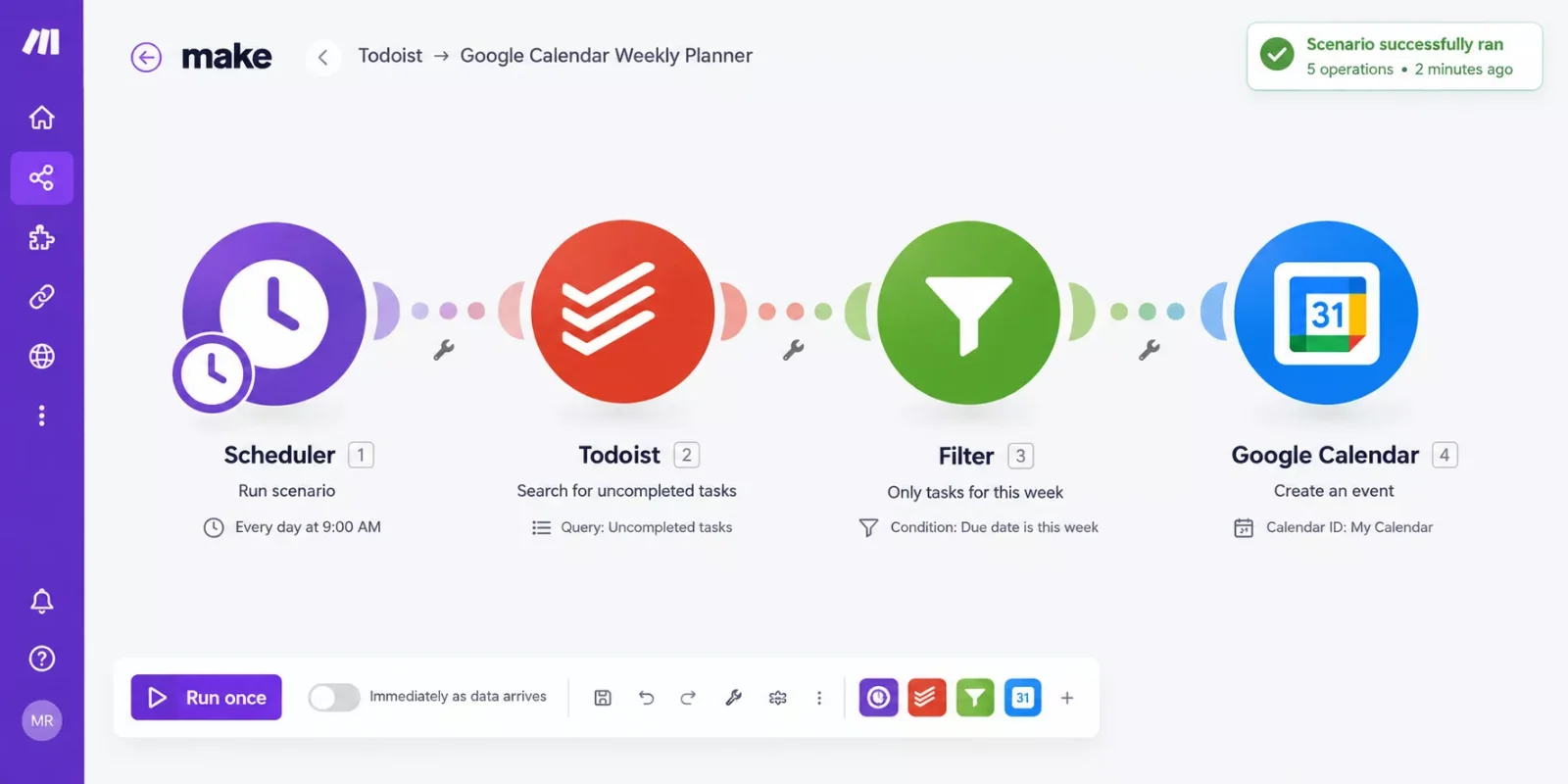
The finished scenario on Make's canvas, with the filter sitting between the two apps.
- Run it once, then switch it on. Use Run once, open Google Calendar and check that each task landed at the right time with the right length. If the times are off, fix the field mapping before you activate the schedule.
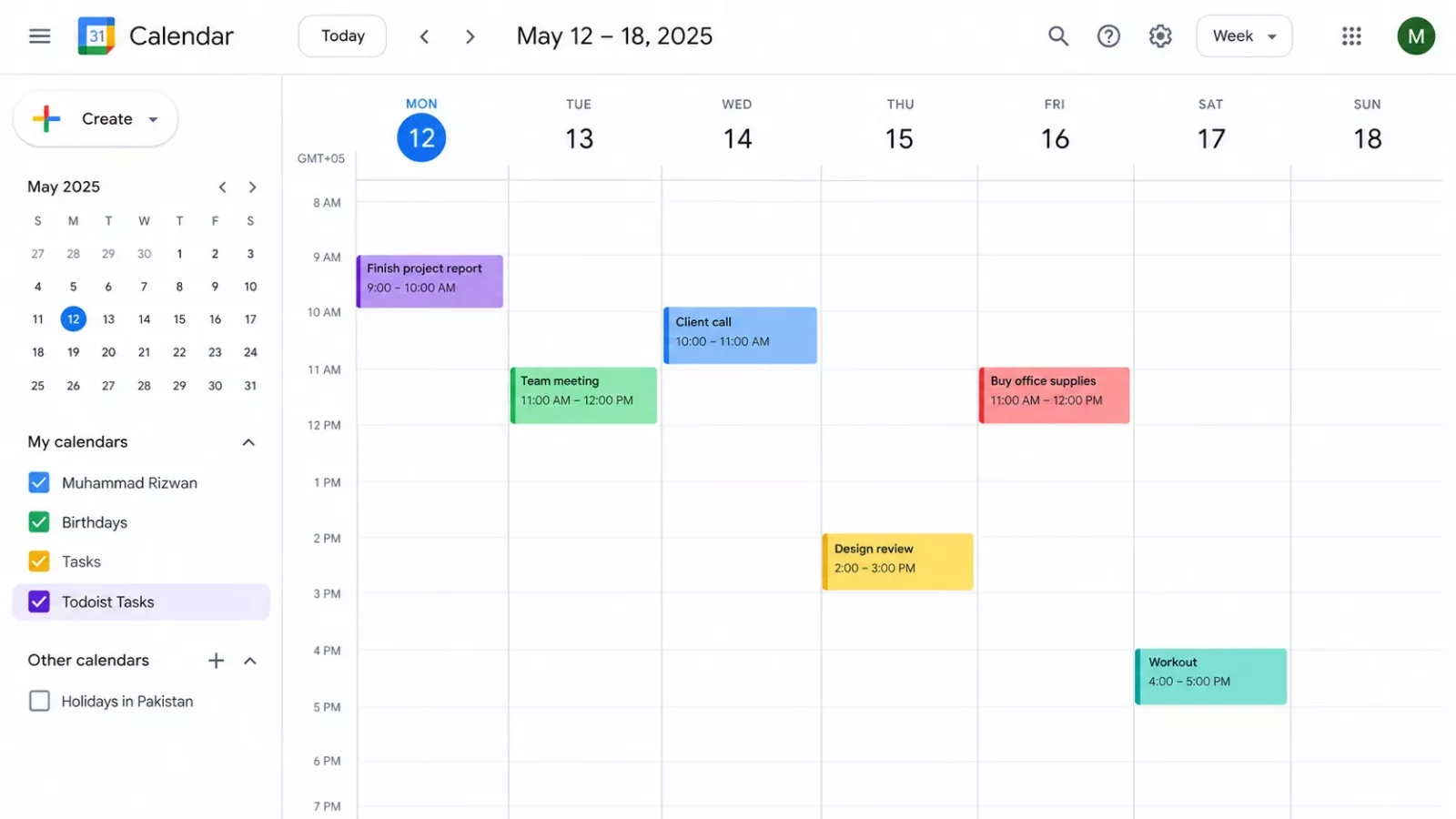
One week in a dedicated calendar after the first test run.
What a Scheduled Run Costs
Cost and timing note: This scenario uses a scheduled trigger, so it is not instant. Make Academy (updated May 21, 2026) counts credits per operation: its examples show one operation using one credit, and a check run where only the trigger module finds no new data still consumes one credit.
Your Todoist search step is an operation each time it runs, so a scheduled run is not free even in a quiet week. Fewer runs means fewer credits, which is one reason to schedule weekly instead of daily.
Avoid Duplicate Events
⚠ Watch Out For: Pick one system. If Todoist's native sync is on, every task shows twice: once in the "Todoist" calendar and once from your scenario. Choose one.
Switching native sync off deletes every event in the Todoist calendar, including any you added by hand, so move those first. The create-event module adds a new event each time it runs, so keep the due-date window from overlapping between runs.
If native sync already covers your week, keep using it. Build the scenario when you need project-level control or a separate calendar.
People Also Ask
Can Todoist add my tasks to Google Calendar automatically?
Yes, through Todoist's built-in Google Calendar integration. Connect it under Settings, then Calendars, and turn on "Sync tasks to calendar". Tasks with a date, a time and a duration then appear in a calendar named "Todoist". No extra tool is needed for that basic setup.
Do I need a paid Todoist plan to see my tasks on Google Calendar?
Per Todoist's help page, the Beginner, Pro and Business plans can all connect Google Calendar, view events and sync tasks. The calendar layout, which lets you time-block inside Todoist, is available only on Pro and Business.
Why isn't my Todoist task showing up in Google Calendar?
Check four things. The task must be in a personal project, or assigned to you in a shared one. It needs a future date, time and duration (or just a date if all-day sync is on), and it cannot be deleted. A recurrence Google Calendar cannot repeat, such as every X days, shows up as single events.
Can I turn a Google Calendar event into a Todoist task?
Not with the built-in sync. Adding a new event to the Todoist calendar does not create a task, and Todoist shows your other calendar events as read-only. They appear only in the Today and Upcoming views. Create the task in Todoist first, then let it sync to the calendar.
What should I do first when I plan my week?
Review last week before you plan the next one. Look at what finished, what slid and why. Then capture every open task in one list and pick three priorities. Starting with a look back keeps you from rebuilding the same overloaded Monday.
FAQs About Planning Your Week With Todoist and Google Calendar
How long should a weekly planning session take?
Long enough to finish the five steps and no longer. What matters is that the slot is fixed, so planning becomes a habit instead of a decision. If the session keeps growing, your task list is probably too messy, and the capture step needs more attention than the scheduling does.
What if my plan falls apart by Tuesday?
That is why the buffer gap exists. With native sync, reschedule the task in Todoist and the calendar follows. With the scenario, the calendar only updates at the next run, and the create-event module adds events rather than editing them. For mid-week changes, edit the event in Google Calendar directly.
Is automating this worth it if I only have a few tasks a week?
Probably not. If native sync already puts your tasks where you want them, keep it. A scenario earns its place when you need to plan from one project only, send events to a separate calendar, or want the plan rebuilt on a schedule without opening Todoist at all.
Will the scenario keep using credits if I forget about it?
Yes. A scheduled scenario runs every time its schedule fires. Make Academy counts credits per operation, and a check run that finds no new data still consumes one credit. If you stop using it, switch the scenario off in Make instead of leaving the schedule running in the background.
Your Week, Planned Before Monday Starts
Most weeks go wrong before they begin, because the plan lives in your head and the calendar is empty. You now have two ways to fix that.
One is a single planning session and Todoist's built-in sync. The other is a scheduled Make.com automation that reads one project and builds the calendar for you. Both start the same way: a short, fixed session and tasks that carry a day, a time and a length.
Start small. Run the manual way for a couple of weeks and see where it holds up. If the Sunday session is the part you keep skipping, that is your signal. Pick one project, build the scenario around it, and check the first run before you trust it with the rest.
⚡ Pro Tip: Start the task name of your three priorities with a short tag such as P1, so they stand out among the calendar events the scenario creates.
Prefer not to wire up the modules yourself? SmartSoloFlow builds Make.com scenarios like this one for solo businesses.
Planning a week should not cost you the Sunday you were trying to protect. If you would rather get that time back than spend a weekend building this, the complete, done-for-you version is exactly the kind of system I set up as a No-Code Architect, so solopreneurs do not have to.
Want Your Week to Plan Itself?
Tell me what your week looks like and what keeps knocking it off track. I'll build the Todoist to Google Calendar setup around it, or something fully custom.
Let's TalkFound this guide useful? Share it with a fellow freelancer who's still doing things manually. 🚀
Got a question or a workflow roadblock? Drop it in the comments below, happy to help.
Details checked: October 2026
Last Updated: October 22, 2026

// Comments